

Mobile application
Ironchip provides a mobile app, which is usually distributed through the official stores. It is available for Android and iOS and works the same on both systems.
Requirements
Section titled “Requirements”- A phone with Android or iOS and access to the official store (Google Play or App Store).
- Your administrator must have registered you in the admin console. You receive a verification email.
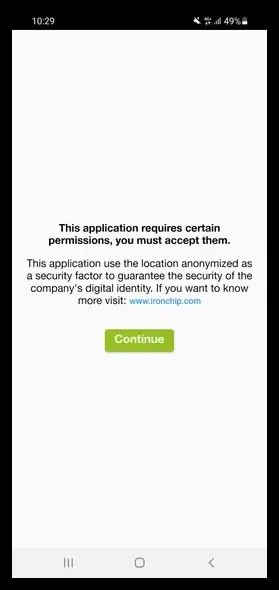
- Accept the permissions the app requests during enrollment: Camera (to scan the QR code), Location (to collect data from nearby Wi-Fi networks) and Phone calls (to collect data on nearby mobile networks). See Enrollment for the details, including the extra permissions on Xiaomi devices.
Download
Section titled “Download”You usually download the app from the official stores: Google Play or App Store.

For the detailed steps, see Enrollment.
Enrollment
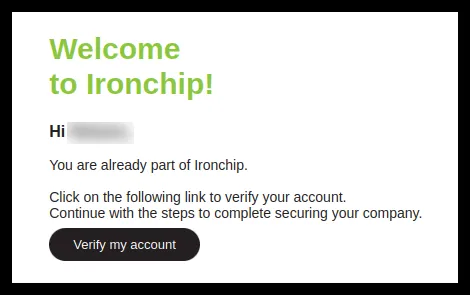
Section titled “Enrollment”To enroll, an administrator must have registered you in the admin console first. You then receive a verification email. Follow these steps:
-
In the email, click the Verify my account button.
-
If you have already downloaded the app, click Continue. Otherwise, you can download it by clicking the corresponding image.
-
The app opens. Accept the permissions it requests.
-
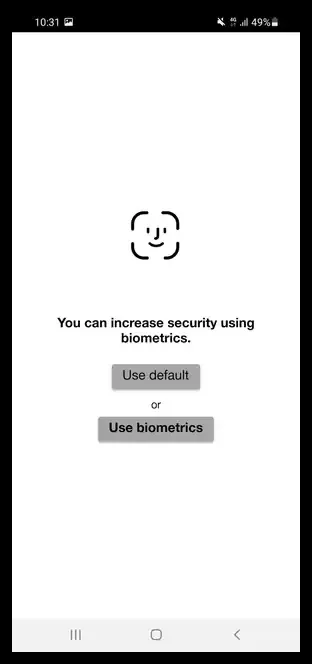
Choose whether to use biometrics in the app.
-
Scan the QR code on the computer screen with the Ironchip app.
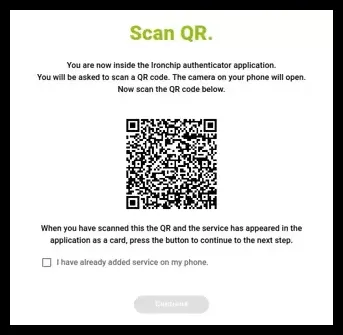
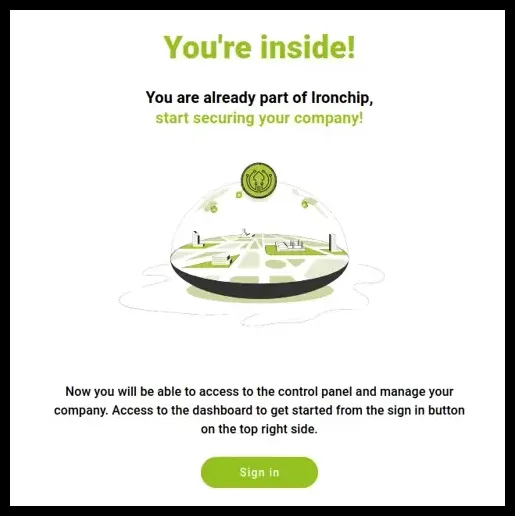
Enrollment is complete when the next image appears on the computer and the app opens on your phone.
Services
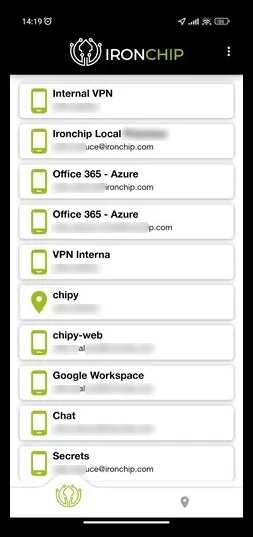
Section titled “Services”The services tab lists all the services you have access to. If your company so decides, it also includes the Ironchip Management Panel service, which is exclusive to the selected administrators who manage authentications and access to the services.
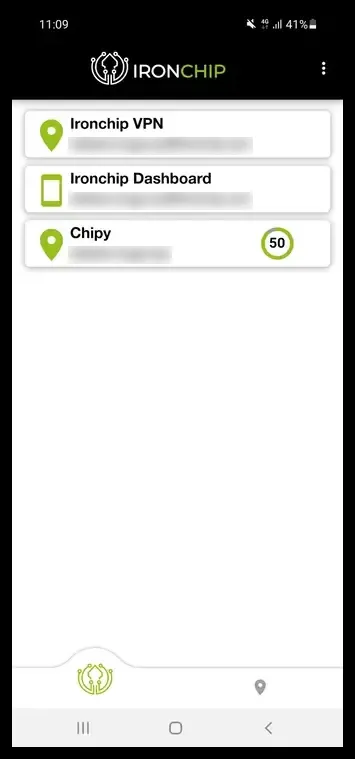
A countdown appears on these services if authentication has been requested for the service.
Safe zones
Section titled “Safe zones”The keys tab lists all the keys you have access to: the ones you created yourself and the ones shared by other members of your company.
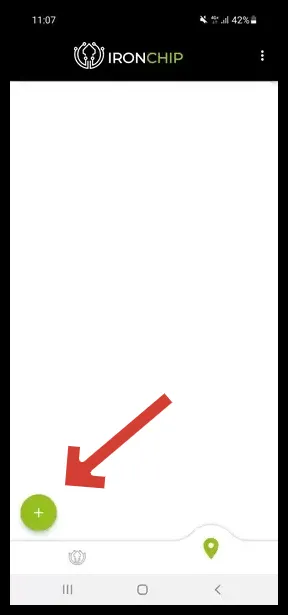
To create a new safe zone:
-
Tap the + icon.
-
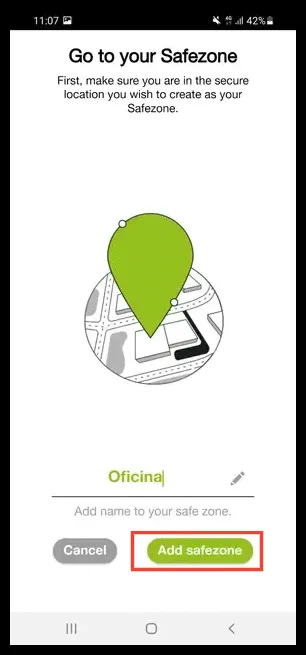
Enter a name for the safe zone.
-
Tap Add Safe Zone.
-
When the progress wheel reaches its end, the key is created.
Authentication
Section titled “Authentication”Once the safe zones are created and linked to the corresponding services, you can authenticate in two ways.
From the push notification
Section titled “From the push notification”This is the most common method.
-
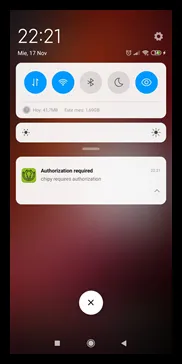
Enter your credentials in the service you want to access. A push notification arrives on your phone through the Ironchip app.
-
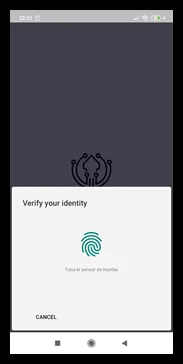
Tap the push notification. The Ironchip app opens, where you must enter the selected biometrics if it was set as a requirement.
-
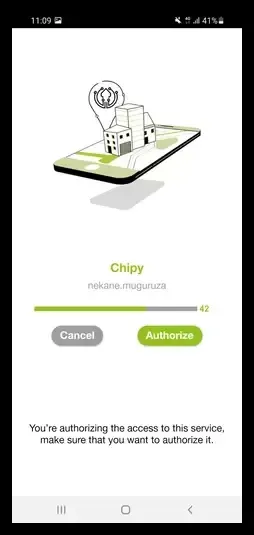
Tap Authorize. The signal scanning screen opens and verifies whether you are in the authorized location for accessing the service. If you are in the correct place, you get access to the service.
From the app
Section titled “From the app”-
Enter your credentials in the service you want to access. A push notification arrives on your phone.
-
Instead of tapping the notification, open the app directly and go to Services. On the service where you entered your credentials, a countdown timer shows how many seconds are left to run the signal scan and verify your identity. Tap the service card.
-
Tap Authorize. The signal scanning screen opens and verifies whether you are in the authorized location. If you are in the correct place, you get access to the service.
Version
Section titled “Version”To check the version of the mobile app:
-
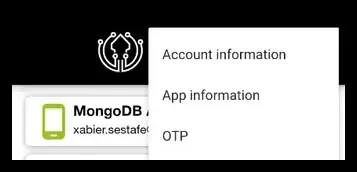
Open the app and tap the three dots in the top bar.

-
In the drop-down menu, tap App information.
-
A window shows the app version.
If you lose access
Section titled “If you lose access”If you have lost access to your account, contact your administrator so they can start the recovery. Then follow the steps in Recover your access: you open the recovery email and scan a QR code with the app.
Was this page helpful?
Thank you. We will use it to improve the documentation. If you want to tell us what is missing or unclear, write to support@ironchip.com.