

Citrix VPN
This guide explains how to integrate your Citrix VPN with Ironchip authentication through RADIUS.
Requirements
Section titled “Requirements”- A Windows server with NPS protected by Ironchip.
- Access to the Ironchip admin console.
- A working Citrix VPN deployment.
Configure Windows Server
Section titled “Configure Windows Server”-
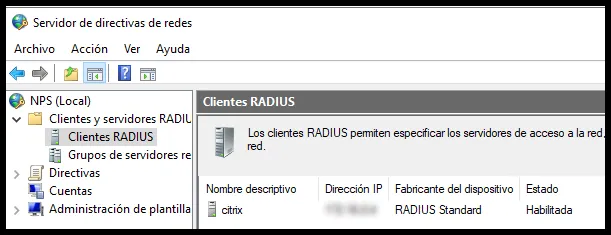
Create a RADIUS client that points to the IP address of your Citrix installation.
-
Check that the server firewall has a rule that allows the LDAP and RADIUS ports.
Configure Citrix
Section titled “Configure Citrix”RADIUS
Section titled “RADIUS”-
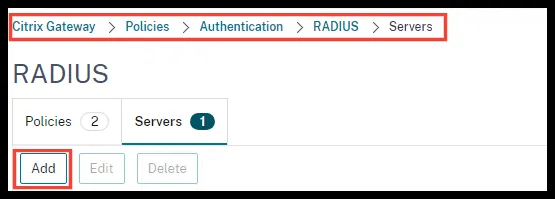
In the Citrix configuration utility, go to Citrix Gateway > Policies > Authentication > RADIUS > Servers and click Add.
-
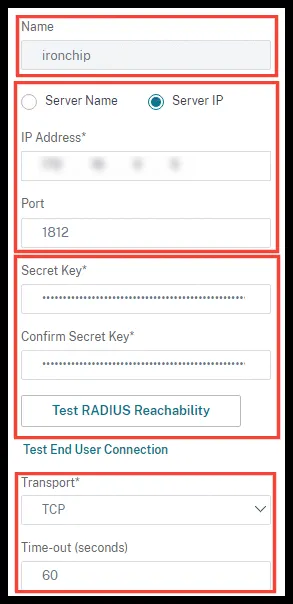
Fill in the details:
- Name: a descriptive name for the configuration.
- IP Address and Port: the IP and port Citrix uses to communicate with your RADIUS server.
- Secret Key and Confirm Secret Key: the shared secret of your RADIUS server.
- Transport: the transport protocol.
- Time-out (seconds):
60.
-
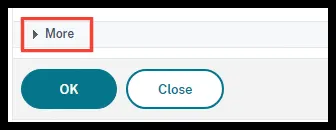
Expand More.
-
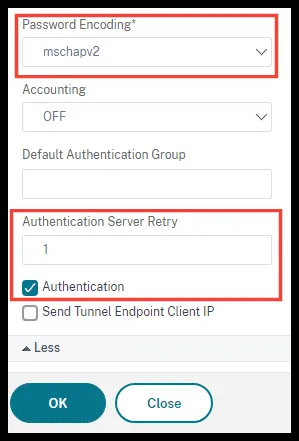
Go to the bottom of the page and change these parameters:
- Password Encoding:
mschapv2. - Authentication Server Retry:
1. - Make sure Authentication is selected.
- Password Encoding:
-
Click OK and save the configuration.
-
Go to Policies and create two policies that point to the RADIUS server you created. The names are optional, but we recommend using the same ones to make the next steps easier.
Name Expression ReceiverSelfServiceREQ.HTTP.HEADER User-Agent CONTAINS CitrixReceiverReceiverForWebREQ.HTTP.HEADER User-Agent NOTCONTAINS CitrixReceiver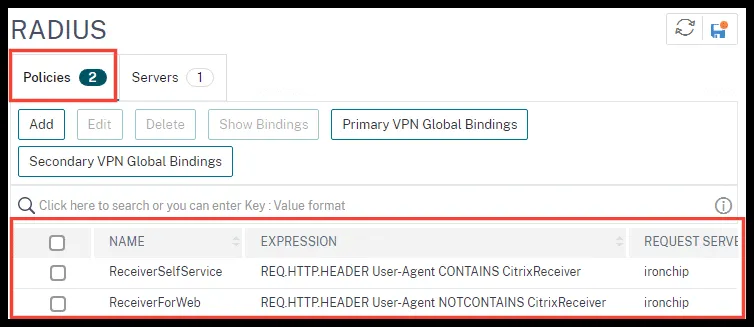
A second authentication through LDAP is required. It only lets Citrix read the users from Active Directory; it is not used to sign in.
-
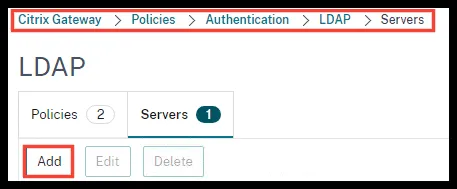
Go to Citrix Gateway > Policies > Authentication > LDAP > Servers and click Add.
-
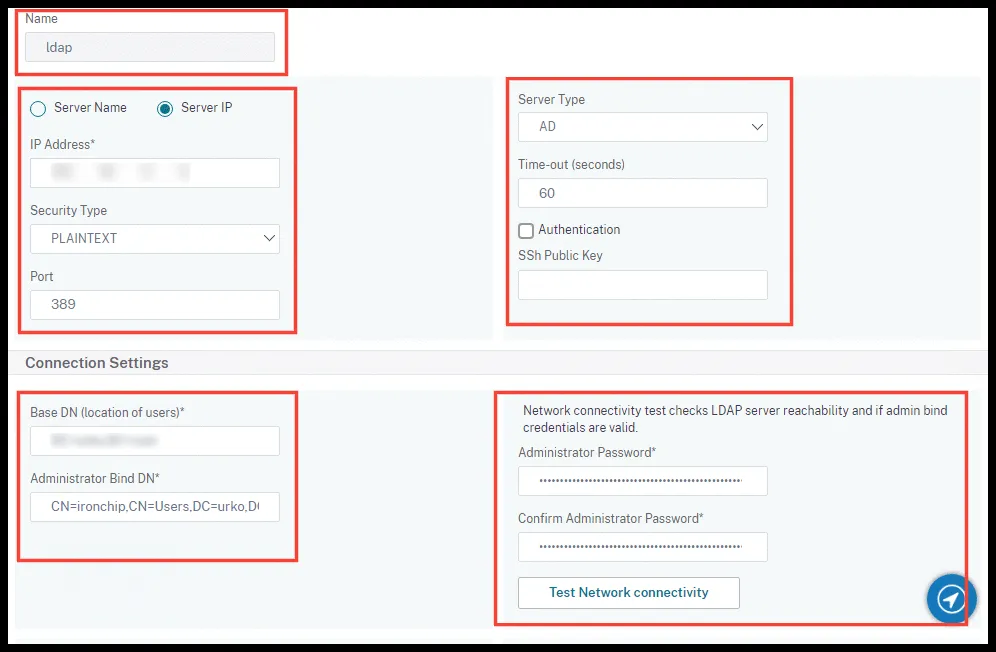
Change the parameters:
- Name: a descriptive name.
- IP Address, Security Type and Port: the IP of your RADIUS server, the security type and the LDAP port. We recommend SSL on port
636. - Server Type, Time-out (seconds) set to
60and the Authentication option cleared. - In Connection Settings, your domain in
DC=,DC=format in Base DN (location of users), and the Administrator Bind DN with its password. To get the Bind DN, runget-aduser <user> -Properties *in PowerShell and look for theDistinguishedNameparameter.
-
Change Server Logon Name Attribute to
SamaccountNameand save the configuration.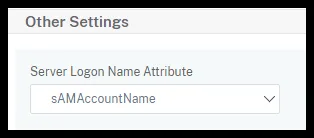
-
Go to Policies and create two policies that point to the LDAP server you created. The names are optional, but we recommend using the same ones.
Name Expression LDAP-Corp-ReceiverSelfServiceREQ.HTTP.HEADER User-Agent CONTAINS CitrixReceiverLDAP-Corp-ReceiverForWebREQ.HTTP.HEADER User-Agent NOTCONTAINS CitrixReceiver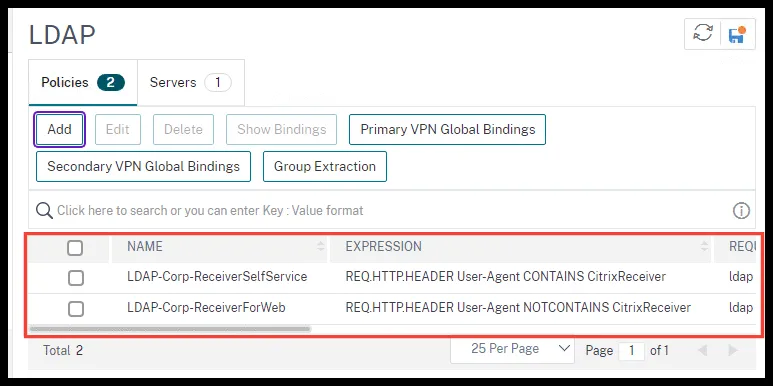
Citrix virtual server
Section titled “Citrix virtual server”-
Go to the Virtual Servers settings and edit the one that hosts the VPN.
-
In Basic Authentication, add the four policies you created in this order:
Policy Type Priority LDAP-Corp-ReceiverForWebLDAP Primary ReceiverSelfServiceRADIUS Primary LDAP-Corp-ReceiverSelfServiceLDAP Secondary ReceiverForWebRADIUS Secondary 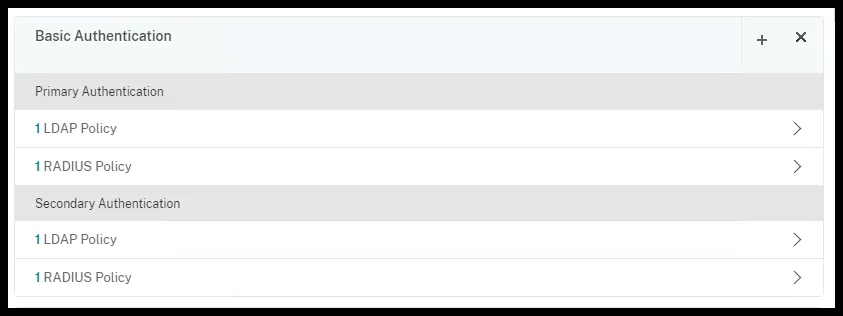
Verify the integration
Section titled “Verify the integration”In the Ironchip admin console, give users access to the application created for this service. When you sign in to the VPN, after entering your username and password, you are asked to authenticate with Ironchip.
Troubleshooting
Section titled “Troubleshooting”View the authentication log
Section titled “View the authentication log”To debug authentication and see a complete log in real time:
-
Connect to the command-line interface of the ADC (Application Delivery Controller) with an SSH client.
-
Switch to the shell command prompt:
Ventana de terminal shell -
Change to the
/tmpdirectory:Ventana de terminal cd /tmp -
Start debugging:
Ventana de terminal cat aaad.debug
Was this page helpful?
Thank you. We will use it to improve the documentation. If you want to tell us what is missing or unclear, write to support@ironchip.com.