

Check Point
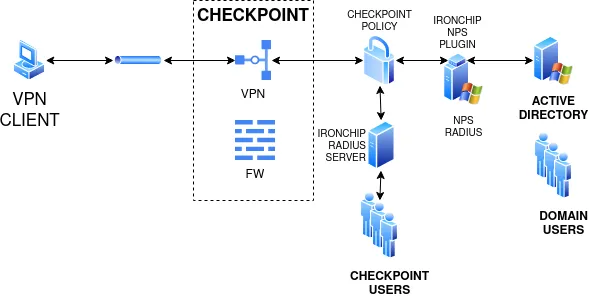
This guide explains how to protect Check Point remote access with Ironchip authentication over RADIUS. There are two RADIUS server options, and the Check Point configuration is the same for both: an NPS server for domain users (Active Directory) or the Ironchip RADIUS server for Check Point users.
Requirements
Section titled “Requirements”- For domain users (Active Directory): an NPS server with the Ironchip plugin.
- For Check Point users: the Ironchip RADIUS server installed and an API key application configured.
- Access to the Check Point Smart Console.
Architecture
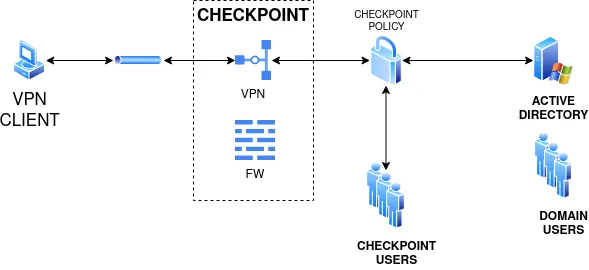
Section titled “Architecture”Check Point base scenario:
Integration with Ironchip:
Configure Check Point
Section titled “Configure Check Point”Create the host
Section titled “Create the host”-
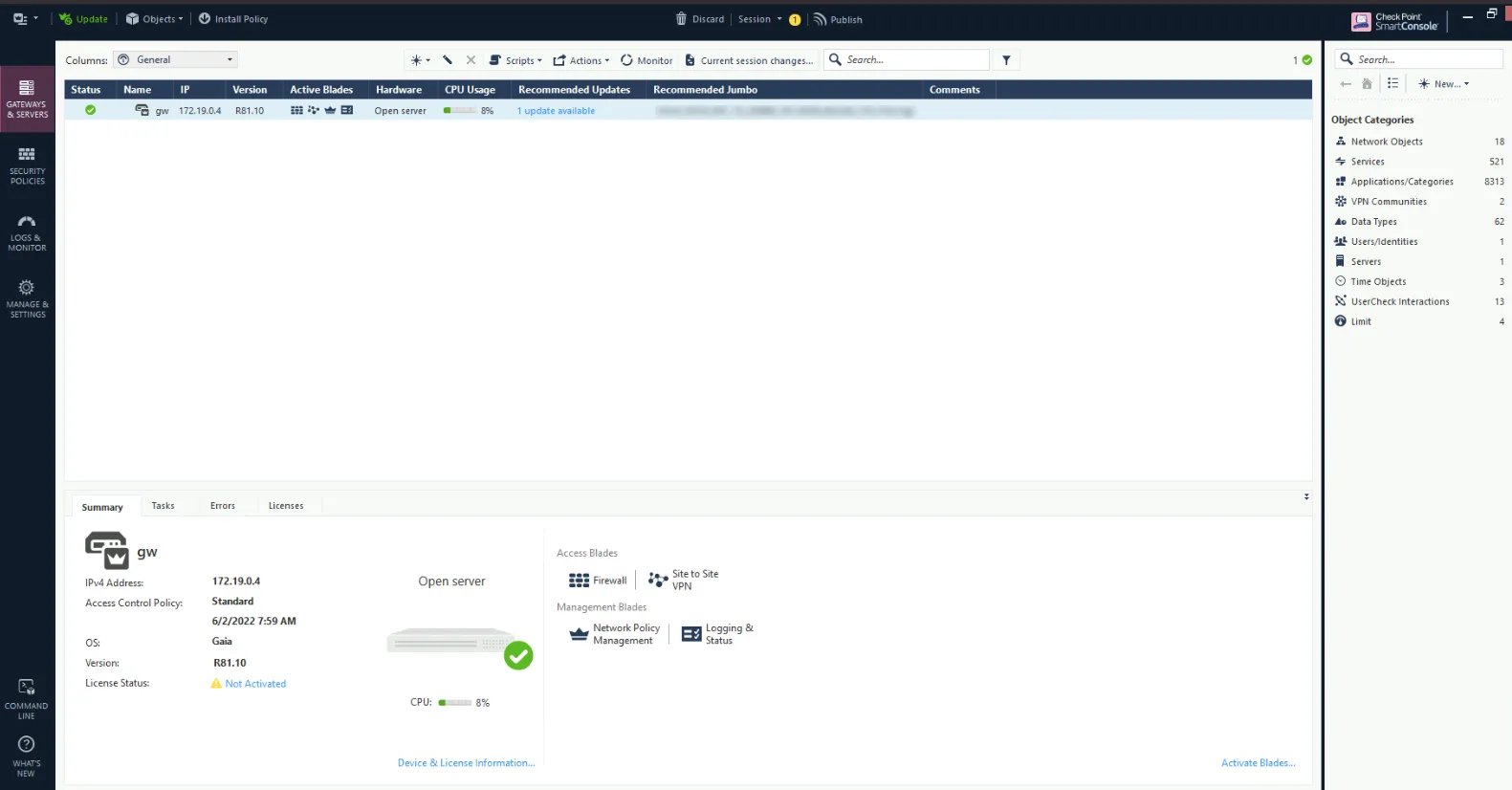
Open the Check Point Smart Console.
-
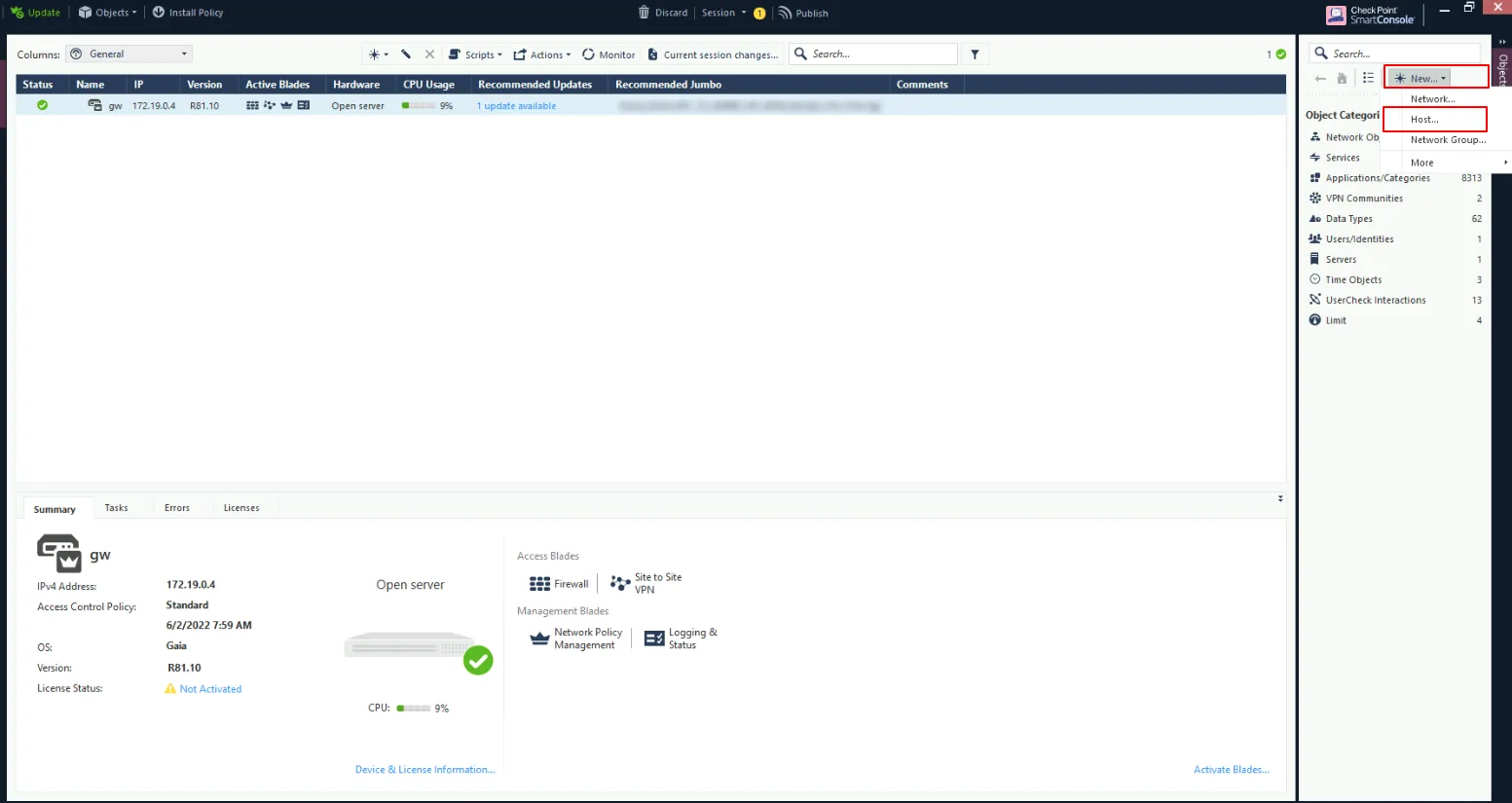
In the upper right, click New and select Host.
-
Enter a name for the host in Enter Object Name and, in IPv4 address, the IP of the computer where the RADIUS server runs (the NPS server or the Ironchip RADIUS server). Click OK.
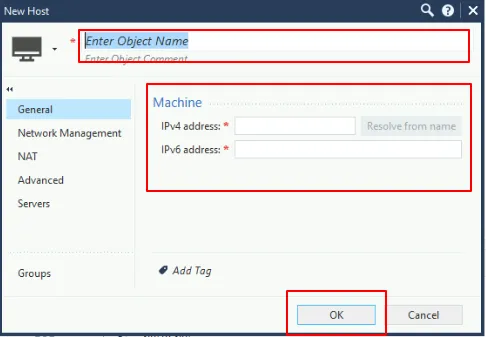
The host is created.
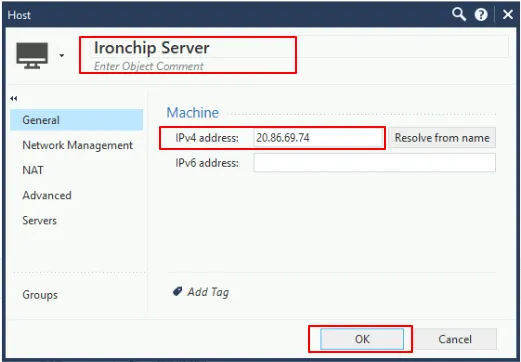
Create the RADIUS service
Section titled “Create the RADIUS service”-
In the search bar in the upper right, search for RADIUS and clone the protocol in the UDP service section. This creates a new RADIUS service with the properties that enable access.
-
On the General tab, give the service a name (for example,
Ironchip_Protected_Protocol), check that the protocol and port match those of your RADIUS server and click OK.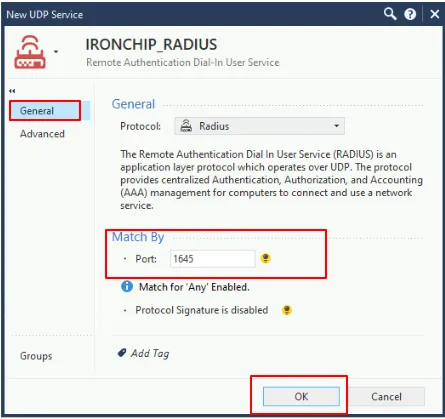
-
On the Advanced tab, under Virtual session timeout, select Specific with the value
60, leave Enable aggressive aging cleared and click OK.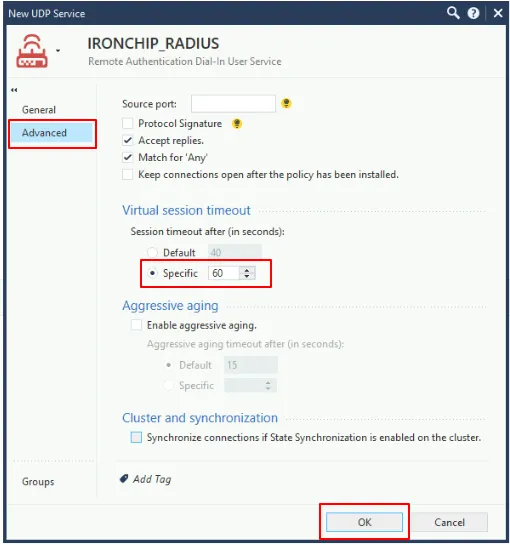
Create the RADIUS server
Section titled “Create the RADIUS server”-
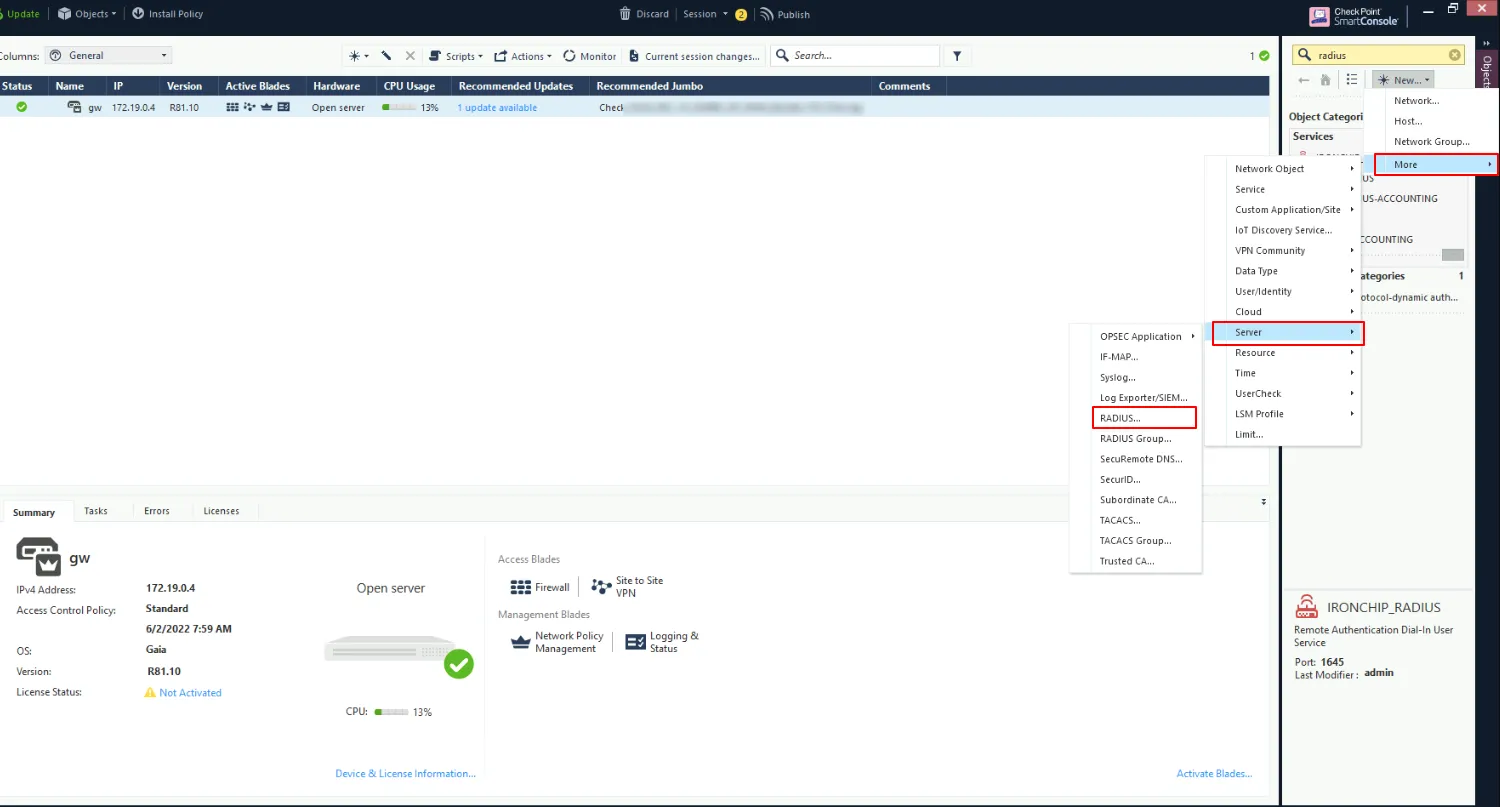
With the host and the service created, create a RADIUS server: in the upper right, go to New > More > Server > RADIUS….
-
Give it a descriptive name and configure it in the next window. In this example it is called
NPS_IRONCHIP_RADIUS.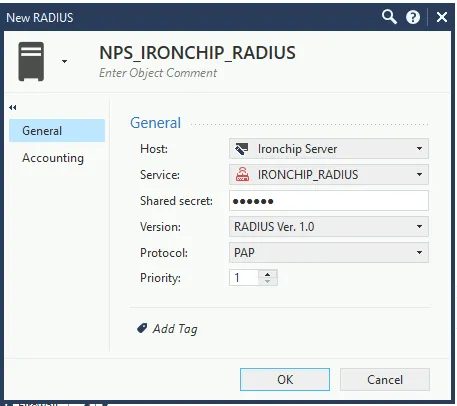
- Host: the host created in the first step.
- Service: the service created in the previous step.
- Shared secret: a secure string that must match the one configured in NPS or in the Ironchip RADIUS server.
- Protocol:
PAP.
-
Click OK.
Configure Mobile Access
Section titled “Configure Mobile Access”Create an External User Profile, which you need to authenticate users who are not registered internally in Check Point.
-
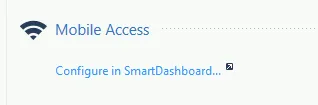
On the Smart Console main page, in the left menu, go to Manage & Settings > Mobile Access and click Configure in SmartDashboard….
-
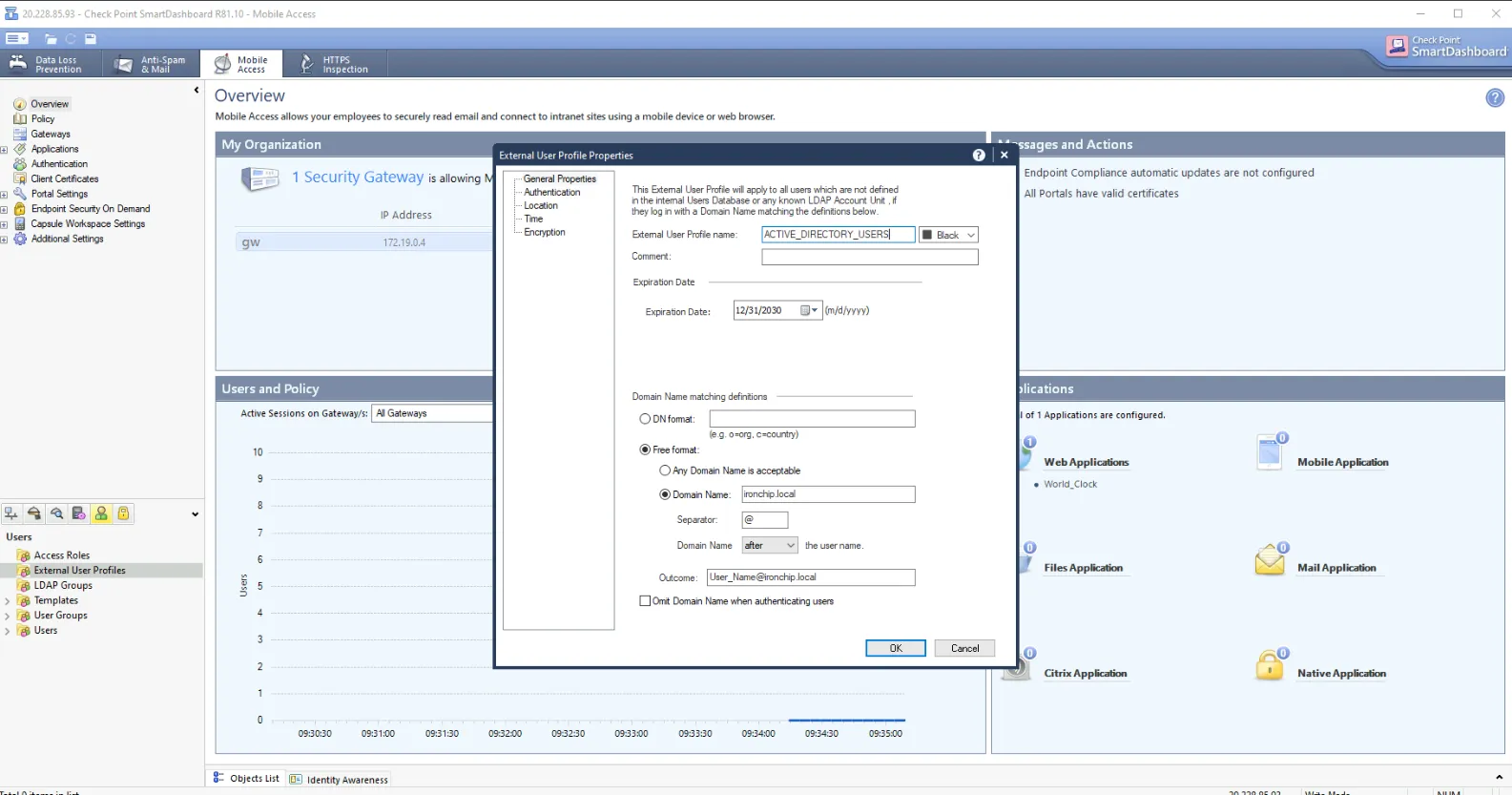
In SmartDashboard, in the Users pane at the lower left, create a new External User Profile. Set its parameters according to your domain and click OK.
-
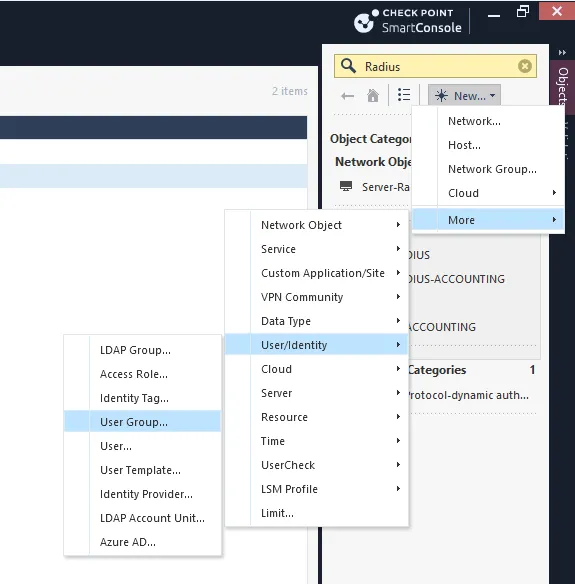
Create a group for the domain users. In the upper right, go to New > More > User/Identity > User Group.
-
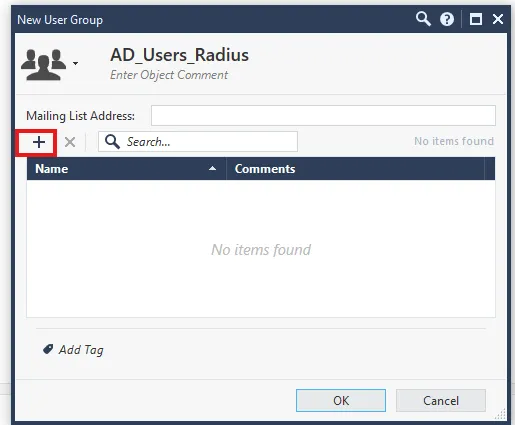
Give it a descriptive name and click the + icon.
-
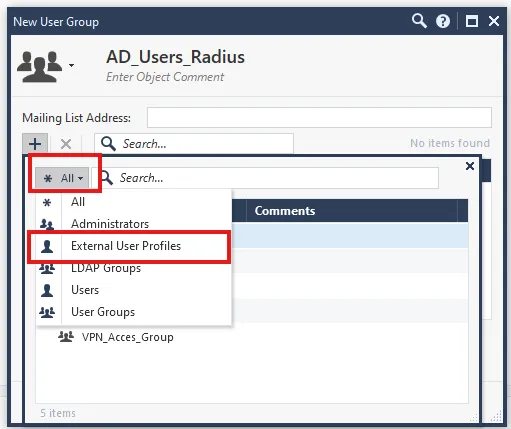
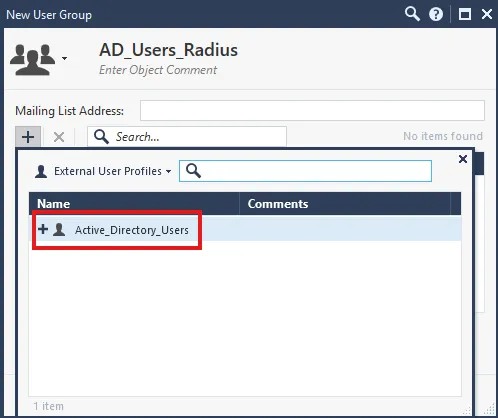
Click All, then External User Profiles, and select the profile you created.
Configure the security policies
Section titled “Configure the security policies”-
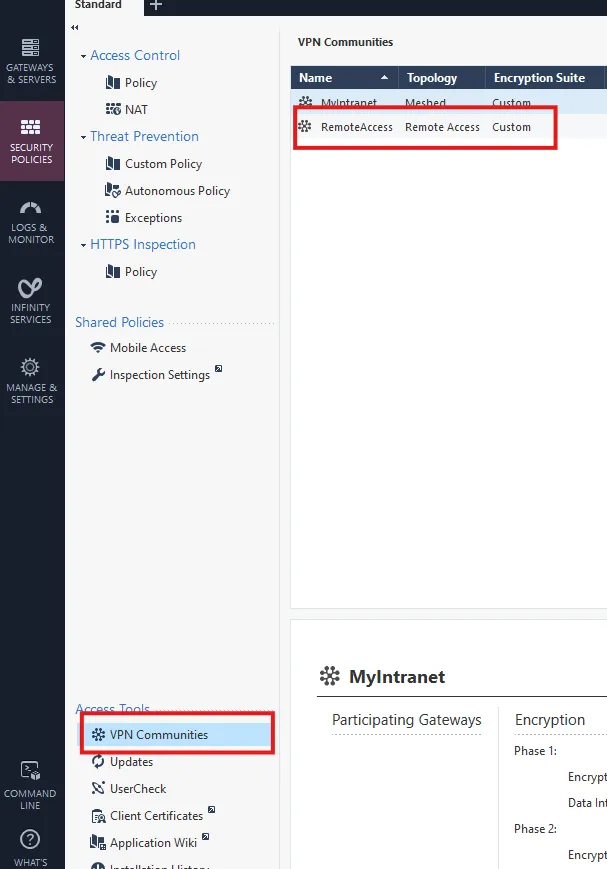
Go to Security Policies > VPN Communities, right-click Remote Access and select Edit.
-
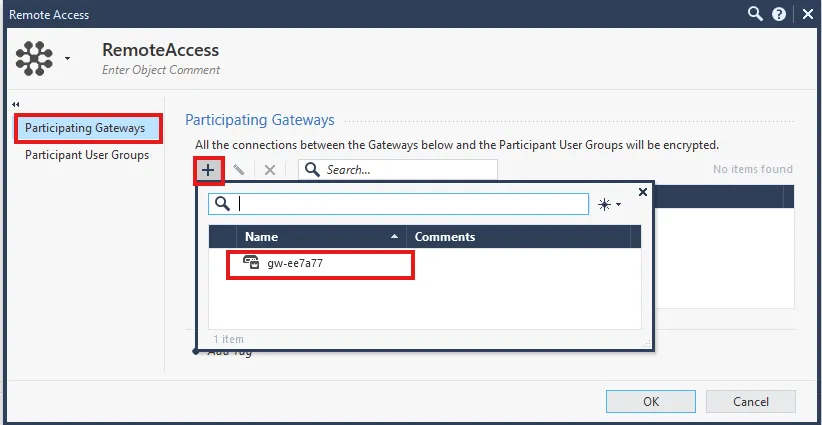
On the Participating Gateways tab, click + and select your firewall.
-
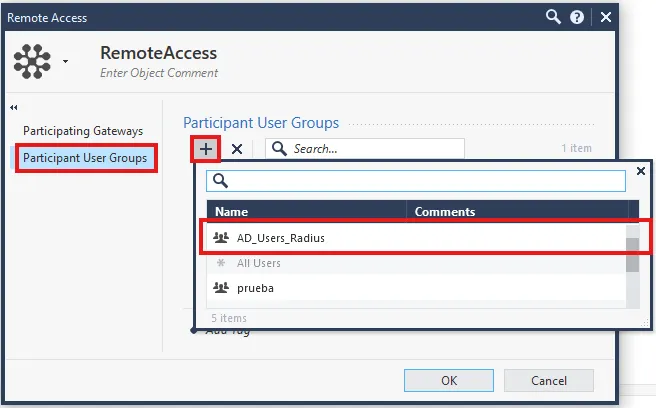
On the Participant User Groups tab, click + and select the group you created.
-
On the main screen, open the gateway that has the VPN configured and, in the left pane, select VPN Clients > Authentication.
-
Click Add and then New, select the type and click OK.
-
In the Login Option settings, enter a name (for example,
NPS_IRONCHIP_ACCESSorRADIUS_IRONCHIP_ACCESS). You can also fill in Comment and Display Name, which is the name shown on the initial screen. Click OK. -
In Authentication Methods, click Add, select RADIUS as the method and choose the RADIUS server you created. Click OK.
-
In User Directories, select Manual configuration and enable authentication only for External user profiles.
Adjust the global properties
Section titled “Adjust the global properties”-
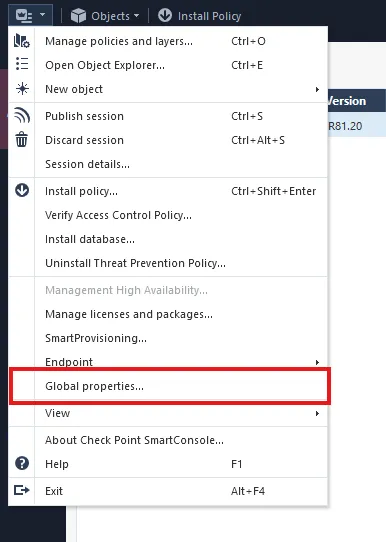
In the upper left, click Global Properties.
-
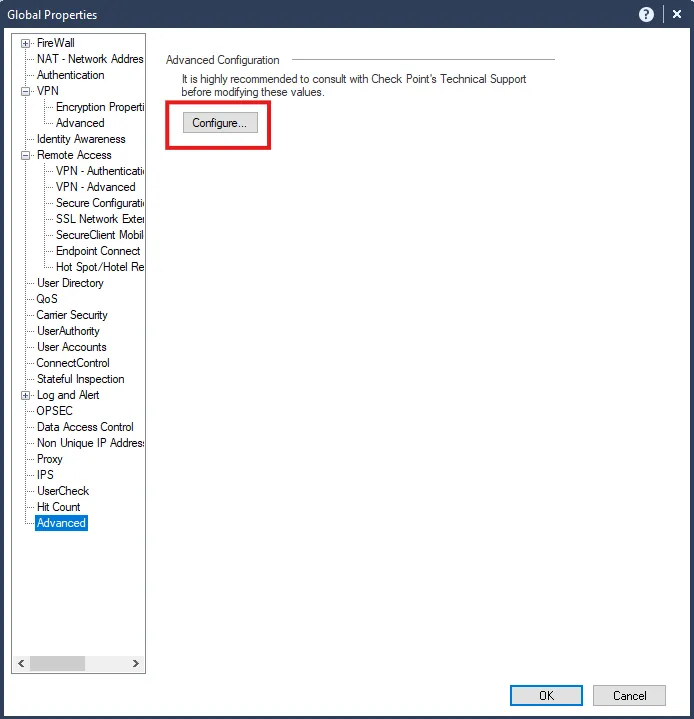
Go to the last section, Advanced, and click Configure.
-
Expand Firewall-1, click Authentication and set
au_connect_timeoutto60.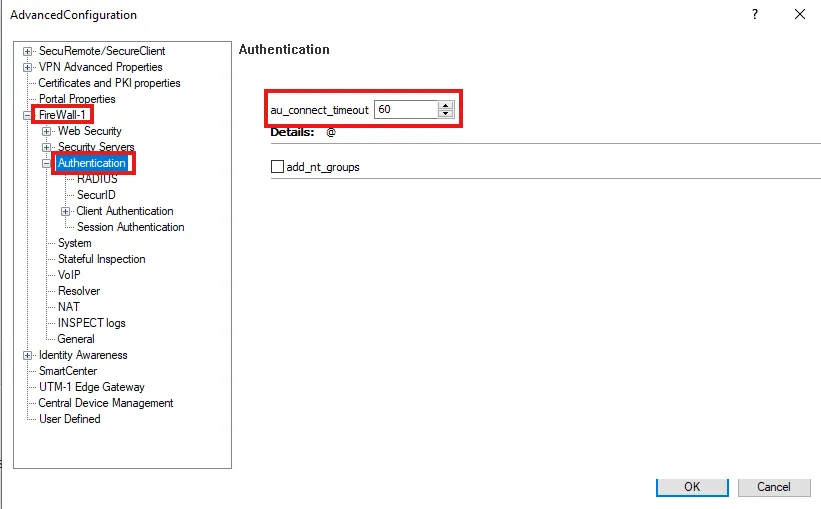
-
Click RADIUS, set
radius_retrant_numto1andradius_retrant_timeoutto60.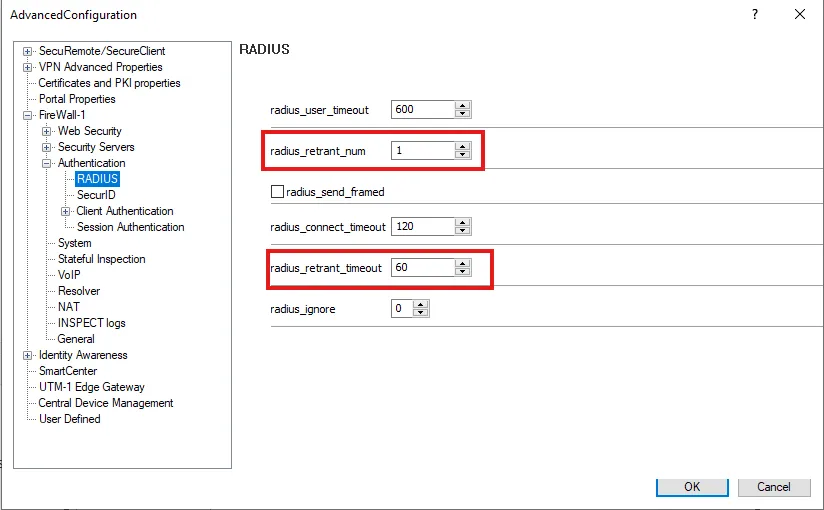
Verify the integration
Section titled “Verify the integration”When everything is configured, test authentication from the VPN client with a user who has access. Choose the login option you created (it appears with its Display Name) and enter your credentials: you are then asked to authenticate with Ironchip.
Troubleshooting
Section titled “Troubleshooting”- Authentication fails because it times out: Ironchip waits for the user to respond, so the timeouts must be long. Check
Virtual session timeout(60),au_connect_timeout(60),radius_retrant_timeout(60) andradius_retrant_num(1). - The RADIUS server rejects the request: check that the shared secret is the same in Check Point and in NPS or the Ironchip RADIUS server, and that the RADIUS server host has the correct IP.
Was this page helpful?
Thank you. We will use it to improve the documentation. If you want to tell us what is missing or unclear, write to support@ironchip.com.