

Linux logon
Ironchip integrates with Linux through PAM (Pluggable Authentication Modules) and adds the second factor to services such as sudo, SSH or local login. Use this page to create the application, install the module and configure PAM.
Requirements
Section titled “Requirements”- Access to the Ironchip admin console.
- A user with administrator permissions (
rootorsudo) on the Linux machine. - Connectivity from the machine to the Ironchip API (
https://api.ironchip.com). - A Linux system with PAM. For macOS, see macOS logon.
Configure Ironchip
Section titled “Configure Ironchip”Create the application
Section titled “Create the application”-
Go to Applications > New application.
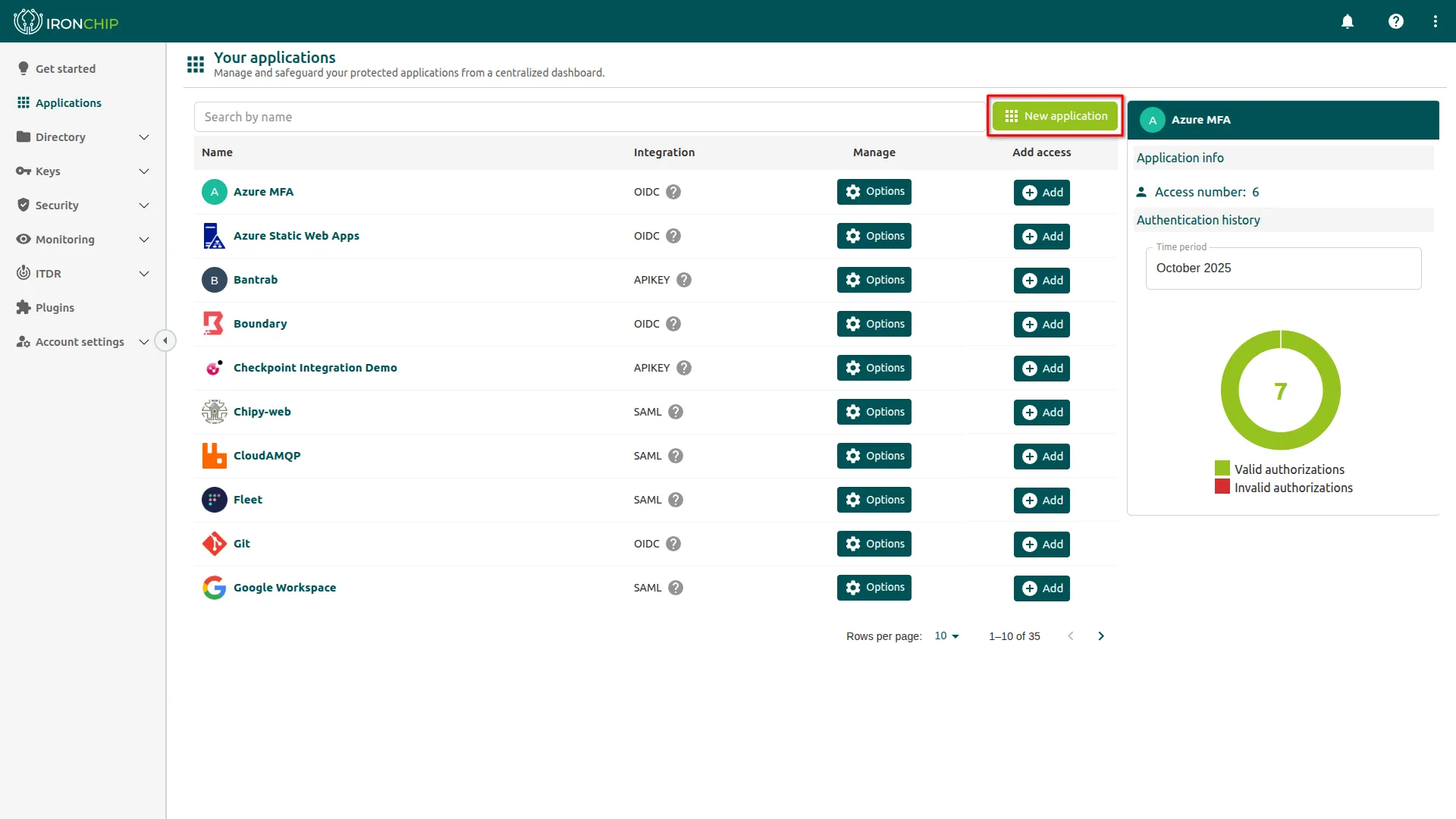
-
Select the Linux Logon integration type.
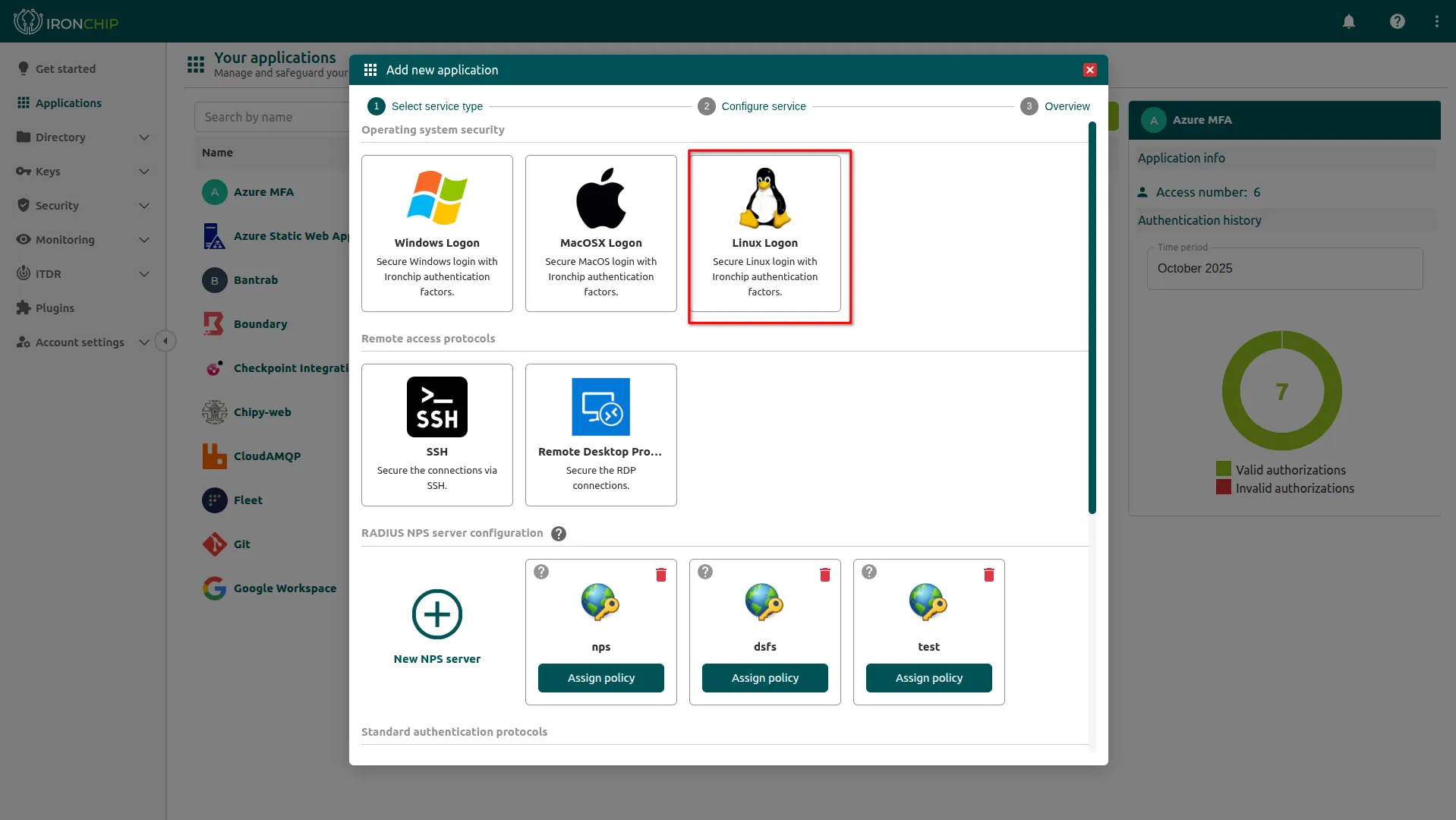
-
Enter a descriptive name for the application and click Add.
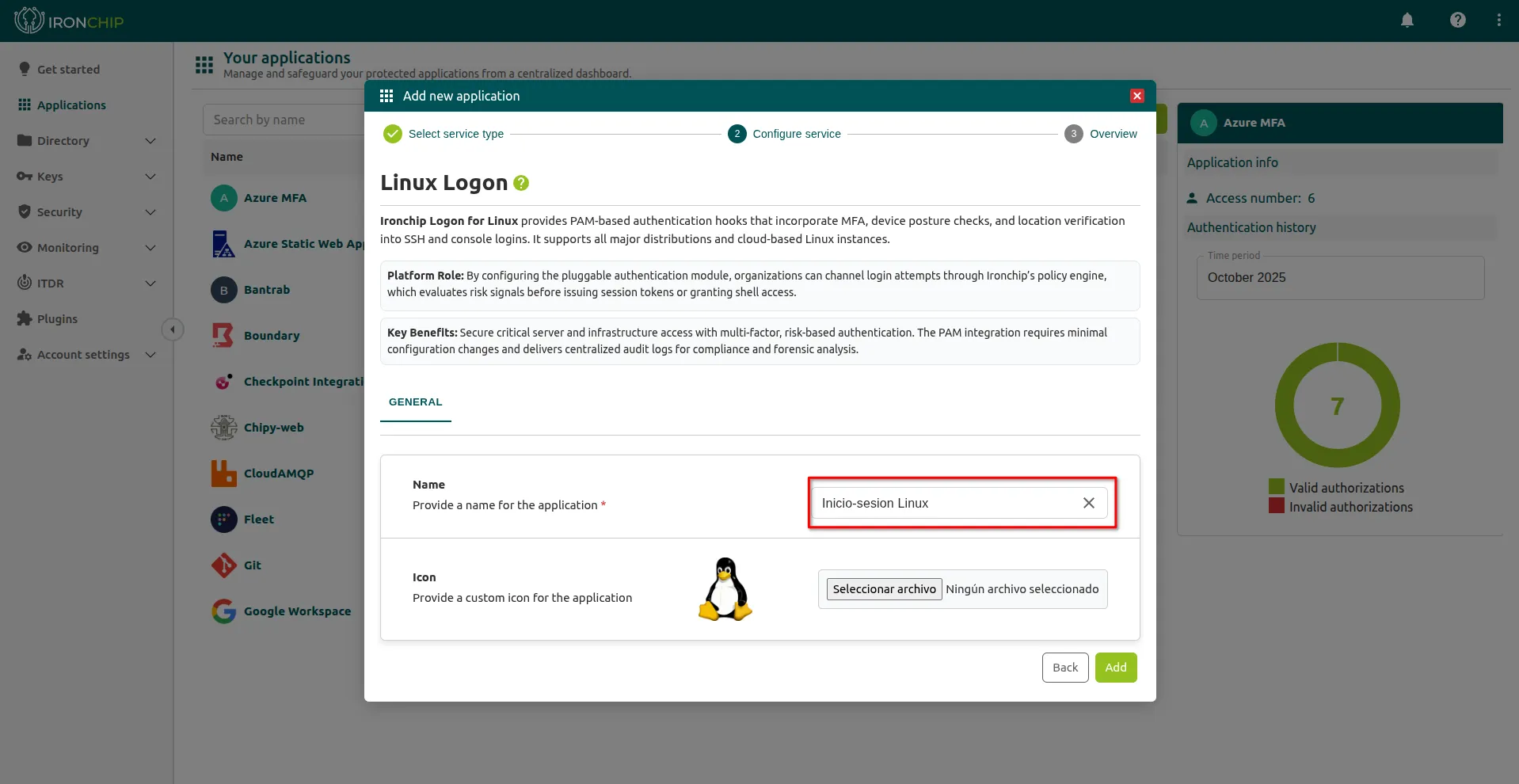
-
Save the API key shown when you create the application. You will need it later.
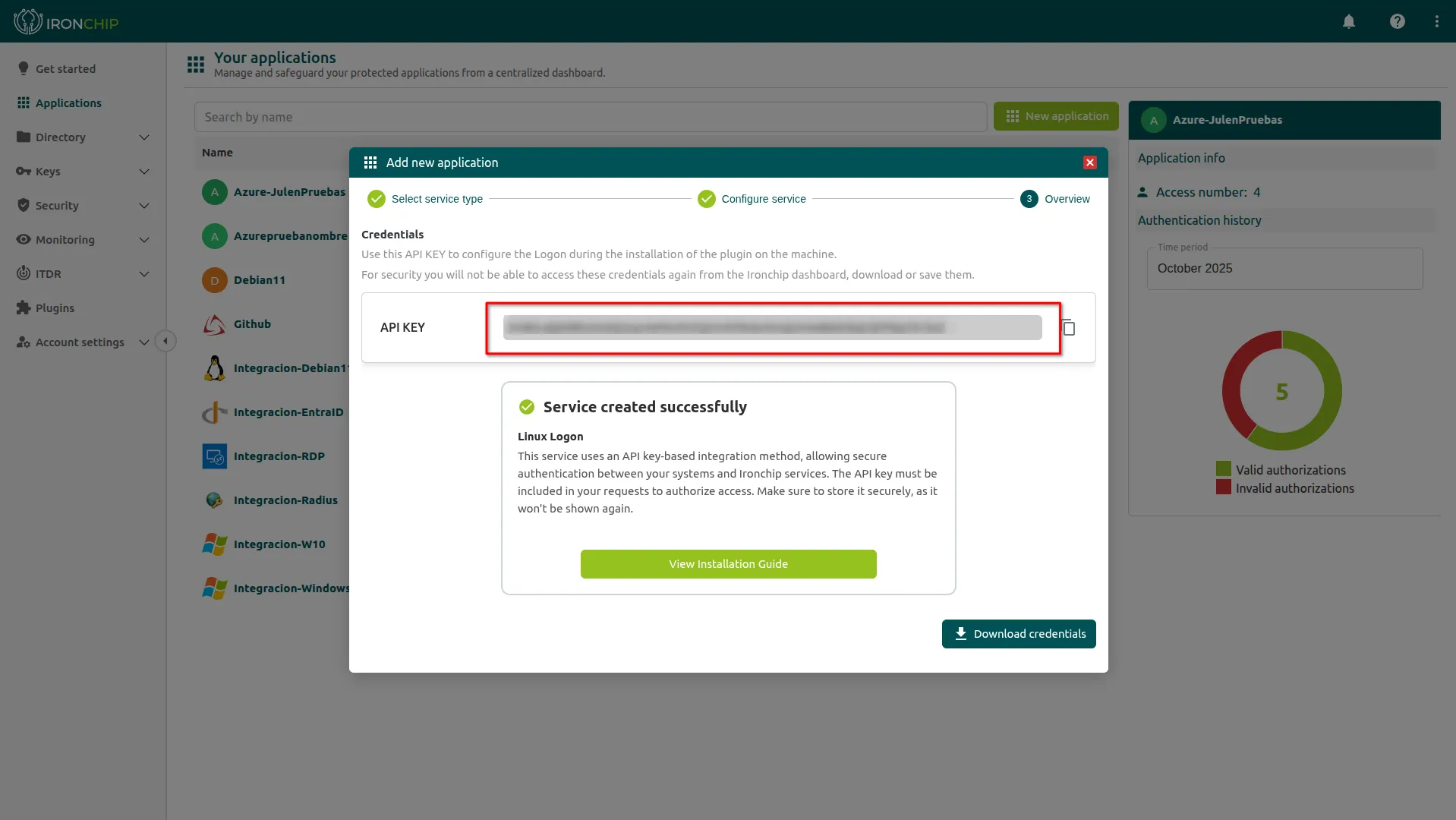
Give users access
Section titled “Give users access”-
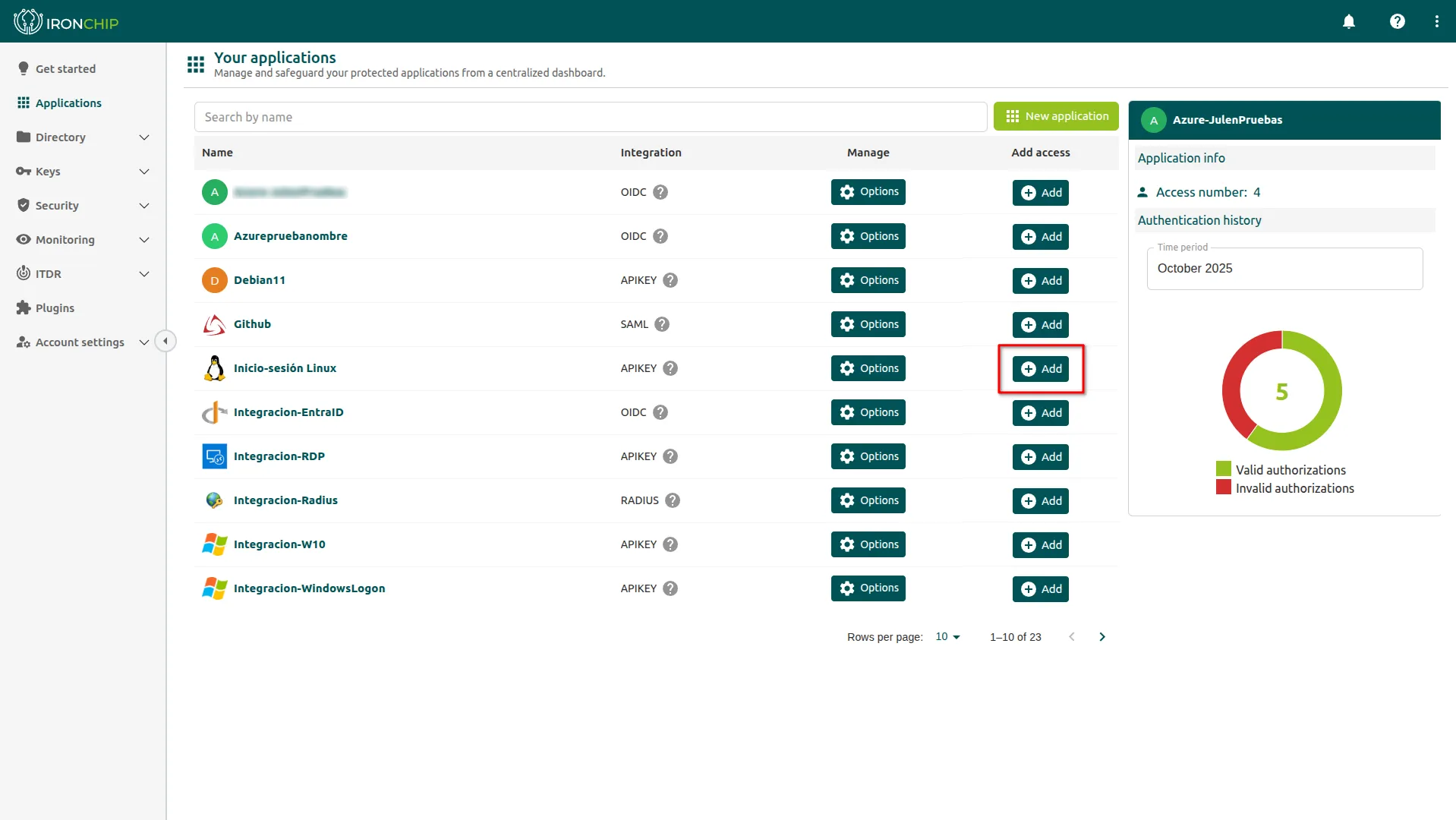
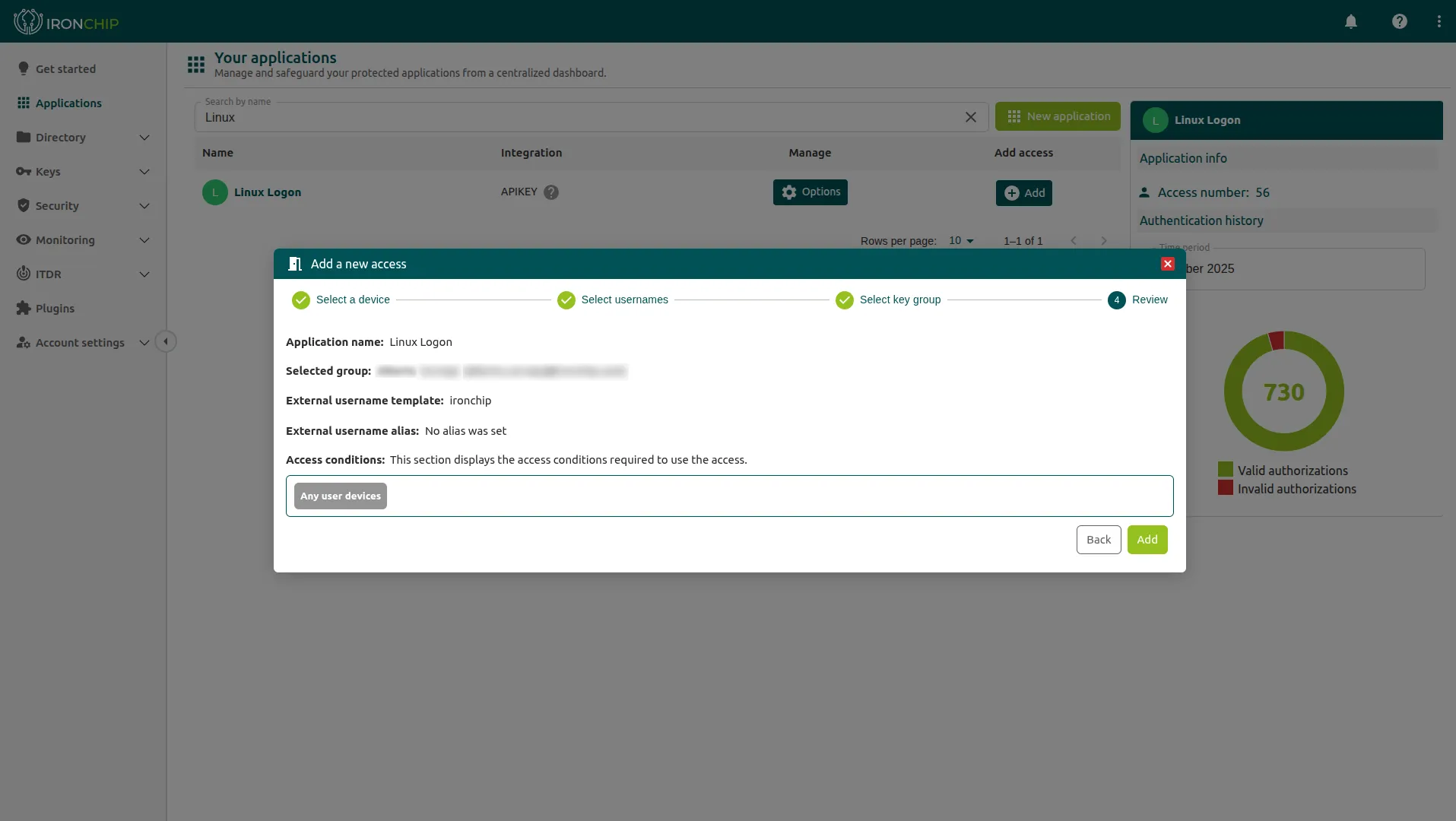
Open the application you just created and click the button to add a new access.
-
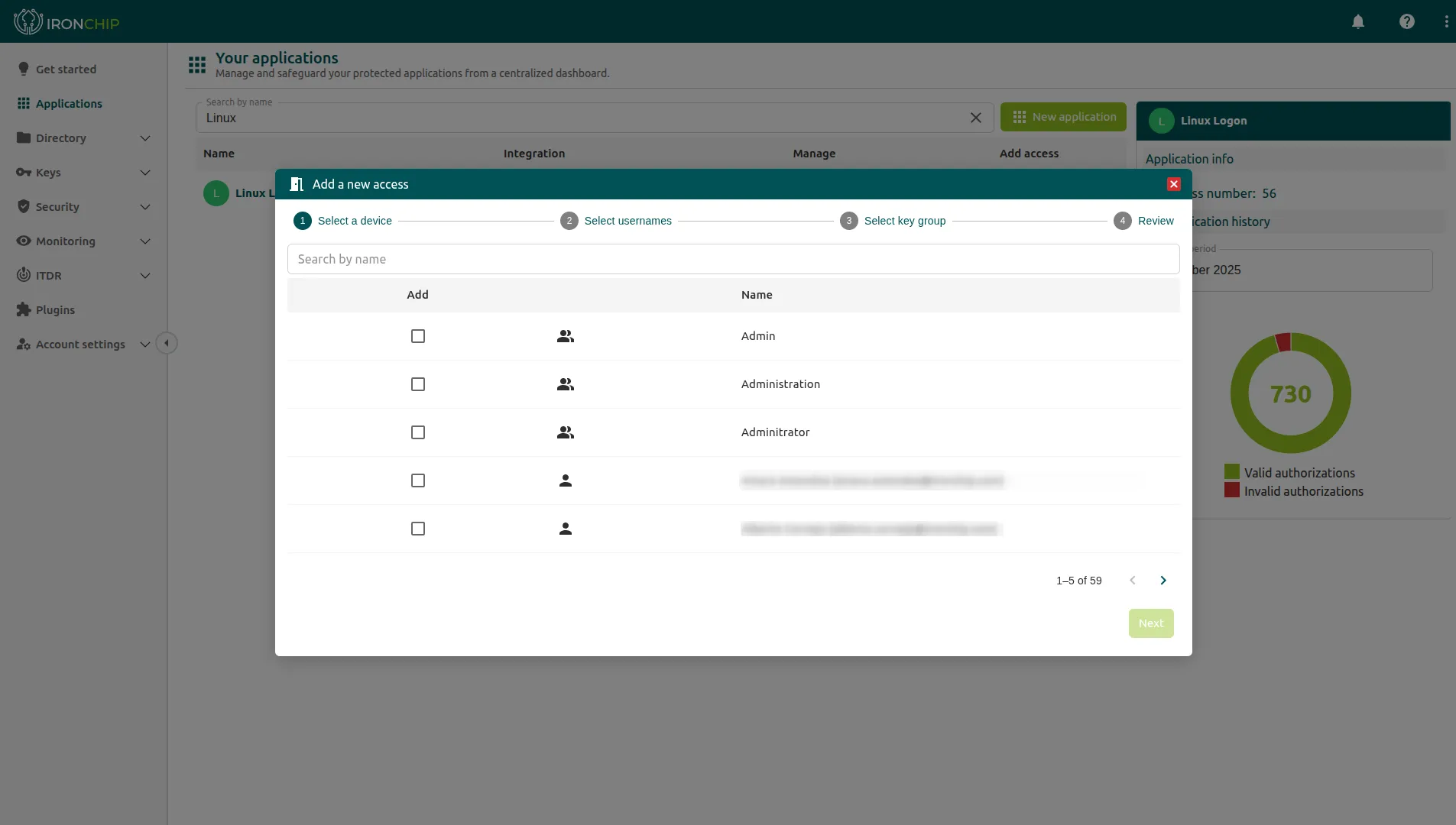
Select the users who will use the service.
-
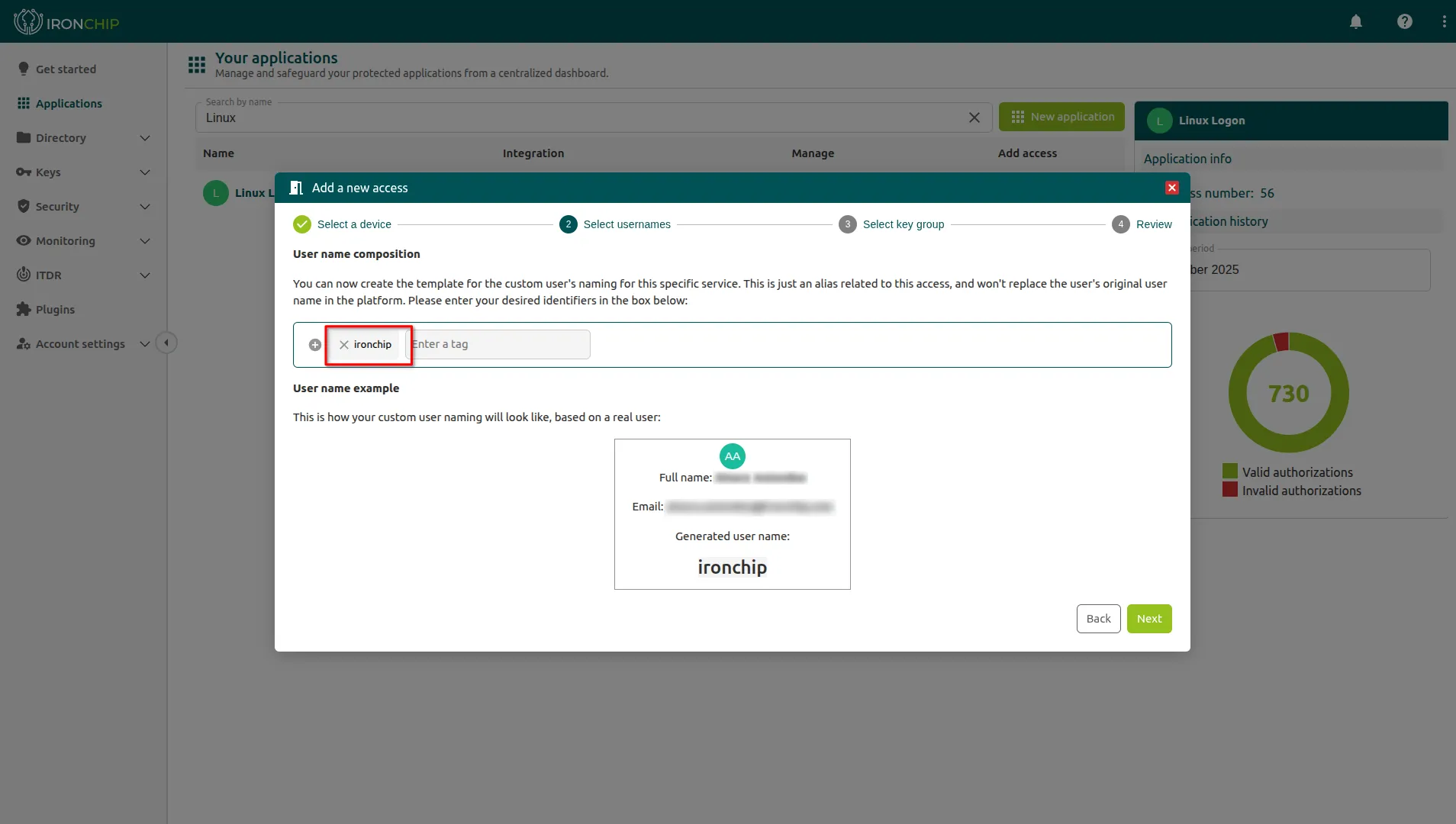
Set the username to match the Linux system username.
-
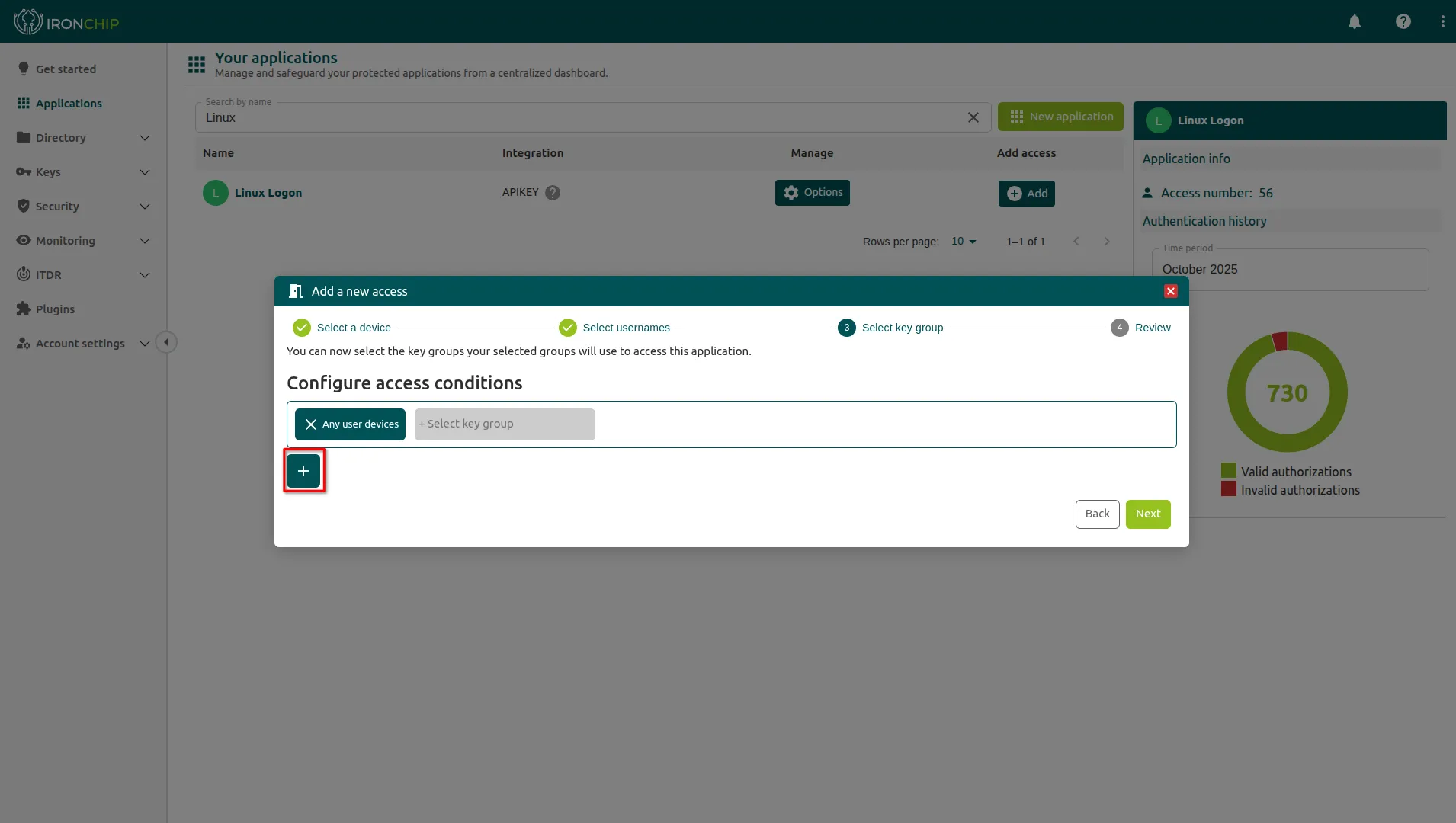
Set the access conditions the user must meet to sign in to the machine.
-
Save the access.
Configure Linux
Section titled “Configure Linux”Install the PAM module
Section titled “Install the PAM module”-
Optional: install these dependencies, which are only needed in some cases.
Ventana de terminal # Debian and Ubuntusudo apt-get install libcurl4-openssl-dev libpam-dev uuid-dev# RHEL, AlmaLinux and CentOSsudo yum install curl-devel pam-devel libuuid libuuid-devel -
Create a folder in a secure location.
Ventana de terminal mkdir /usr/local/lib/security -
Save the
pam_ironchip_auth.sofile in it. You can find it in the Plugins section of the Ironchip console.Ventana de terminal mv pam_ironchip_auth.so /usr/local/lib/security/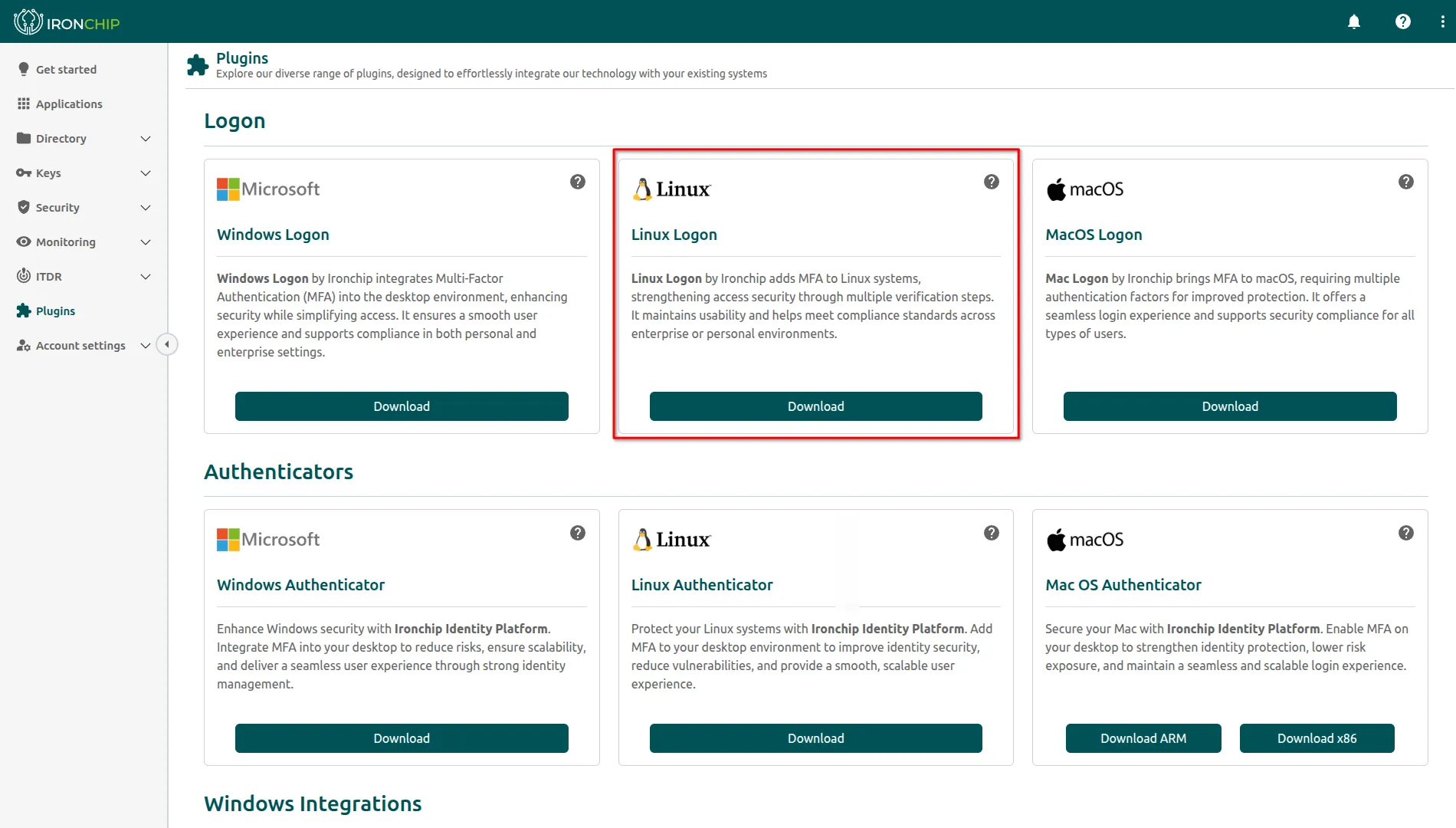
Configure PAM
Section titled “Configure PAM”Go to /etc/pam.d and open one of these files in a text editor, depending on your company’s needs. File names can vary with the system architecture.
| File | Protects |
|---|---|
sudo |
Authentication in the sudo command. |
sshd |
Authentication in the SSH service. |
gdm-password |
Login to the computer. |
common-auth |
All the previous services. |
gdm-password handles the graphical login (GNOME Display Manager). common-auth centralizes the authentication that services such as sudo, login or sshd import with the @include common-auth line.
Add the following line with your data:
auth required <absolute path of pam_ironchip_auth.so> host=https://api.ironchip.com api_key=<API_KEY>Use the API key you saved when you created the application.
Module parameters
Section titled “Module parameters”| Parameter | Required | Description |
|---|---|---|
host |
Yes | URL of the Ironchip identity server, for example https://api.ironchip.com. |
api_key |
Yes | API key of the application, used during authentication. |
offline_skip |
No | With offline_skip=true, if there is no connectivity with Ironchip the module is skipped and PAM treats it as successful. |
whitelisted_users |
No | Users separated by ; who skip the module, for example whitelisted_users=root;ubuntu. |
Require the second factor or accept it as sufficient
Section titled “Require the second factor or accept it as sufficient”The verb you use in the auth line decides how Ironchip combines with the other PAM modules:
required: the user must pass this module at least. Use it to make the second factor mandatory.sufficient: if the module is passed, PAM ends the authentication successfully right away and ignores the remaining modules.
auth required pam_ironchip_auth.so <options>auth sufficient pam_ironchip_auth.so <options>SSH with public key and Ironchip
Section titled “SSH with public key and Ironchip”This configuration requires both the public key and Ironchip as interactive authentication (keyboard-interactive).
Configure sshd_config
Section titled “Configure sshd_config”-
Open the main SSH configuration file with administrator privileges.
Ventana de terminal sudo nano /etc/ssh/sshd_config -
Find and adjust these parameters, or add them at the end of the file.
/etc/ssh/sshd_config # Enable keys and disable plain passwordsPubkeyAuthentication yesPasswordAuthentication no# Force BOTH: public key + Ironchip (keyboard-interactive)AuthenticationMethods publickey,keyboard-interactive# Settings required for PAM (Ironchip) to workUsePAM yesKbdInteractiveAuthentication yes # Modern Ubuntu/Debian -
If your Linux system is not Ubuntu or Debian, also add this line.
ChallengeResponseAuthentication yes
Authenticate in SSH without a password
Section titled “Authenticate in SSH without a password”For the SSH server to recognize Ironchip as an interactive authentication method, change the PAM configuration. This way the system validates the identity with Ironchip without also asking for the traditional Linux password.
-
Open the file that manages authentication for the SSH service.
Ventana de terminal sudo nano /etc/pam.d/sshd -
Add this line at the top of the file, so it is the first method evaluated in the interactive phase.
/etc/pam.d/sshd auth sufficient pam_ironchip_auth.so host=https://api.ironchip.com api_key=<API_KEY>
Allow the connection with SELinux
Section titled “Allow the connection with SELinux”The server must make outbound requests to api.ironchip.com to validate the identity. On systems with SELinux enabled, such as RHEL, AlmaLinux or CentOS, the SSH service is restricted from using the network by default, and that would block communication with Ironchip.
Import the policy module that allows the SSH process to open network connections.
semodule -i mi-sshdsession.ppApply the changes
Section titled “Apply the changes”Save the files and restart the SSH service.
# Systems with systemd (Ubuntu, Debian, RHEL 7+)sudo systemctl restart sshd
# Check the service statussudo systemctl status sshd
With sufficient, the SSH client still shows the password prompt. The user can enter any value: it is not validated if Ironchip has already accepted the authentication. To stop the prompt from appearing, add PermitEmptyPasswords yes in /etc/ssh/sshd_config and restart sshd. Do this only if you use the module as a sufficient method. If you expect a second factor (MFA), do not change this parameter.
Verify the integration
Section titled “Verify the integration”- Keep a
rootsession open and open another terminal. - Run a command that goes through PAM, for example
sudo -k && sudo ls. - Authorize the access in Ironchip when prompted.
- If you protected SSH, open a new connection with the user configured in Ironchip and authorize the access.
If something fails, restore the PAM line from the root session, which is still open.
The module writes its logs to syslog. View them like this:
tail -f /var/log/auth.logTo filter the graphical login:
tail -f /var/log/syslog | grep gdm-passwordTroubleshooting
Section titled “Troubleshooting”SSH still asks for the Linux password. Check that UsePAM yes is in /etc/ssh/sshd_config and restart the service. To avoid the prompt with the sufficient method, see Apply the changes.
On RHEL, AlmaLinux or CentOS, SSH does not validate with Ironchip. Import the SELinux policy module from the Allow the connection with SELinux section.
Was this page helpful?
Thank you. We will use it to improve the documentation. If you want to tell us what is missing or unclear, write to support@ironchip.com.