

Accesses
An access says who reaches which machines and under what conditions. This page explains how to create accesses. It is for whoever administers privileged access.
Privileged accesses are configured like those of any other Ironchip application: in Integrations, on an integration of type Privileged access. Each access brings together:
| What | Where it is defined |
|---|---|
| Who | A directory group |
| Which account they arrive as | Each machine’s own account or a fixed account |
| Which machines | Target policies |
| What they can run | Control policies |
| How they prove who they are | The access’s factors: device, safe zone, and approval if you require it |
Before you start
Section titled “Before you start”- The target policies with the machines.
- If you want approval, an approval policy.
- Permissions to create applications and accesses, and PAM targets, sites and agents with Write.
Create the integration
Section titled “Create the integration”- Go to Integrations and click New application.
- Under Brokered remote access, choose Privileged access.
- Enter the name (for example,
Infrastructure) and, optionally, an icon. - Click Add.
The integration groups accesses: it does not name any machine. In the Integrations list it appears with the type PAM.
Add an access
Section titled “Add an access”-
In Integrations, find the integration and click Add in the Add access column.
-
Select a group: choose the group of people.
-
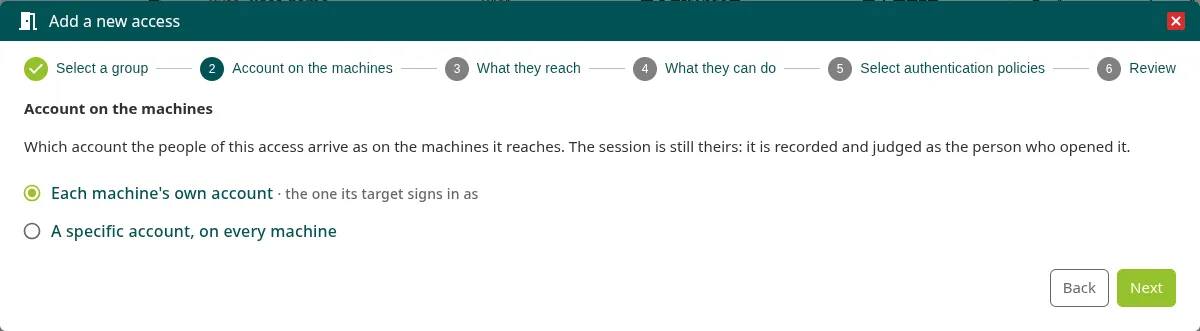
Account on the machines: choose which account they arrive as.
- Each machine’s own account · the one its target signs in as: each machine’s own account. This is the default.
- A specific account, on every machine: enter the account in Account, for example
dba. Each machine needs that account added in its Accounts tab; a machine that does not have it refuses the connection. See Accounts.
-
What they reach: select one or more target policies.
-
What they can do: select the control policies. All allowed comes selected in new accesses. If you select several, they are checked in the order you select them.
-
Select authentication policies: choose the factors. Each row combines factors with AND and the rows are combined with OR. For example,
Company device AND Office safe zoneorCompany device AND Production approval. To require approval, add an approval policy as one more factor. -
Review: check the summary and save.
The factors apply to every machine in the access. If some machines need different factors from others, create another access.
To change an access, open it from the integration’s page with Configure access.
Permanent or on-request access
Section titled “Permanent or on-request access”- With no approval policy in any factor combination, the access is permanent: the people in the group see it in PAM > My access, under Yours whenever you need it, and connect whenever they want. They are still asked for the factors when they connect.
- With an approval policy in any combination, the access is on request: the person requests a window in Request access with a reason, and someone approves it. See Request access.
In both cases, each connection is decided when it is made: the broker holds it until Ironchip checks that the person has an open window or permanent access, that their address is allowed and that they confirm the access’s factors. See Approval.
More information
Section titled “More information”- Applications: how integrations and accesses are managed in general.
- Safe zones and Authentication policies.
Was this page helpful?
Thank you. We will use it to improve the documentation. If you want to tell us what is missing or unclear, write to support@ironchip.com.