

Secrets for applications
This page explains how to store the secrets of your applications, pipelines and scripts in Ironchip, and how they read them with the Ironchip secrets API, which speaks the Vault API. It is for whoever administers the secrets and whoever integrates an application.
How it works
Section titled “How it works”- Secrets stores the company’s secrets, organized in paths such as
billing/stripe. Values are written and never shown again, neither in the console nor anywhere else in Ironchip. - Workloads registers each application, pipeline or script that reads them. Each workload has its own credential and reads only the secrets and folders you give it, from the networks you allow.
- The application signs in with any Vault client: the
vaultandbaoCLIs, the Vault SDKs, Terraform or External Secrets. No code changes are needed. - On every request, Ironchip checks that the workload is active, that it has not expired, that it is asking from one of its networks and that it is using its current credential. Every request is recorded.
Before you start
Section titled “Before you start”You need these permissions (see Getting started):
- PAM secrets to write and delete secrets.
- PAM workloads to add workloads and issue their credentials.
Store a secret
Section titled “Store a secret”-
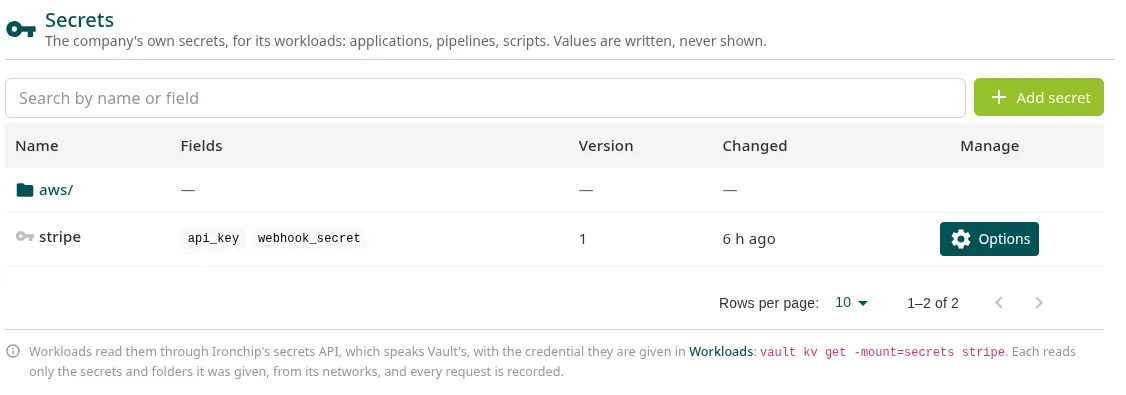
Go to PAM > Secrets > Secrets and click Add secret.
-
In Path, enter the path, for example
billing/stripe. Slashes create folders. -
In Fields, add each field with its Name (for example
api_key) and its Value. Up to 32 fields, of up to 64 KiB each. -
Click Add secret.
To change it, open Options > Write new version and enter all the fields again: values are not carried over from the previous version, and a field you do not enter will not be in the new one. Options > Remove secret deletes it with all its versions; the workloads that read it stop finding it at that moment.
Add a workload
Section titled “Add a workload”-
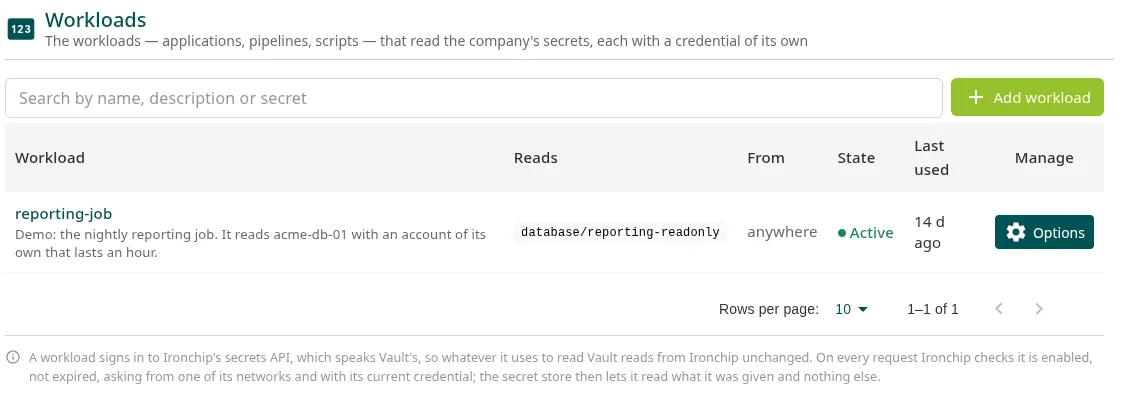
Go to PAM > Secrets > Workloads and click Add workload.
-
Fill in Name (for example,
billing-worker) and, if you want, Description (optional). -
In Secrets it reads, enter the paths separated by commas. A path that ends in
/is a folder, with everything it contains:billing/stripe, ci/. -
In Short-lived credentials it asks for (optional), select the short-lived credential roles it can request.
-
In Networks it may be used from, enter the addresses or ranges it connects from, for example
10.20.0.0/16, 203.0.113.7. Empty means from anywhere. -
In Expires, choose Never, 30 days, 90 days or 1 year.
-
Click Add and issue credential.
The console shows the credential only once. Store it in the secret manager of your pipeline or platform: the secret_id is not stored in Ironchip, and the only way to get another one is to replace it.
Read a secret from the application
Section titled “Read a secret from the application”The credential window shows the variables and the commands ready to copy. With the Vault CLI:
export VAULT_ADDR=https://<API_HOST>export VAULT_ROLE_ID=<ROLE_ID>export VAULT_SECRET_ID=<SECRET_ID>
export VAULT_TOKEN=$(vault write -field=token auth/approle/login role_id="$VAULT_ROLE_ID" secret_id="$VAULT_SECRET_ID")vault kv get -mount=secrets billing/stripeVAULT_ADDRis the address of the Ironchip API that appears in the credential.- Sign-in uses Vault’s AppRole method:
role_idandsecret_id. - The token lasts one hour and can be renewed for up to one day.
- The secrets are in the
secretsmount. A workload can only read; it cannot write or delete.
Any client that can talk to Vault works: configure the same address, the AppRole method and the secret’s path in it.
Manage a workload
Section titled “Manage a workload”In Options, in its row:
| Action | What it does |
|---|---|
| Open | Opens its page: what it reads, where it reads from, when it expires and its activity. |
| Edit workload | Changes what it reads, the networks or the expiry. |
| Issue credential | Issues a new credential. The previous one and all the tokens obtained with it stop working instantly. |
| Enable or disable | While it is disabled, nothing of its gets in, not even the tokens it already has. When you enable it again, they work again. |
| Remove workload | Deletes it with its credential. The secrets it read stay. |
The status of each workload is one of these: Active, Not used yet (it has a credential and has not used it), No credential, Expired or Disabled.
Audit the reads
Section titled “Audit the reads”On the workload’s page, the Activity tab shows its latest requests: when, what it asked for (method and path), from which address and the response. If Ironchip rejected a request, the reason appears, for example that it came from a network that is not allowed or with a replaced credential. Requests are kept for 90 days.
Troubleshooting
Section titled “Troubleshooting”| Response or symptom | What to do |
|---|---|
that credential has been replaced |
Someone issued a new credential. Use the latest one. |
Ironchip's secrets API does not serve this path |
The path is not a secrets or a short-lived credentials path. Check the mount (-mount=secrets). |
permission denied on a secret |
The workload does not have that path or its folder in Secrets it reads. |
| Rejected from the pipeline’s network | Add its address or range in Networks it may be used from. |
More information
Section titled “More information”- Short-lived credentials: AWS, Google Cloud, Azure and database credentials that expire automatically.
- Credential vault
Was this page helpful?
Thank you. We will use it to improve the documentation. If you want to tell us what is missing or unclear, write to support@ironchip.com.