

Team passwords
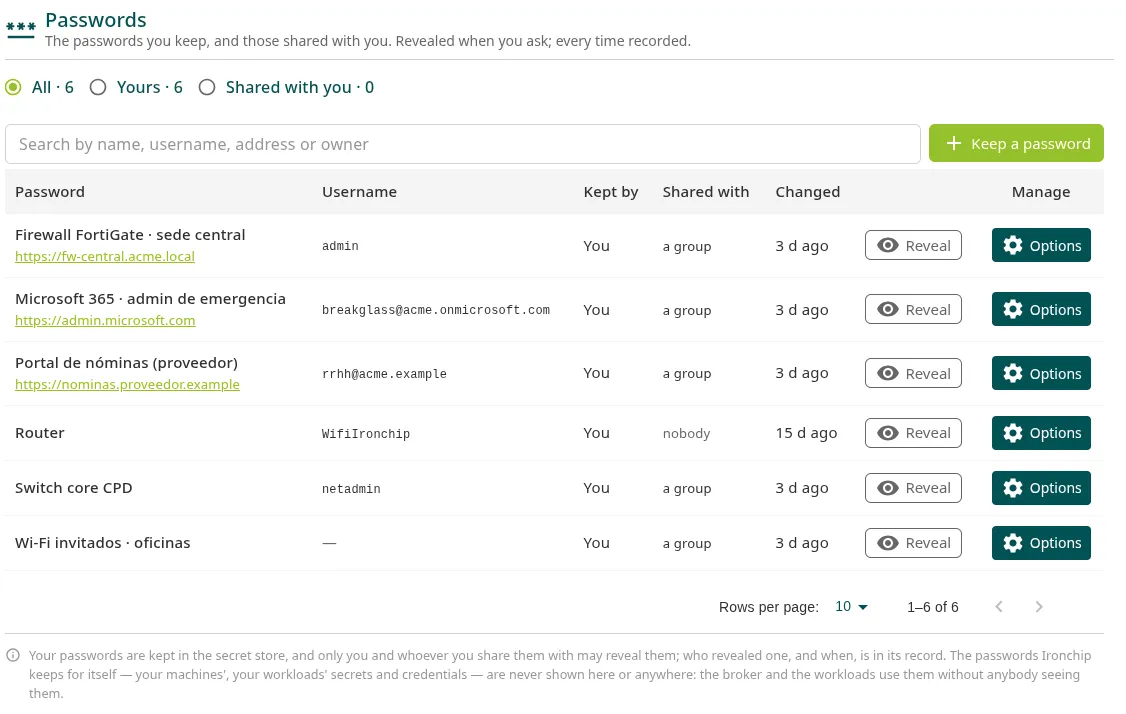
This page explains how to store and share passwords that people do need to know, such as the router password at a site, the password for a vendor portal or the password for the Microsoft 365 emergency account. It is for anyone in the admin console of a company with PAM.
The passwords Ironchip keeps for itself (those of the machines, the workload secrets and the cloud credentials) never appear here: the broker and the workloads use them without anyone seeing them.
How it works
Section titled “How it works”- Each password has an owner: whoever stores it. Only the owner can change it, share it, delete it or view its record.
- The owner shares it with people or groups. They can reveal it, not change it.
- The password and the notes are stored encrypted in the company’s secret store, not in the platform’s database.
- Every time someone reveals it, it is recorded, with who did it and from which address. The record is kept for one year.
Store a password
Section titled “Store a password”-
Go to PAM > Passwords and click Keep a password.
-
Fill in Name (for example,
Site router) and, if you want, Username (optional) and Address (optional), which starts withhttp://orhttps://. -
Enter the password in Password, or click Make one to have Ironchip generate one with the company’s complexity.
-
Add Notes (optional) if needed.
-
Click Keep it.
Share it
Section titled “Share it”- In the password’s row, open Options > Share.
- In Search people and groups, search for and select the people and groups that will be able to reveal it.
- Click Save.
To stop sharing it, clear the person or group. Group membership is checked every time someone reveals the password: whoever leaves the group stops seeing it.
Reveal it
Section titled “Reveal it”- Click Reveal in its row.
- Use Show to see it or Copy to copy it to the clipboard.
If another person shared it with you, that person sees in the record every time you reveal it.
View the record
Section titled “View the record”Open Options > Record. It shows every time the password was stored, changed, shared, revealed or deleted, with the person and, when it was revealed or deleted, the address it was done from.
Change or delete it
Section titled “Change or delete it”- Options > Edit changes the name, the address, the username, the password or the notes. Leave New password (leave empty to keep it) empty to keep the current one.
- Options > Remove deletes it for you and for everyone it is shared with. It cannot be undone.
Limits
Section titled “Limits”| Field | Limit |
|---|---|
| Name | 128 characters |
| Username | 256 characters |
| Address | 2048 characters |
| Password | 4 KiB |
| Notes | 8 KiB |
| People to share with | 100 |
| Groups to share with | 50 (collective groups) |
More information
Section titled “More information”- Credential vault
- Checkouts and break-glass: the passwords of the machines that Ironchip manages.
Was this page helpful?
Thank you. We will use it to improve the documentation. If you want to tell us what is missing or unclear, write to support@ironchip.com.