

Short-lived credentials
This page explains how to connect your cloud accounts and your databases so that your workloads request short-lived credentials instead of using permanent keys. It is for whoever administers the company’s cloud and secrets.
How it works
Section titled “How it works”- You connect an AWS, Google Cloud or Azure account with a credential that can create others.
- You define roles: which credential is created (an IAM user with certain policies, a service account token, a read-only database account…) and how long it lasts.
- You give the role to a workload.
- The workload requests the credential with its Vault client when it needs it. Ironchip creates it at that moment and deletes it when it expires.
Nobody stores or hands out permanent keys: each credential exists only while it is in use.
Before you start
Section titled “Before you start”- The PAM cloud accounts and credentials permission. For database roles, also PAM targets, sites and agents with Read.
- For databases: a PostgreSQL or MySQL resource with the password Managed by Ironchip. The secret store reaches the database through the connection it uses to rotate that password. See Password rotation.
Connect a cloud account
Section titled “Connect a cloud account”Go to PAM > Secrets > Credentials. The AWS, Google Cloud and Azure tabs show a green dot when they are connected.
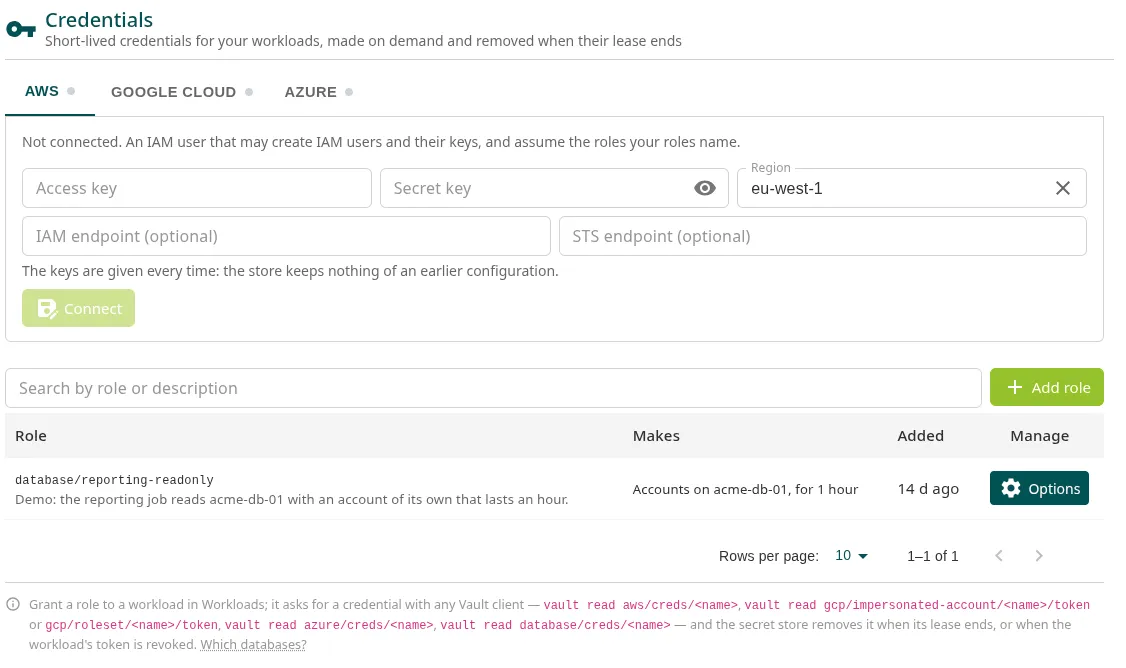
| Cloud | What you need | Fields |
|---|---|---|
| AWS | An IAM user that can create IAM users and their keys, and assume the roles your roles name | Access key, Secret key, Region and, if needed, IAM endpoint (optional) and STS endpoint (optional) |
| Google Cloud | A service account that can create service accounts and their keys, set IAM policies and create tokens for the accounts your roles impersonate | Its JSON key, with Choose its key file |
| Azure | An application that can manage applications and service principals in Microsoft Graph and assign roles in the subscription | Tenant (directory) id, Subscription id, Cloud, Application (client) id and Client secret |
Click Connect. Then click Change its key (or Change its client secret on Azure): the secret store creates a new credential and deletes the one you gave, so from that moment on only the secret store knows it.
Disconnect forgets the account. You cannot disconnect it while there are roles for that cloud; the credentials already created remain until they expire.
Add a role
Section titled “Add a role”-
Click Add role.
-
In Makes, choose AWS credentials, Google Cloud credentials, Azure credentials or Database accounts.
-
Enter Name. The workload requests it as
<type>/<name>, for exampleaws/s3-readerordatabase/reporting. -
Fill in the options for each type:
Type Options AWS An IAM user, with policies: policy ARNs (Policy ARNs) or a JSON policy of your own. A role, assumed: the role ARNs (Role ARNs). They last 1 hour, renewable for up to 24. Google Cloud Tokens of an existing service account, Tokens of a service account made for it or Keys of a service account made for it, with the project, the permissions (Bindings) and, optionally, the scopes. Lasts: from 15 minutes to 12 hours. Azure A service principal made for it, with roles (one line per role and scope, and optional groups) or Client secrets of an existing application. Lasts: from 15 minutes to 1 day. Database Database: the resource. Start from: a template (PostgreSQL · read only, PostgreSQL · read and write, MySQL · read only). Statements that create the account, one per line, with {{name}},{{password}}and{{expiration}}. Lasts: from 15 minutes to 1 day. -
Click Add role. AWS, Google Cloud and Azure check the role when it is added and, if they reject it, the console shows their reason.
A role cannot be edited: to change it, create another one and delete the old one with Remove role. A role cannot be deleted while any workload has it.
Give the role to a workload and request the credential
Section titled “Give the role to a workload and request the credential”- In PAM > Secrets > Workloads, open Options > Edit workload and select the role in Short-lived credentials it asks for (optional).
- From the application, after signing in as in Secrets for applications, request the credential:
vault read aws/creds/s3-readervault read gcp/impersonated-account/deployer/token # or gcp/roleset/deployer/tokenvault read azure/creds/readervault read database/creds/reportingThe response includes the credential and how long it lasts. The secret store deletes it when it expires or when the workload’s token is revoked.
More information
Section titled “More information”Was this page helpful?
Thank you. We will use it to improve the documentation. If you want to tell us what is missing or unclear, write to support@ironchip.com.