

Password rotation
This page explains how to have Ironchip manage a resource’s password: generate it, keep anyone from knowing it and change it automatically on a schedule and after every session. It is for whoever administers the PAM resources.
Before you start
Section titled “Before you start”-
The resource is SSH, RDP, PostgreSQL or MySQL. VNC, Kubernetes and HTTP have no password that Ironchip can rotate.
-
You need the PAM targets, sites and agents permission with the Update operation (and PAM control and password policies for the company’s complexity). See Getting started.
-
Depending on who changes the password, prepare the following first:
Account Who changes the password What you need PostgreSQL or MySQL user The secret store, connected to the database A database administration account (Admin account and Admin password) with permission to change passwords Local account on a Linux or Windows server The machine’s agent, with a password generated by the secret store The enforcer installed and started with -rotate-accountsand the account nameDomain account ( DOMAIN\account,account@domainor with a domain set)The secret store, in the company’s directory The directory configured in PAM > Hosts > Directory
Turn on rotation
Section titled “Turn on rotation”Rotation is turned on by choosing the Managed by Ironchip: nobody types or sees it method on the resource.
- Go to PAM > Hosts > Targets and open Options > Edit target on the resource, or create a new one with Add target.
- In How the broker proves itself, choose Managed by Ironchip: nobody types or sees it in Method.
- For a database, enter Admin account and Admin password: the secret store signs in with that account and changes the password of the resource’s account right then. Only the secret store keeps the administration account.
- Click Save (or Add target).
Rotation starts when you save, with the default schedule: every day and after every session.
Choose the schedule
Section titled “Choose the schedule”On the resource’s page, the Credential tab shows the rotation:
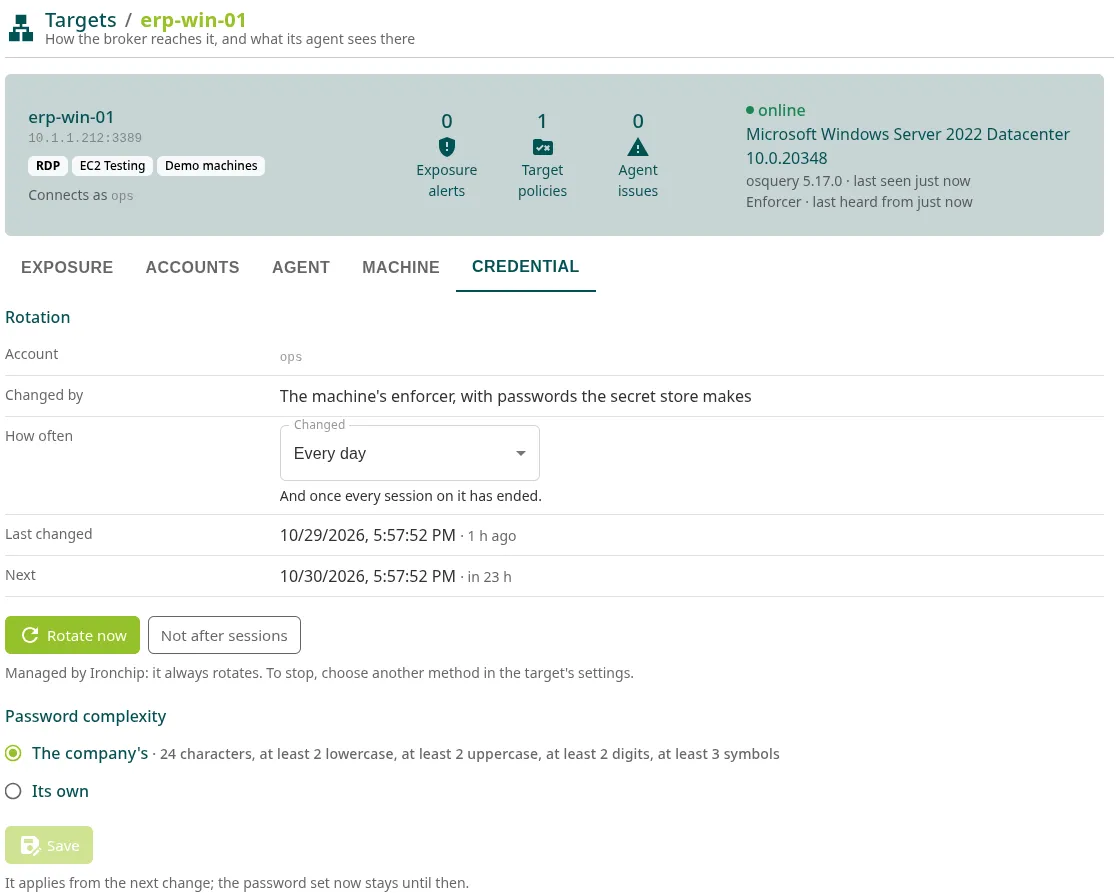
| Field | What it shows |
|---|---|
| Account | The account whose password is changed. |
| Changed by | Who changes it: the database, the machine’s enforcer or the directory. For a domain account, every resource that signs in with it gets the new one. |
| How often | The schedule (Changed) and whether it is also changed after every session. |
| Last changed | When it was last changed. |
| Next | When the next change is due. If the machine has a pending change, Now appears with its status. |
| Last attempt | If the last attempt failed, the reason. Ironchip retries a few minutes later. |
To change it:
- In Changed, choose Every hour, Every 8 hours, Every day, Every week or Every 30 days.
- Use Also after every session or Not after sessions to decide whether it is also changed when the last open session on that account ends.
- If you need to change it right away, click Rotate now.
Choose the schedule according to how critical the resource is. A common guideline:
| Criticality | Example | Schedule |
|---|---|---|
| High | Production servers and databases | Every hour and after every session |
| Medium | Support desktops, staging environments | Every day and after every session |
| Low | Lab and training machines | Every week |
A Managed by Ironchip resource always rotates: rotation cannot be paused. To stop rotating, change its method in Edit target.
Password complexity
Section titled “Password complexity”Complexity decides how Ironchip generates the passwords it sets. By default they are 24 characters long, with at least 2 lowercase letters, 2 uppercase letters, 2 digits and 2 symbols from !#%+-=?^_~.
To change it for the whole company:
-
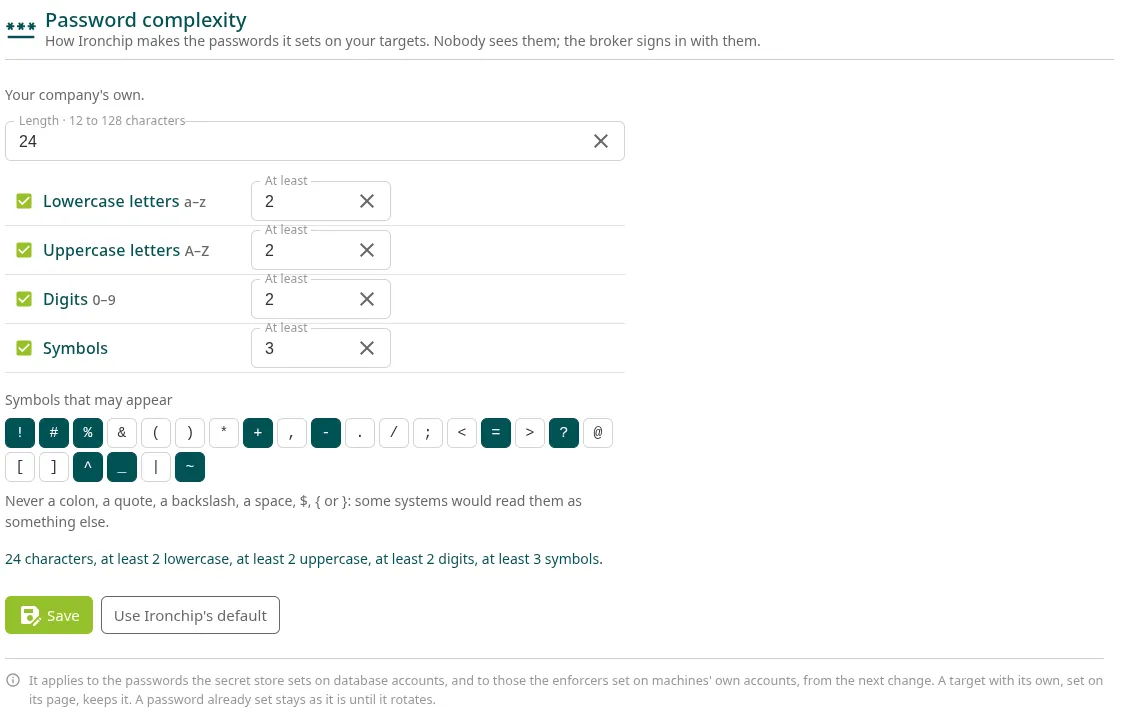
Go to PAM > Hosts > Password complexity.
-
Choose the length (Length, from 12 to 128 characters) and, for each character type, whether it is used and the minimum number (At least).
-
In Symbols that may appear, select the symbols your systems accept. Ironchip never uses colons, quotation marks, backslashes, spaces,
$,{or}. -
Click Save. Use Ironchip’s default goes back to the default complexity.
For a specific resource, in its Credential tab, Password complexity section, choose Its own and save it. Domain accounts always use the company’s complexity.
The new complexity applies at the next change: the current password stays until it rotates.
Other credentials
Section titled “Other credentials”These credentials also live in the secret store, but they are changed when you ask:
- The account the secret store uses to sign in to the directory: Change its password in PAM > Hosts > Directory.
- The AWS, Google Cloud and Azure credentials: Change its key or Change its client secret in PAM > Secrets > Credentials.
- A workload’s credential: Replace credential in PAM > Secrets > Workloads.
After the change, only the secret store knows the new credential.
Troubleshooting
Section titled “Troubleshooting”| Symptom | What to do |
|---|---|
| This machine has no enforcer, so its password does not change. | Install the enforcer on the machine and start it with -rotate-accounts and the account. |
| It stays at Waiting for the machine to set a new password | The enforcer checks every 30 seconds. Check that it is running and that the account is in -rotate-accounts. Meanwhile, the broker uses the previous password. |
| Managed by Ironchip does not appear | The protocol does not support it: only SSH, RDP, PostgreSQL and MySQL do. |
| A domain account cannot be managed | Configure the directory first. |
Was this page helpful?
Thank you. We will use it to improve the documentation. If you want to tell us what is missing or unclear, write to support@ironchip.com.