

Sessions and recordings
This page explains how to supervise privileged sessions: see who is connected, watch a session live, end it and play back what has already finished. It is for whoever administers or audits privileged access.
Permissions
Section titled “Permissions”| To | Permission |
|---|---|
| View PAM > Sessions | PAM approvals and sessions with Read |
| End a session | PAM approvals and sessions with Delete |
| Watch a session live or a recording | PAM recordings and live view with Read |
| View PAM > Recordings | PAM recordings and live view and PAM approvals and sessions, both with Read |
Active sessions
Section titled “Active sessions”Go to PAM > Sessions. It shows who is connected through the broker right now; what has already finished is in Recordings. The list updates on its own.
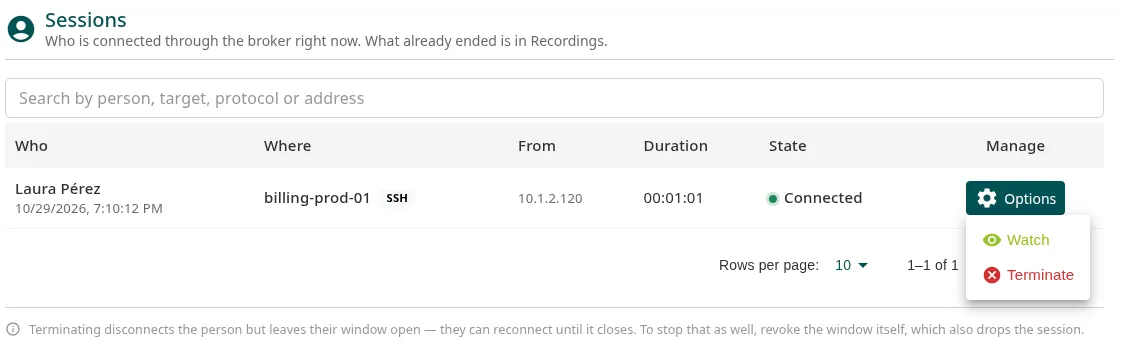
| Column | What it shows |
|---|---|
| Who | The person and when they started. |
| Where | The resource and its protocol. |
| From | The address they connect from, the one Ironchip checked before letting them through. |
| Duration | How long they have been connected. |
| State | Connected. |
| Manage | Options, with Watch and Terminate. |
Watch a session live
Section titled “Watch a session live”- In the session’s row, open Options > Watch.
- The player opens live (LIVE). You can drag the bar back to what already happened; when you let go, it returns to live on its own.
From the player you can also end the session with Terminate.
End a session
Section titled “End a session”-
In the session’s row, open Options > Terminate.
-
The Terminate session window reminds you who is connected and to what. Click Terminate.
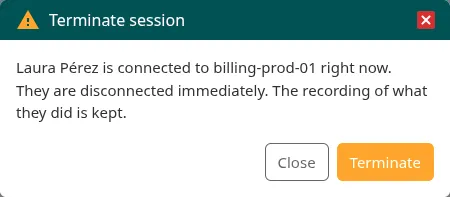
The person is disconnected at that moment and the recording of what they did is kept. If they were connected from the console, they see the The session ended notice; with their own client, the connection drops.
Recordings
Section titled “Recordings”Go to PAM > Recordings to see what was recorded from the company’s sessions.
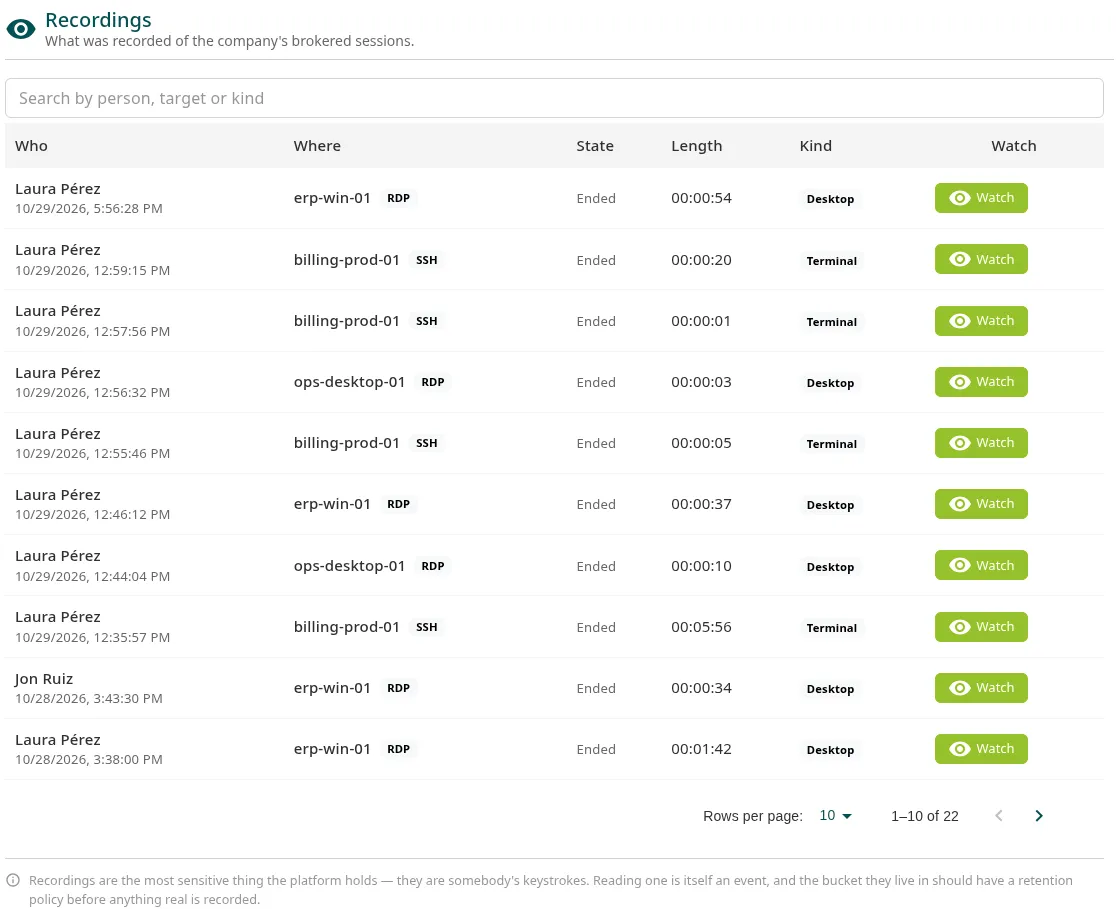
| Column | What it shows |
|---|---|
| Who | The person and when they started. |
| Where | The resource and its protocol. |
| State | LIVE if the session is still open, Ended if it has finished. |
| Length | How long it lasted. |
| Kind | Terminal (SSH and kubectl exec), Desktop (RDP and VNC) or Kubernetes (API requests). |
| Watch | Opens the player. |
Search by person, resource or kind in the search box at the top.
The player
Section titled “The player”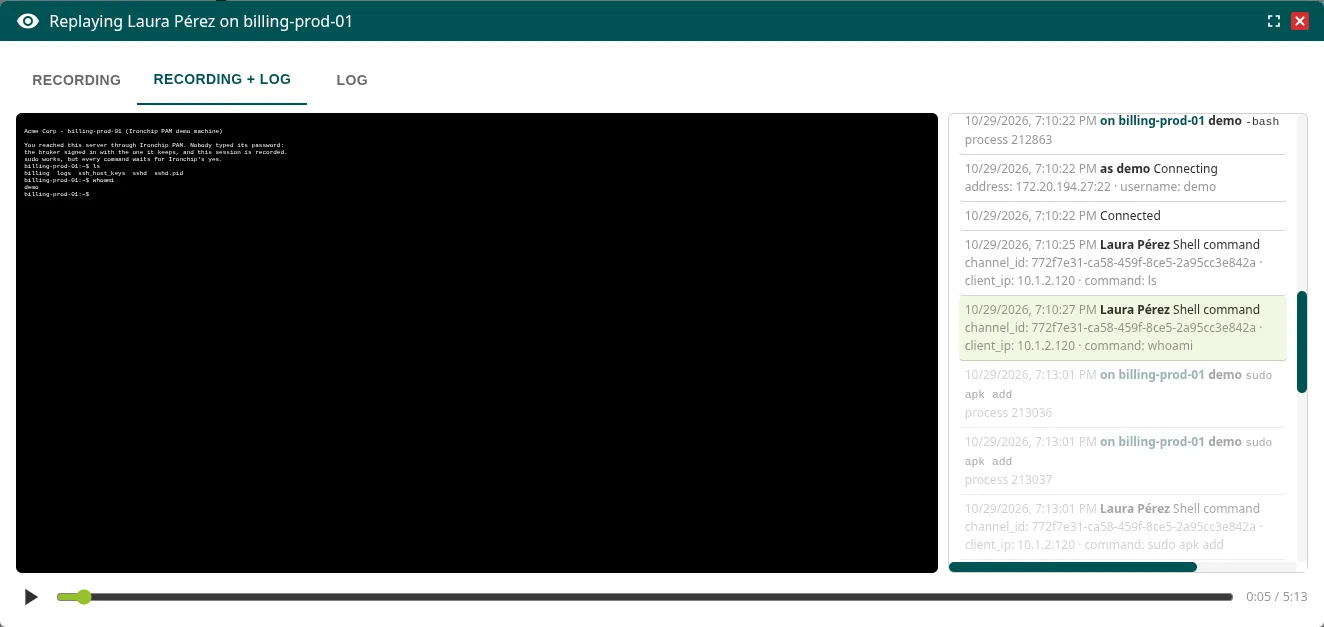
- The Recording, Recording + log and Log tabs show the recording, the recording with its timeline, or only the timeline.
- The terminal plays back exactly as the person saw it; the desktop, as screen images. Both play at real speed.
- Use the play button, the bar to jump to any point, and LIVE to return to live.
- Click a timeline entry to go to that moment in the recording.
The timeline
Section titled “The timeline”The timeline brings together in one place:
- What the broker records: the connection, whether it was held waiting for an approval or a confirmation, and how and why it ended.
- The processes the session’s account started, if the machine has the agent (osquery).
- The
sudocommands, if the machine has the enforcer: Allowed or Refused, with the reason (the rule that decided, who approved it or that nobody approved it in time).
If the machine’s agent is missing, disconnected or cannot see the processes, the player warns about it above the timeline: what was run may be missing.
What is recorded
Section titled “What is recorded”| Resource | What is kept |
|---|---|
| SSH | The full terminal, the timeline and, with the agent, processes and sudo |
| RDP and VNC | The full screen, the timeline and, with the agent, processes |
| Kubernetes | Each kubectl exec as a terminal, and each API request |
| PostgreSQL, MySQL and HTTP | The session in Sessions and what the broker records about the connection |
More information
Section titled “More information”- Recording and auditing: what evidence each access leaves.
- Approvals: the commands that wait for approval during the session.
Was this page helpful?
Thank you. We will use it to improve the documentation. If you want to tell us what is missing or unclear, write to support@ironchip.com.