

Resources
A resource (in the console, target) is a machine or service that the Ironchip PAM broker opens sessions to: a server, a desktop, a database, a Kubernetes cluster or an internal web application. This page explains how to register resources and what each resource’s page shows. It is for whoever administers privileged access.
Resource types
Section titled “Resource types”| Protocol | What it is for | Default port | Methods the broker signs in with |
|---|---|---|---|
| SSH | Linux and Unix servers | 22 | Broker key, IAM role, stored password, managed by Ironchip |
| RDP | Windows desktops and servers | 3389 | Stored password, managed by Ironchip |
| VNC | Any desktop that shares its screen | 5900 | None, stored password |
| PostgreSQL | PostgreSQL databases | 5432 | IAM role, stored password, managed by Ironchip |
| MySQL | MySQL and MariaDB databases | 3306 | IAM role, stored password, managed by Ironchip |
| Kubernetes | Clusters, with kubectl |
The API URL | IAM role, stored token, stored client certificate |
| HTTP | Internal web applications | The URL | The broker stores no credential |
Each type has its own page: SSH, RDP and VNC, Databases, Kubernetes and Web applications.
Before you begin
Section titled “Before you begin”- A site to put the resource in.
- A network path from the broker to the resource. With Ironchip Connect, the site’s connector. See Architecture.
- The PAM targets, sites and agents permission.
Register a resource
Section titled “Register a resource”-
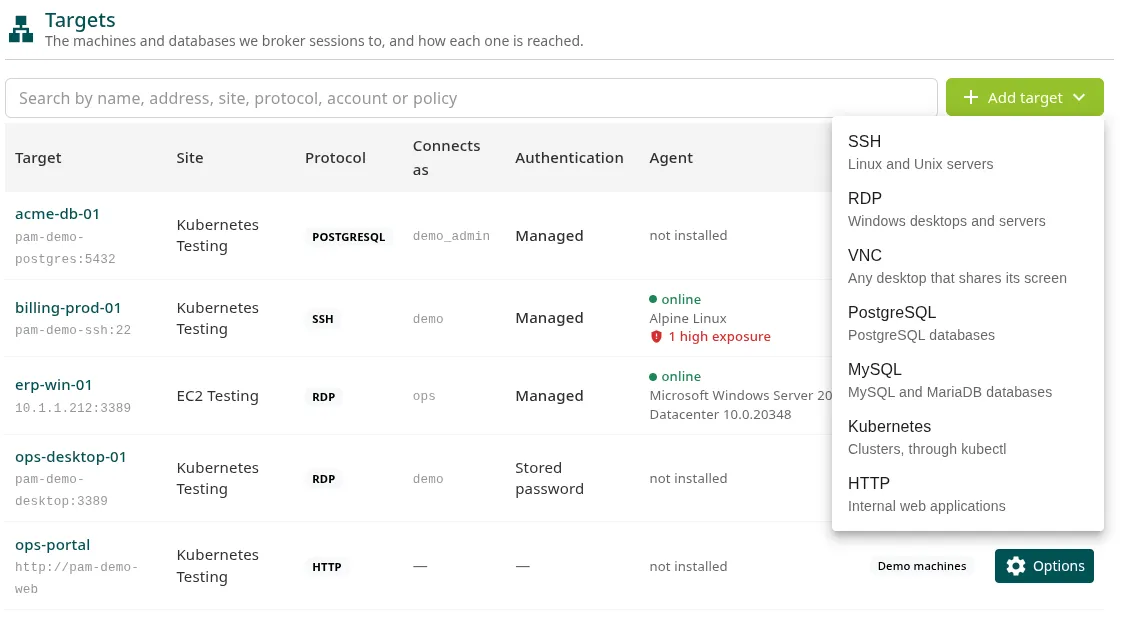
Go to PAM > Hosts > Targets, click Add target and choose the protocol.
-
In Name, enter the name people will see, for example
prod-linux-01. Use only letters, digits, dots, hyphens and underscores, because it is typed insshandpsqlcommands. It cannot be changed later: it is the name its recordings are filed under. -
In Site, choose the site.
-
In Where the broker connects, enter the Address and Port (for Kubernetes and HTTP, the URL). It is the address as the broker resolves it, not as your laptop does.
-
In The account on the far machine, enter the Username. For SSH and RDP you can specify a domain for a domain account.
-
In How the broker proves itself, choose the Method:
Method What it means The broker’s own key pair SSH only. The machine trusts the broker’s public key and none of your secrets is stored. A stored password A person’s password, encrypted in the secret store. Ironchip never changes it. Managed by Ironchip: nobody types or sees it Ironchip generates it, nobody has ever seen it, and Ironchip changes it every day and after every session. See Password rotation. A stored token / A stored client certificate Kubernetes. They are stored encrypted in the secret store. An IAM role The broker identifies itself with an IAM role and no secret is stored. Nothing (the server asks for nothing) VNC without a password. -
Follow the Prepare the machine steps, if they appear. For example, with the broker’s key the console shows the line for
authorized_keys; with a database password, theCREATE ROLEorCREATE USERstatements.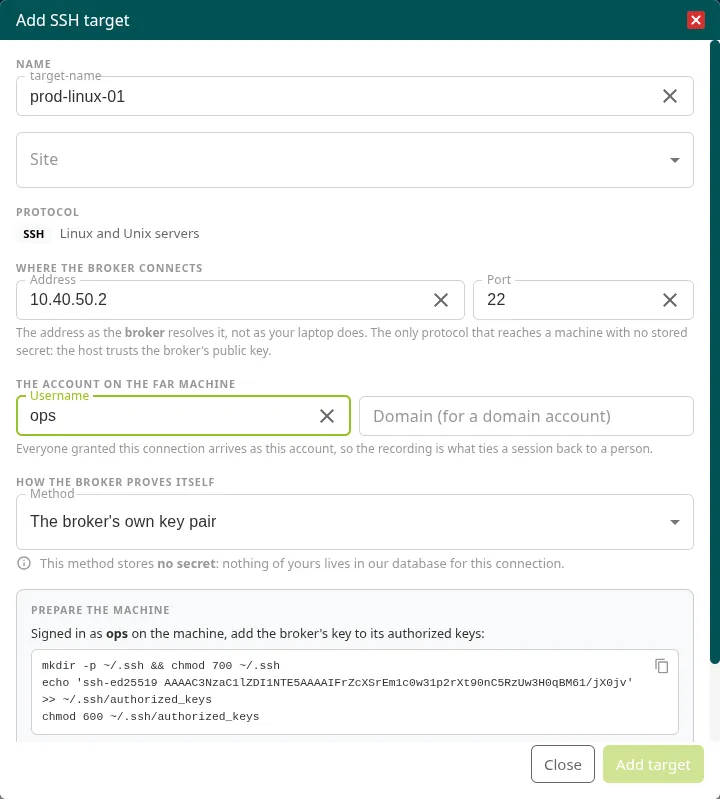
-
Click Add target.
The resource is registered in the broker, but nobody can reach it yet: add it to a target policy and name that policy in an access.
The resource list
Section titled “The resource list”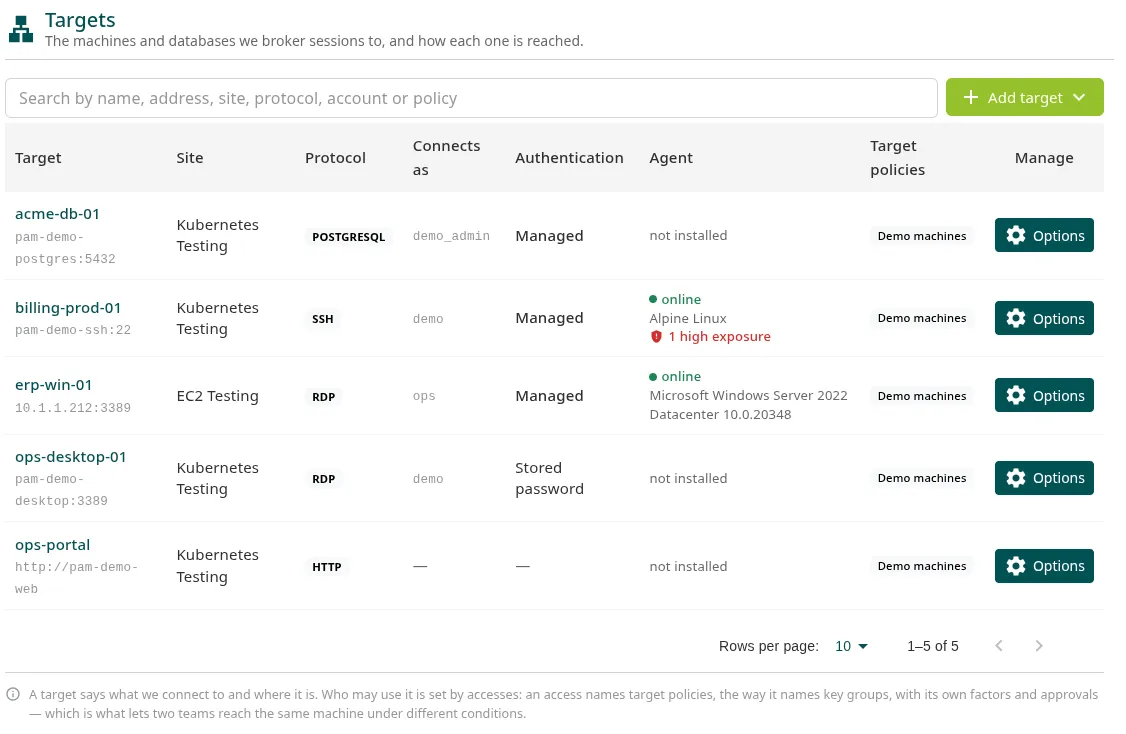
| Column | What it shows |
|---|---|
| Target | The name (a link to its page) and the address. |
| Connects as | The account the broker signs in with, and the machine’s other accounts. |
| Authentication | Managed, Stored password, Broker key, IAM role, Stored token, Stored certificate or None. |
| Agent | online, offline, enforcer only or not installed, the operating system and, if there are any, the exposure warnings. |
| Target policies | The target policies that include it. in no policy means that no access reaches it. |
In Options, on each resource’s row:
- Edit target: changes everything except the name and the protocol. When you edit, stored secrets are not shown: leave the field empty to keep them or enter a new one to replace them.
- Install agent: installs the agent on the machine.
- Remove agent and Remove enforcer: forget the machine’s agent or enforcer, and its key stops working. To enroll them again you need a new secret from Install agent.
- Remove target: deletes the resource from the company and from the broker, along with its additional accounts. You must first remove it from the target policies that include it.
A resource’s page
Section titled “A resource’s page”Click the resource’s name to open its page. At the top it shows the address, the account, the status of the agent and the enforcer, and the number of exposure warnings. Below that, these tabs:
| Tab | What it contains |
|---|---|
| Exposure | Ways into the machine that bypass Ironchip. See Exposure. |
| Accounts | The accounts the broker signs in with and the ones the agent finds on the machine. See Accounts. |
| Agent | The status of osquery and the enforcer: system, version, whether it sees processes, the last time it reported and the latest warnings. |
| Machine | What the agent knows about the machine: uptime, installed packages, Windows updates and whether the disks are encrypted. |
| Credential | Its password rotation and complexity. See Password rotation. |
Next steps
Section titled “Next steps”- Access policies: group resources and limit what can be done on them.
- Accesses: decide who reaches them.
Was this page helpful?
Thank you. We will use it to improve the documentation. If you want to tell us what is missing or unclear, write to support@ironchip.com.