

Checkouts and break-glass
This page explains how a person can get the password of a machine that Ironchip manages, day to day (checkout) and in an emergency (break-glass), and what is recorded. It is for whoever administers privileged access and whoever needs the password.
Normally nobody needs it: the broker injects the credential when connecting and the person never sees it. A checkout is for when the machine has to be used without going through the broker, for example from its physical console or when the network is down.
How it works
Section titled “How it works”| Checkout | Break-glass | |
|---|---|---|
| Who can | Anyone with an approved access window that reaches the machine | The members of the break-glass group |
| Which machines | The ones in that window | Any machine in the company whose password Ironchip manages |
| Approval | The window’s | None |
| Confirmation | The access factors, before the password is shown | Not requested |
| Reason | Required | Required |
| Until when | Until it is given back or the window closes | Until it is given back or the break-glass period expires |
| When it ends | The password is rotated | The password is rotated |
Only a password that Ironchip manages (Managed by Ironchip, which rotates) is handed out: for SSH servers, RDP desktops and PostgreSQL and MySQL databases. A password stored by a person is never handed out. See Password rotation.
While the password is out, nothing changes it: neither the scheduled rotation nor the rotation after each session. For a domain account, this applies to every resource that signs in with it.
Configure who can break the glass
Section titled “Configure who can break the glass”By default, nobody can use break-glass.
-
Go to PAM > Checkouts.
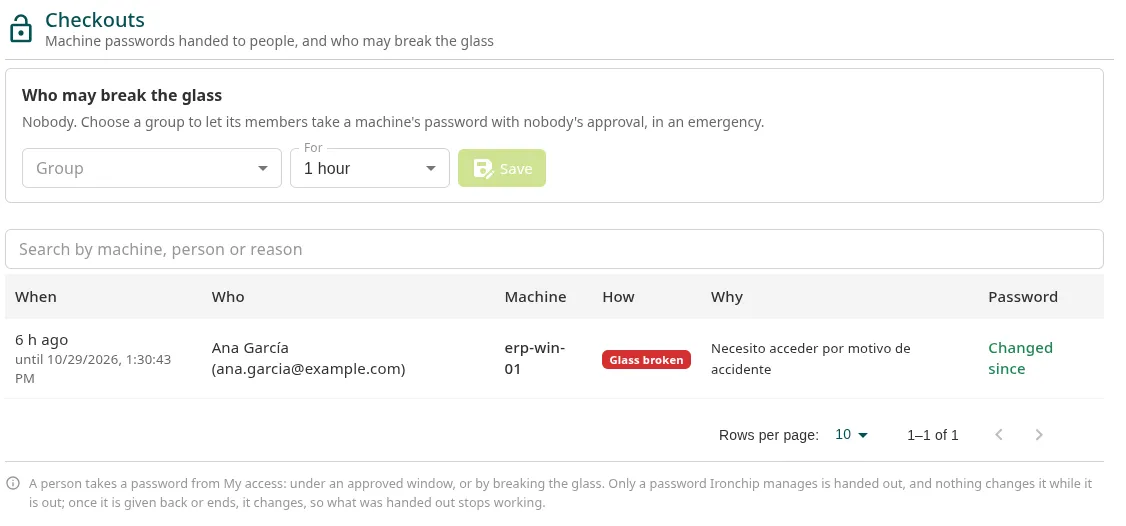
-
In Who may break the glass, choose the group in Group. Only collective groups appear.
-
In For, choose how long each break-glass lasts: from 15 minutes to 8 hours. The default is 1 hour.
-
Click Save.
To remove the permission, click Let nobody. Passwords that are already out stay out until they are given back or their period expires.
Check out a machine’s password
Section titled “Check out a machine’s password”For whoever needs it, from PAM > My access:
- In the row of an open window, click Password next to the machine.
- In Why, enter the reason (up to 500 characters). It is the first thing whoever reviews the record will read.
- Click Check out.
- If the access requires factors, confirm it as the prompt tells you: on your phone, with the code you receive by SMS, by email or with your card.
- Copy the password. It is shown only once, with how to sign in (
ssh user@machine, or the machine and the account for RDP).
The passwords you have appear in Passwords you have. When you are done, click Give it back: the password is changed and the one you copied stops working. If you do not give it back, it is changed when the window closes.
Break the glass
Section titled “Break the glass”If you are in the break-glass group, PAM > My access shows the Break the glass section:
- In Machine, choose the machine.
- Click Break the glass.
- In Why, explain the emergency, for example
The broker is down and payments are failing. - Click Break the glass and copy the password.
- When you are done, click Give it back now or Give it back.
If you do not give it back, it is changed when the configured period expires.
Record
Section titled “Record”PAM > Checkouts lists every password handed out:
| Column | What it shows |
|---|---|
| When | When it was checked out and until when it was valid. |
| Who | The person, with their name and email at that time. |
| Machine | The machine. |
| How | Glass broken (break-glass) or Approved window (checkout within a window). |
| Why | The reason they wrote. |
| Password | Out, Given back or Ended (about to be changed), and Changed since (no longer valid). |
If the password change fails, the reason appears in red under the status and Ironchip retries every minute. The records are kept even after the machine’s password changes.
Permissions
Section titled “Permissions”- Configure break-glass and view PAM > Checkouts: PAM break-glass and checkouts (Read to view, Update to change).
- Checking out a password or breaking the glass needs no console permission: the access window, or being in the group, is enough.
More information
Section titled “More information”- Credential vault
- Request access: how a window is opened.
Was this page helpful?
Thank you. We will use it to improve the documentation. If you want to tell us what is missing or unclear, write to support@ironchip.com.