

Directory
This page explains how to connect your company’s directory so that Ironchip manages the passwords of the domain accounts the broker signs in with. It is for whoever administers PAM and the directory.
A resource signs in with a domain account when its user is DOMAIN\account, account@domain or carries a domain in its field. If its method is Managed by Ironchip, the password is changed in the directory every day, after every session and when you ask for it, and every resource that signs in with the same account gets the new one. The password follows the company’s complexity.
Supported directories
Section titled “Supported directories”| Directory | Who changes the password |
|---|---|
| Active Directory | The secret store, over LDAP with TLS |
| OpenLDAP, or another LDAP server | The secret store, over LDAP |
| Entra ID, cloud-only accounts | Ironchip, through Microsoft Graph |
Entra ID (formerly Azure AD) only works for accounts created in the cloud. Accounts synchronized from an on-premises Active Directory are changed in that Active Directory.
Before you start
Section titled “Before you start”- The PAM directory permission.
- Active Directory or LDAP: a service account with permission to reset the password of the accounts Ironchip will manage, and nothing more. The secret store must be able to reach the directory over the network.
- Entra ID: a registered application with the
User.ReadWrite.Allpermission and a directory role that can reset those accounts’ passwords, with a client secret.
Connect Active Directory or LDAP
Section titled “Connect Active Directory or LDAP”-
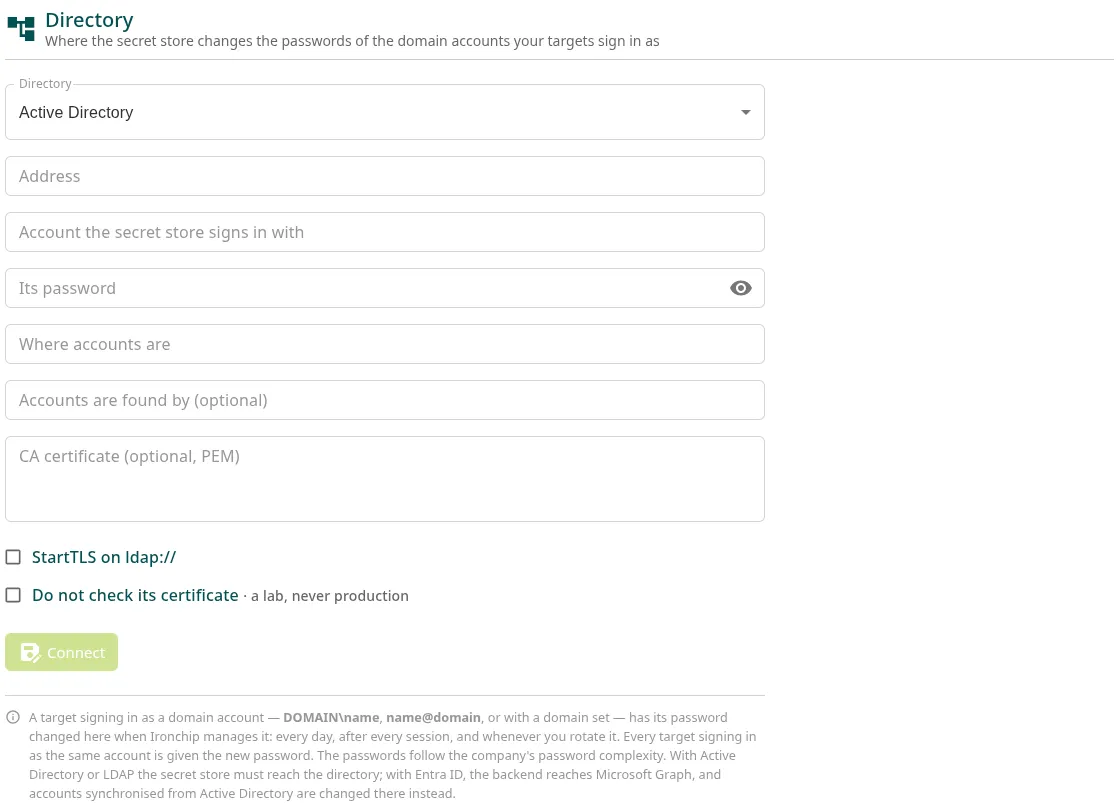
Go to PAM > Hosts > Directory.
-
In Directory, choose Active Directory or OpenLDAP, or another LDAP server.
-
In Address, enter the address, for example
ldaps://dc1.corp.example. You can enter several domain controllers separated by commas: they are tried in order. -
In Account the secret store signs in with, enter the service account’s DN, for example
CN=ironchip-pam,OU=Service Accounts,DC=corp,DC=example, and its password in Its password. -
In Where accounts are, enter where the accounts are, for example
OU=Admins,DC=corp,DC=example. -
In Accounts are found by (optional), keep the default attribute (
sAMAccountNamein Active Directory,uidin LDAP) or enter another one, such asuserPrincipalName. -
If your directory uses its own CA, paste its certificate in CA certificate (optional, PEM).
-
Click Connect.
Active Directory only changes passwords over TLS: use ldaps:// or select StartTLS on ldap://. Do not select Do not check its certificate outside a lab.
After connecting, click Change its password: the store changes the service account’s password and, from then on, only the store knows it.
Connect Entra ID
Section titled “Connect Entra ID”- Go to PAM > Hosts > Directory and choose Entra ID, cloud-only accounts in Directory.
- Enter Tenant (directory) id, Application (client) id and Client secret.
- Click Connect. Ironchip signs in to Entra ID with the application to check it.
The client secret is kept in the secret store. To change it, create a new one in Entra ID and save it here.
Use a domain account on a resource
Section titled “Use a domain account on a resource”- When you add an SSH or RDP resource, enter the account with its domain (
CORP\svc-ops,svc-ops@corp.exampleor the domain in its field). - Choose Managed by Ironchip as the method.
The password is changed in the directory at that moment and, from then on, on the resource’s schedule. See Password rotation.
Change or remove the directory
Section titled “Change or remove the directory”- To change the address or the account, edit the fields and click Save. Empty password and certificate fields keep the ones the store already has.
- Remove forgets the directory. You cannot remove it, or switch to another type of directory, while there are resources whose accounts rotate through it.
Was this page helpful?
Thank you. We will use it to improve the documentation. If you want to tell us what is missing or unclear, write to support@ironchip.com.