

Target and control policies
PAM policies are pieces that an access names: target policies say which machines it reaches and control policies say what can be done as root once inside. This page explains how to create them. It is for whoever administers privileged access.
The conditions for getting in (device, safe zone, factors and approval) are not here: they are the access’s authentication policies, and approval is defined in approval policies.
Target policies
Section titled “Target policies”A target policy is a named set of machines, such as Production Linux. An access names it just as it names a factor group, so two teams can reach the same machines under different conditions.
Create a target policy
Section titled “Create a target policy”-
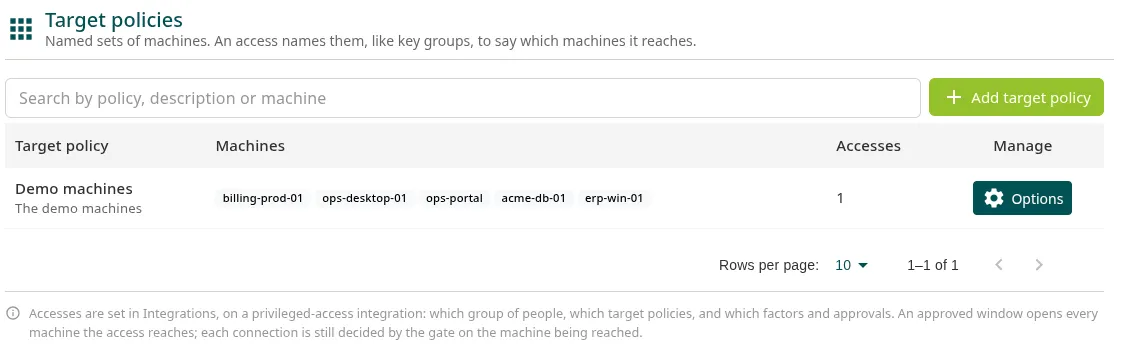
Go to PAM > Hosts > Target policies and click Add target policy.
-
Enter Name and, optionally, Description (optional), for example
All production Linux servers, in Madrid and on AWS. -
In Machines, select the machines. They are grouped by site, and a policy can mix sites.
-
Click Add target policy.
The policy gives nobody access until you name it in an access.
Change or delete it
Section titled “Change or delete it”- Options > Edit policy changes the name or the machines. The accesses that name it reach the new machines as soon as you save, and stop reaching the ones you remove.
- Options > Remove policy deletes it. The machines stay. It cannot be deleted while any access names it: the Accesses column shows which ones.
Control policies
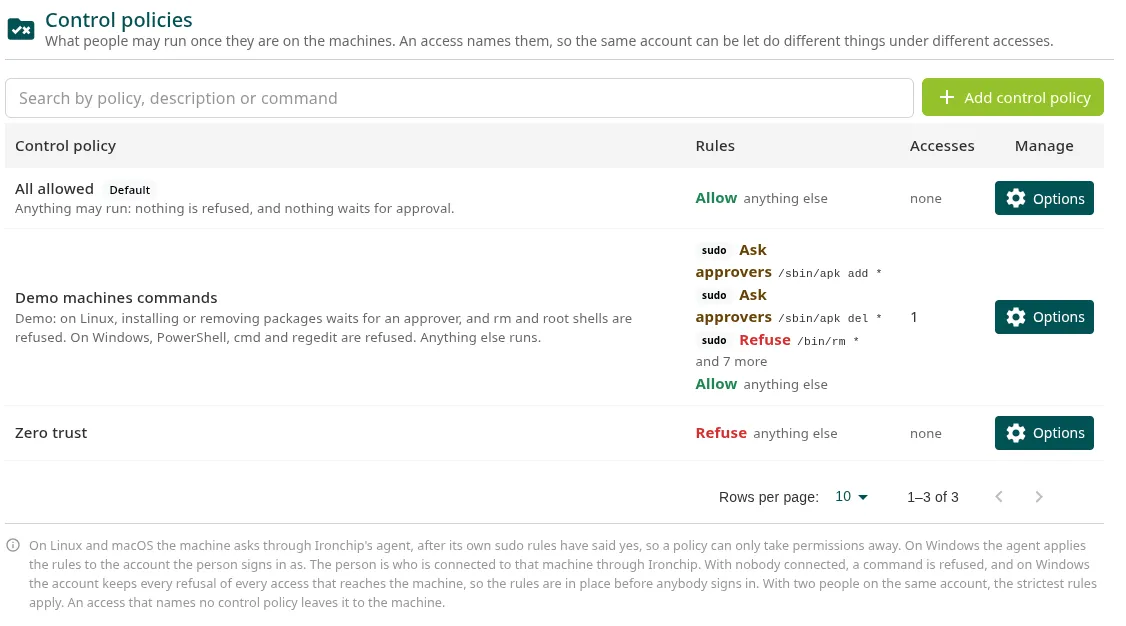
Section titled “Control policies”A control policy says what a person connected through Ironchip can run as root:
- On Linux, each
sudocommand. The machine asks Ironchip through the agent after its ownsudoersrules have said yes, so a policy can only take permissions away, never grant them. - On Windows, the programs that the account the person signs in with can open, which the agent enforces with AppLocker.
Without the agent on the machine, control policies are not applied on it.
The default policy
Section titled “The default policy”Every company has All allowed, Ironchip’s own: everything can run and the machine’s own rules decide. It comes selected in every new access and cannot be changed or deleted. To restrict, create another one.
Create a control policy
Section titled “Create a control policy”-
Go to PAM > Hosts > Control policies and click Add control policy.
-
Enter Name, for example
Web operators, and optionally a description. -
In Rules, in order, add each rule with Add rule:
- Kind: Command (sudo) or Windows program.
- Command: the full command line as it would run, with the program’s full path:
/usr/bin/systemctl restart *.*matches anything, including spaces and slashes;?matches one character. - Program or path: the executable name,
powershell.exe, which matches even if it is copied to another folder, or a path with*and Windows folder variables:%PROGRAMFILES%\Tools\*. - Then: Allow, Refuse or Ask approvers. With Ask approvers, choose the Approval policy that decides.
-
Order the rules with the arrows: the first one that matches decides.
-
In Anything else, choose what happens to anything that matches no rule. By default, Refuse.
-
Click Add control policy.
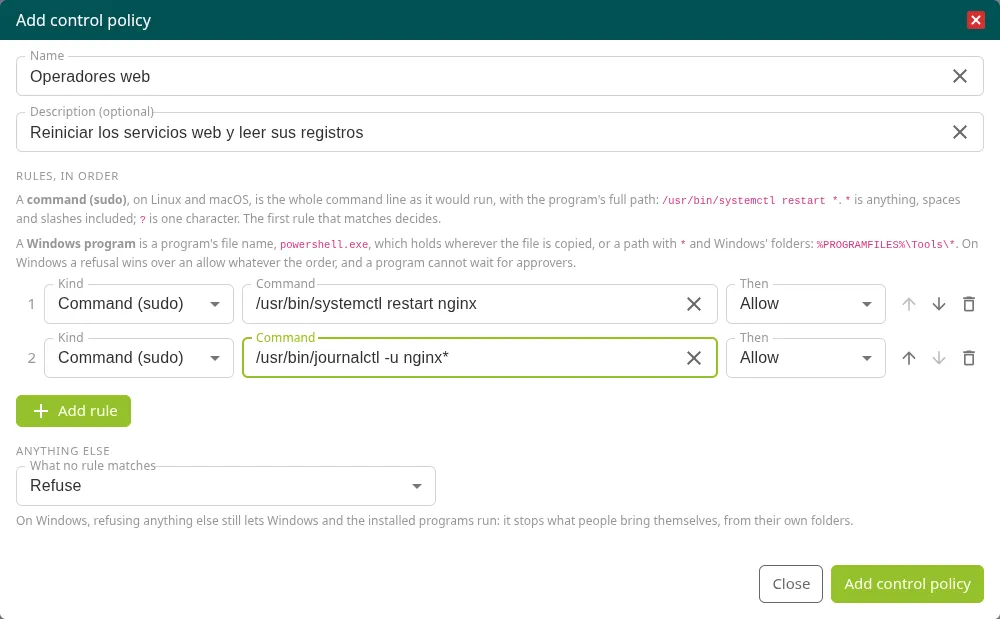
An example for a team that restarts web services and reads their logs:
| # | Kind | Command or program | Then |
|---|---|---|---|
| 1 | Command (sudo) | /usr/bin/systemctl restart nginx |
Allow |
| 2 | Command (sudo) | /usr/bin/journalctl -u nginx* |
Allow |
| 3 | Command (sudo) | /usr/bin/apt install * |
Ask approvers |
| Anything else | Refuse |
How it is decided
Section titled “How it is decided”- If an access names several policies, they are checked in the order you selected them and the first matching rule decides. If none matches, the strictest Anything else applies (refusing before asking for approval, and asking for approval before allowing).
- A command waiting for approval appears in PAM > Approvals and the person waits at the
sudoprompt for up to 5 minutes. If nobody decides in time, it is refused. - If nobody is connected to the machine through Ironchip, the command is refused. Commands that already run as root (uid 0) are not checked.
- If two or more people are connected with the same account, Ironchip cannot tell whose command it is and refuses it. Use separate accounts for each team.
- On Windows, a refusal wins over an allow regardless of order, and a program cannot wait for approval (Ask approvers is not available). Refusing everything else still lets Windows and the installed programs run: it stops what the person brings in their own folders. With nobody connected, the account keeps every refusal from every access that reaches the machine, so the rules are in place before anyone signs in; with several people connected, the strictest rules apply.
- An access that names no control policy leaves the decision to the machine.
When you edit a policy that accesses name, the next command is already decided with the new rules.
More information
Section titled “More information”Was this page helpful?
Thank you. We will use it to improve the documentation. If you want to tell us what is missing or unclear, write to support@ironchip.com.