

Accounts
This page explains PAM accounts: which accounts the broker signs in with on each machine, and which accounts exist on your machines according to their agents. It is for whoever administers resources and wants to keep privileged accounts under control.
A machine’s accounts
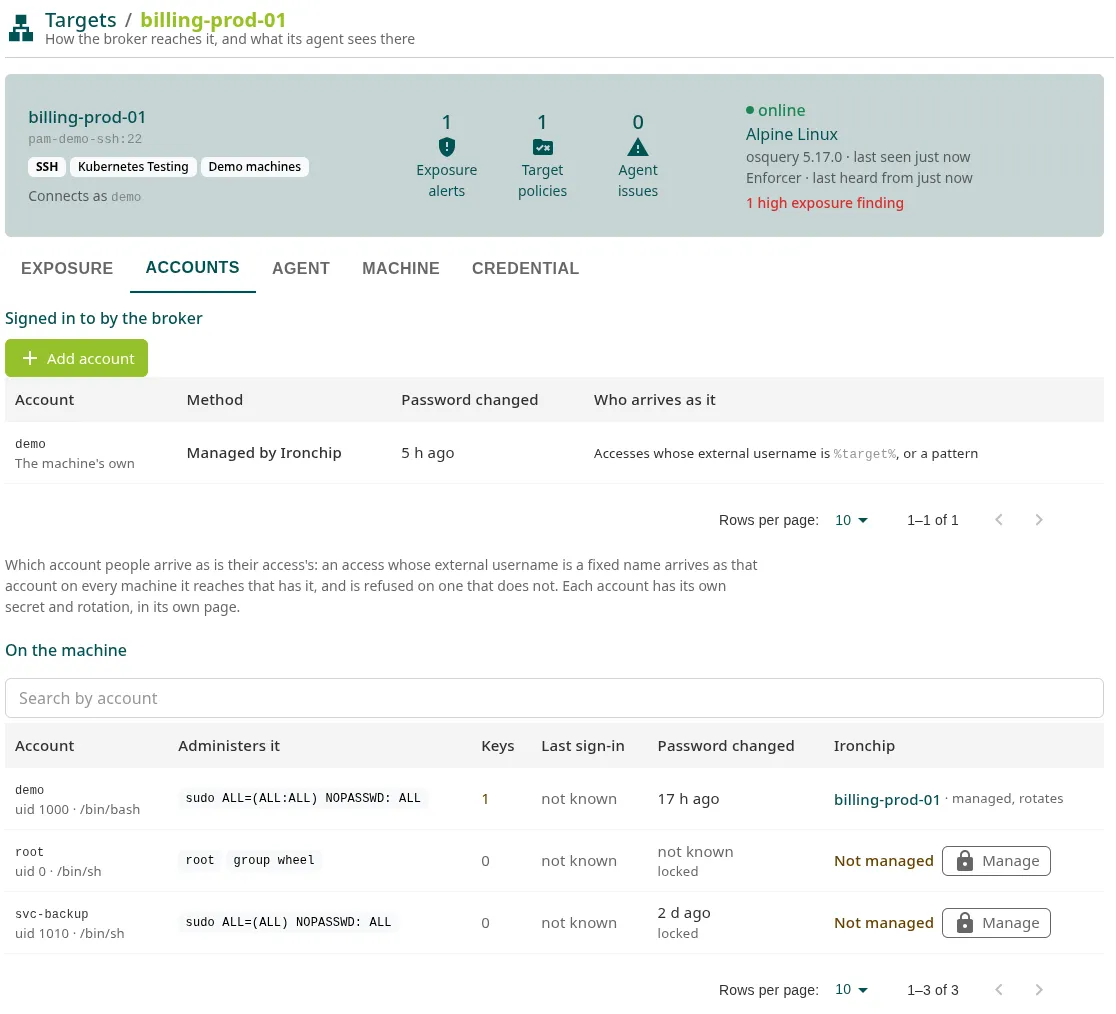
Section titled “A machine’s accounts”Each SSH, RDP, PostgreSQL or MySQL resource has its own account, the one you entered when you registered it. You can also add other accounts to it, each with its own secret and rotation. That way, for example, the operations team signs in as ops and the database team as dba on the same machine.
Which account each person arrives with is decided by their access, in the Account on the machines step:
- Each machine’s own account: the person arrives with each machine’s own account.
- A specific account, on every machine: the person arrives with that account on every machine the access reaches. A machine that does not have that account rejects the connection.
In both cases the session belongs to the person: it is recorded and judged as whoever opened it.
Add an account to a machine
Section titled “Add an account to a machine”-
Open the resource’s page and go to the Accounts tab.
-
Click Add account.
-
Enter the Username and, for SSH and RDP, the domain if it is a domain account.
-
Choose the Method. The default is Managed by Ironchip: the password is set by the machine’s enforcer (if it was started with
-rotate-accountsincluding the account) or, for a domain account, by the directory. For a database, also enter the Admin account and Admin password. -
Click Add account.
The additional account appears as one more resource named <machine>.<account>. It has its own page with its own Credential tab and follows its machine’s address and site. VNC, Kubernetes and HTTP have no accounts.
Remove removes the account from the broker and deletes its secret. The account still exists on the machine, but the accesses that arrive with it no longer reach this machine.
Account inventory
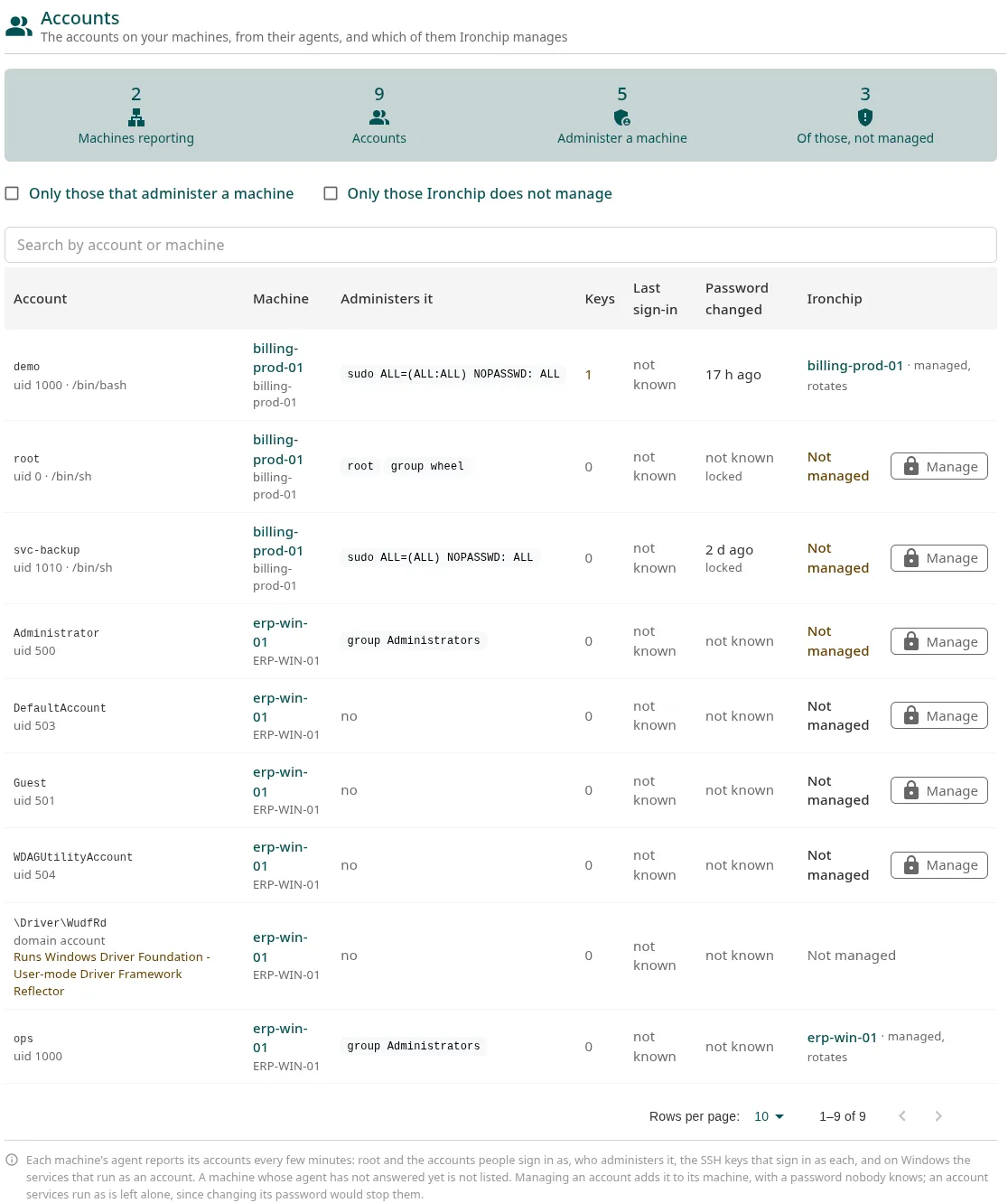
Section titled “Account inventory”If the machine has the agent, it reports its accounts every few minutes: root and the accounts people sign in with, who administers the machine, the SSH keys used to sign in to each account and, on Windows, the services that run under each account.
Go to PAM > Hosts > Accounts to see every account on every machine:
| Column | What it shows |
|---|---|
| Account | The account, its uid and its shell, whether it is a domain account, whether it cannot sign in and which services run under it. |
| Machine | The machine. |
| Administers it | Whether it administers the machine: root, the sudo group or a sudo rule, or no. |
| Keys | The SSH keys authorized on the account. |
| Last sign-in | The last sign-in. |
| Password changed | The last password change. |
| Ironchip | The resources that sign in with it if Ironchip manages it, or Not managed. |
At the top are the Machines reporting, Accounts, Administer a machine and Of those, not managed counters. Select Only those that administer a machine and Only those Ironchip does not manage to see the privileged accounts you do not control yet.
Manage a discovered account
Section titled “Manage a discovered account”- In the account’s row, click Manage.
- Confirm with Manage.
The account is added to its machine’s accounts with a password that Ironchip manages: the enforcer sets the first one (if -rotate-accounts includes the account) and then changes it every day and after every session.
Manage does not appear when changing the password would break something or serve no purpose: if services run under the account, if nobody can sign in with it, if it is already a domain account or if a resource already signs in with it. The machine needs an SSH or RDP resource.
More information
Section titled “More information”- Password rotation
- Exposure: SSH keys and sessions that bypass Ironchip.
Was this page helpful?
Thank you. We will use it to improve the documentation. If you want to tell us what is missing or unclear, write to support@ironchip.com.