

Connect to a resource
This page explains how to connect to a resource when you have an open window or permanent access. It is for whoever uses privileged access.
You do not need a VPN, and you neither know nor type the resource’s password: the Ironchip broker enters it when it opens the session.
From the console
Section titled “From the console”In PAM > My access, next to each machine:
- Terminal opens an SSH terminal in the console itself.
- Desktop opens the RDP or VNC desktop in the console itself.
The connection is decided like any other: if Ironchip asks you for something (for example, to confirm on your phone), the console shows it above the screen and the session opens as soon as you respond.
On the desktop, click the screen to type in it. Ctrl+Alt+Del has its own button. In full screen, the whole keyboard goes to the remote machine (including Alt+Tab and the Windows key); hold down Esc to exit.
To finish, type exit or press Ctrl+D in the terminal, or sign out of Windows.
With your own client
Section titled “With your own client”-
In PAM > My access, click Credential next to the machine.
-
Copy the command from Run this or fill in your client with Host, Port and Username.
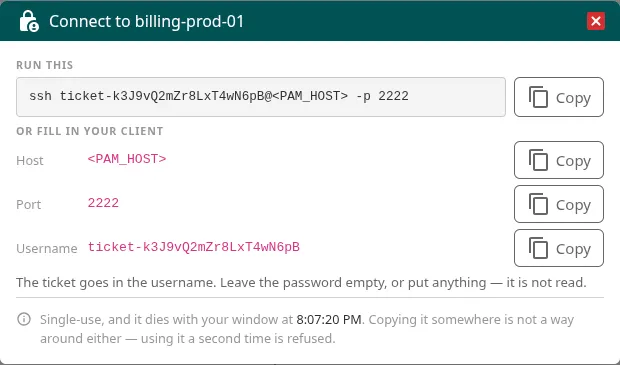
The credential is a single-use ticket, which goes in the username (ticket-…). Leave the password empty or enter anything: it is not read. The ticket expires with your window and does not work a second time.
| Resource | How you connect |
|---|---|
| SSH | ssh ticket-<TICKET>@<PAM_HOST> -p <PORT> |
| RDP | Download .rdp opens Remote Desktop on Windows, or Windows App on Mac, with the ticket filled in. Or xfreerdp /v:<PAM_HOST>:<PORT> /u:ticket-<TICKET> |
| VNC | vncviewer -SecurityTypes VeNCrypt,X509Plain <PAM_HOST>::<PORT> |
| PostgreSQL | psql -h <PAM_HOST> -p <PORT> -U ticket-<TICKET> |
| MySQL | mysql -h <PAM_HOST> -P <PORT> -u ticket-<TICKET> |
| Kubernetes | Save the kubeconfig the console shows and use kubectl --kubeconfig <file> get pods |
| HTTP | Open in the broker opens the application in the browser with the ticket |
The console always shows the exact command, with the address and port of your company’s broker.
What happens when you connect
Section titled “What happens when you connect”- You open the connection with the ticket.
- The broker holds it while Ironchip checks that you have an open window or permanent access, that you are connecting from an allowed address, and the access’s factors. If any factor asks for confirmation, it reaches you by the matching channel: your phone, an SMS, email or your card.
- If the policy requires approval on connection, the connection also waits for an approver to decide. In My access, use Connect and ask and leave the connection open: it opens on its own when someone says yes. If nobody decides within 5 minutes, it is refused.
- If everything is correct, the broker opens the session with the resource’s credential and starts recording.
During the session
Section titled “During the session”- What you do is recorded.
- If the machine has the agent, each
sudoasks Ironchip and may wait for an approval; on Windows, only the allowed programs open. - An administrator can watch your session live and end it. In the console you see The session ended.
- If you need the machine’s password to use it without the broker, see Checkouts and break-glass.
Troubleshooting
Section titled “Troubleshooting”| Symptom | Probable cause |
|---|---|
| The connection keeps waiting | Your confirmation is missing (check the notice or your phone) or the policy requires approval on connection and nobody has decided yet. |
| The connection was refused | You do not have an open window for that machine, you did not confirm in time or you are connecting from an address that is not allowed. |
your access arrives as an account this machine does not have |
Your access arrives as a fixed account that the machine does not have. Ask an administrator to add it to the machine’s accounts. |
| The ticket is not valid | It is single-use: get a new one with Credential each time you connect. |
sudo is refused with nobody is connected to this machine through Ironchip |
You are using a session that does not go through Ironchip. Connect through the broker. |
Was this page helpful?
Thank you. We will use it to improve the documentation. If you want to tell us what is missing or unclear, write to support@ironchip.com.