

Agent on the machines
The agent is an optional component installed on the machines Ironchip PAM reaches. Whoever administers privileged access uses it to control what runs inside the session, not just who gets in.
What it does
Section titled “What it does”The agent has two parts, which are enrolled with the same secret:
- osquery reports what happens on the machine. It is standard, unmodified osquery: only its configuration changes. It works on Linux, Windows and macOS.
- The processes that people’s accounts start, for the timeline of each session.
- The accounts, who administers the machine, the SSH keys, who is signed in and what listens for remote connections, for the account inventory and exposure.
- The system, installed packages, Windows updates and disk encryption, in the resource’s Machine tab.
- Enforcer applies on the machine what Ironchip decides, using the mechanisms each system already has. It works on Linux and Windows.
- Linux:
sudoasks it, through an approval plugin, whether a command may run. Any answer other than an explicit allow is a refusal. - Windows: every few seconds it asks which programs each account the broker signs in with may run, and enforces it with AppLocker, both before anyone connects and while someone is connected.
- Account rotation: it changes the passwords of the local accounts Ironchip manages. Only those of the accounts you name in
-rotate-accounts: the others are never changed, even if Ironchip asks.
- Linux:
The agent only opens outbound HTTPS connections to Ironchip: nothing comes into the machine.
Requirements
Section titled “Requirements”| System | Enforcer package |
|---|---|
| Debian and Ubuntu | .deb (amd64, arm64, armhf, i386 and others) |
| RHEL, Rocky, Alma, Fedora and SUSE | .rpm (x86_64, aarch64 and others) |
| Alpine | .apk |
| Arch Linux | .pkg.tar.zst |
| Any Linux (glibc or musl) | .tar archive with install.sh |
| Windows | ironchip-enforcer.exe (amd64 and arm64) |
- Linux:
sudo1.9 or later, which supports approval plugins (RHEL 8, Debian 11, Ubuntu 22.04 or later). Administrator access. - Windows: an elevated command prompt.
- osquery 5.23 or later, from https://osquery.io/downloads.
- Outbound HTTPS from the machine to Ironchip.
- The resource’s enrollment secret: in PAM > Hosts > Targets, open Options > Install agent on the resource. The secret enrolls one machine, once for osquery and once for the enforcer, and expires after an hour. It is not shown again.
Install osquery
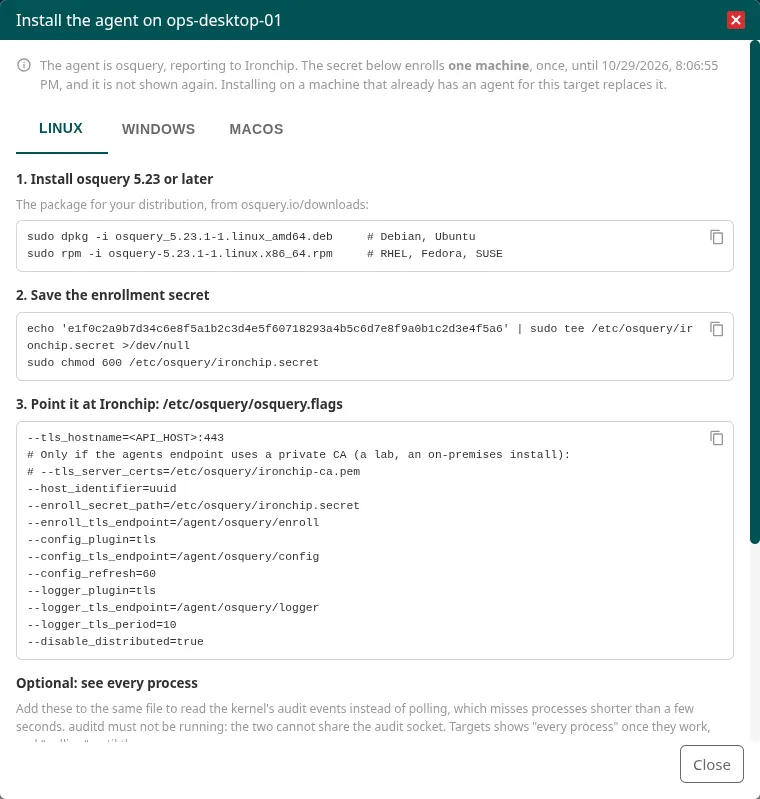
Section titled “Install osquery”The Install agent window shows the steps for Linux, Windows and macOS with your company’s values already filled in:
- Install osquery 5.23 or later.
- Save the enrollment secret in your system’s file, with
600permissions. - Copy the options from the console into the flags file.
- Start the service (
sudo systemctl enable --now osqueryd,Restart-Service osquerydorsudo osqueryctl start).
| System | Secret | Flags file |
|---|---|---|
| Linux | /etc/osquery/ironchip.secret |
/etc/osquery/osquery.flags |
| macOS | /var/osquery/ironchip.secret |
/var/osquery/osquery.flags |
| Windows | C:\Program Files\osquery\ironchip.secret |
C:\Program Files\osquery\osquery.flags |
To see every process, and not only the ones it finds when it checks the list every few seconds, add your system’s event source:
- Linux:
--disable_events=false --disable_audit=false --audit_allow_config=true --audit_persist=true --audit_allow_process_events=true.auditdmust not be running. - macOS:
--disable_events=false --disable_endpointsecurity=false, and Full Disk Access forosqueryd. - Windows:
--disable_events=false --enable_process_etw_events=true. Without these options, no process is seen on Windows.
Within a minute, the resource shows the agent online, with the machine’s name and system.
Install the enforcer on Linux
Section titled “Install the enforcer on Linux”-
Install the package:
Ventana de terminal sudo apt install ./ironchip-pam-agent_<version>-1_amd64.deb # Debian, Ubuntusudo dnf install ./ironchip-pam-agent-<version>-1.x86_64.rpm # RHEL, Rocky, Alma, Fedora (SUSE: zypper install)sudo apk add --allow-untrusted ./ironchip-pam-agent_<version>-r1_x86_64.apk # Alpinesudo pacman -U ./ironchip-pam-agent-<version>-1-x86_64.pkg.tar.zst # Arch LinuxOn any other Linux, extract the
.tararchive outside/and run itsinstall.shas root. -
Enroll the enforcer with the resource’s secret and delete the file. Replace
<SECRET>with the enrollment secret and<API_HOST>with the Ironchip API address:Ventana de terminal echo '<SECRET>' | sudo tee /etc/ironchip/secret >/dev/null && sudo chmod 600 /etc/ironchip/secretsudo ironchip-enforcer enroll -server <API_HOST>:443 -secret-file /etc/ironchip/secretsudo rm /etc/ironchip/secret -
In
/etc/ironchip/enforcer.env, set the Ironchip address (IRONCHIP_SERVER) and, if you want it to rotate accounts, add-rotate-accountswith the comma-separated accounts toIRONCHIP_ENFORCER_ARGS. Then start the service:Ventana de terminal sudoedit /etc/ironchip/enforcer.envsudo systemctl enable --now ironchip-enforcerOn Alpine, use
rc-update add ironchip-enforcer defaultandrc-service ironchip-enforcer start. -
Turn on the
sudoapproval plugin. In/etc/sudo.conf, after the policy plugin:/etc/sudo.conf Plugin sudoers_policy sudoers.soPlugin ironchip_approval /usr/libexec/sudo/ironchip_approval.so socket=/run/ironchip/enforcer.sock timeout=30
Package upgrades restart the enforcer if it was running and keep enforcer.env and its enrollment. The .deb and .rpm packages refuse to uninstall while sudo.conf loads the plugin: remove the line first. The Alpine and Arch packages disable the line when they are uninstalled and keep a copy in /etc/sudo.conf.ironchip-removed.
Install the enforcer on Windows
Section titled “Install the enforcer on Windows”Save the enrollment secret in secret.txt and, from an elevated command prompt, run:
ironchip-enforcer.exe enroll -server <API_HOST>:443 -secret-file secret.txtironchip-enforcer.exe install -server <API_HOST>:443 -rotate-accounts ironchip-rotate-accounts is optional and names the local accounts the enforcer may rotate (ironchip in the example). install installs it as a service, with its files under C:\ProgramData\Ironchip. uninstall removes it.
The enforcer starts the Application Identity service (AppIDSvc) if needed. If the AppLocker executable rule collection is in audit mode, Ironchip’s rules are logged but block nothing. On a machine with no AppLocker rules of its own, the enforcer adds a rule that allows everything to everyone, so the other accounts are not affected: Ironchip only restricts the accounts the broker signs in with.
Enforcer options
Section titled “Enforcer options”| Option | What it does |
|---|---|
-server host:port |
Ironchip address. Required. |
-secret-file file |
The enrollment secret, for enroll. |
-rotate-accounts accounts |
Comma-separated accounts whose password Ironchip may change: the ones the broker uses. |
-ca file |
CA certificates to trust instead of the system’s. |
-key file |
Where it stores its key. By default /etc/ironchip/enforcer.key or C:\ProgramData\Ironchip\enforcer.key. |
Check that it works
Section titled “Check that it works”The Agent tab on the resource’s page shows the status of osquery (Status, System, Processes, Last seen and the latest warnings) and of the enforcer (Last heard from). On Linux, the enforcer is heard from when someone uses sudo, and every 30 seconds if it rotates passwords; on Windows, every few seconds.
Change the key or remove it
Section titled “Change the key or remove it”- To change the enforcer’s key, open Options > Remove enforcer and enroll it again with a new secret from Install agent. Until it is enrolled,
sudorefuses everything on that machine. - Options > Remove agent does the same for osquery. Uninstalling osquery from the machine is up to you.
Troubleshooting
Section titled “Troubleshooting”| Symptom | What to do |
|---|---|
sudo refuses every command |
The enforcer is stopped or not responding. Start it with sudo systemctl start ironchip-enforcer or, if needed, remove the plugin line from /etc/sudo.conf from a root shell. |
| Enrollment fails | The secret is valid once for each part of the agent and expires after an hour. Generate another one with Install agent on the right resource. |
| No processes appear in the session | Check that osquery has your system’s event source enabled. On Windows it is essential. |
| An account’s password does not change | Add the account to -rotate-accounts and restart the enforcer. See Password rotation. |
Was this page helpful?
Thank you. We will use it to improve the documentation. If you want to tell us what is missing or unclear, write to support@ironchip.com.