

Web SDK
The Ironchip LBFraud web SDK lets Ironchip evaluate whether the device and environment using your website are safe to operate from. You add it to your website in a few steps: install the package, initialize the client with your API key, and send a transaction on each sensitive operation.
Supported browsers
Section titled “Supported browsers”| Browser | Minimum tested version |
|---|---|
| Chrome | 68.0.3440.91 |
| Firefox | 60.0 |
| Mobile Safari | 12.1.2 |
| Brave | 119.0.0.0 |
| Edge | 97.0.1072.62 |
| Opera | 95.0.0.0 |
| Chromium | 76.0.3809.100 |
| Chrome WebView | 84.0.4147.89 |
| GSA (Google Search App) | 130.0.337455237 |
| DuckDuckGo | 5 |
| Silk | 108.7.2 |
| Samsung Browser | 17.0 |
| PaleMoon | 32.2.0 |
| Avast Secure Browser | 109.0.24252.121 |
| Huawei Browser | 12.1.3.304 |
| MIUI Browser | 10.9.8 |
| Yandex | 24.9.1.56.00 |
| Whale | 3.4.5.2 |
Installation
Section titled “Installation”You can integrate the SDK in a JavaScript file or directly in the HTML between script tags. We recommend using a JavaScript file and always obfuscating it.
-
Add the Node.js package. Replace
<VERSION>with the SDK version you want to install:Ventana de terminal npm i https://github.com/Ironchip-Security/Ironchip-Fraud-Detection-Web-SDK/releases/download/<VERSION>/ironchip-fraud-detection-web-sdk-<VERSION>.tgzFor example, for version
1.0.0:Ventana de terminal npm i https://github.com/Ironchip-Security/Ironchip-Fraud-Detection-Web-SDK/releases/download/1.0.0/ironchip-fraud-detection-web-sdk-1.0.0.tgz -
Import the package:
import { LBFraudSDK, LBFraudSDKEnvironment } from 'ironchip-fraud-detection-web-sdk'; -
Initialize the client with your API key and the production environment:
const client = new LBFraudSDK({apiKey: '<API_KEY>',environment: LBFraudSDKEnvironment.Production,});
Once the client is initialized, call the sendTransaction method with the transaction ID and the user ID:
client.sendTransaction(transactionID, userID);transactionID(required, unique): identifier you will later use to request the report.userID(required): user identifier.extraData(optional): third parameter, aMapwith extra information for the analysis.
const extraData = new Map();extraData.set('operation', { type: 'booking', amount: 60 });
client.sendTransaction(transactionID, userID, extraData);
Every time you call the method, it sends a transaction. The method returns a promise: it resolves when the engine accepts the transaction (HTTP 202 response) and rejects with an object containing the fields error, error_code, traceability_id, and http_status_code if the response is an error. If the browser is offline, the promise rejects with the error no internet connection.
Example
Section titled “Example”The following full example is for testing the SDK. It anonymizes the user ID (trim, lowercase, and SHA-256) before sending the transaction.
import { LBFraudSDK, LBFraudSDKEnvironment } from 'ironchip-fraud-detection-web-sdk';
const client = new LBFraudSDK({  apiKey: '<API_KEY>', // Replace <API_KEY> with your real API key  environment: LBFraudSDKEnvironment.Production,});
const myButton = document.getElementById('myButton');
// Trim, lowercase, and hash the userIDasync function anonymizeUserID(userID) {  const trimmedLowercaseUserID = userID.trim().toLowerCase();  const hashedUserID = await sha256Hash(trimmedLowercaseUserID);  return hashedUserID;}
// Compute the hash with SHA-256async function sha256Hash(text) {  const encoder = new TextEncoder();  const data = encoder.encode(text);  const hash = await crypto.subtle.digest('SHA-256', data);  return Array.from(new Uint8Array(hash))    .map((b) => b.toString(16).padStart(2, '0'))    .join('');}
// Simulated loginasync function performLogin(username, password) {  // Simulate a 2-second delay for authentication  await new Promise((resolve) => setTimeout(resolve, 2000));
  // Always returns true: replace it with your real login logic  return true;}
function setListener() {  myButton.onclick = async function () {    const transactionID = document.getElementById('transactionId').value;    const userID = document.getElementById('userId').value;
    // Simulate user input for the login    const username = 'testuser'; // Replace with the real value    const password = 'testpassword'; // Replace with the real value
    const loginSuccessful = await performLogin(username, password);
    if (loginSuccessful) {      // If the login succeeds, anonymize the userID before sending the transaction      const anonymizedUserID = await anonymizeUserID(userID);
      // Send the transaction      client        .sendTransaction(transactionID, anonymizedUserID)        .then((success) => {          console.log('Transaction sent:', success);        })        .catch((errorMsg) => {          console.log('Error during the transaction:', errorMsg);        });    } else {      // Code to run if the login fails.    }  };}
window.onload = function () { setListener();};<!DOCTYPE html><html> <head> <title>Web SDK test</title> </head> <body> <label for="transactionId">Transaction ID:</label> <input type="text" id="transactionId" name="transactionId" />
<label for="userId">User ID:</label> <input type="text" id="userId" name="userId" />
<button id="myButton">Send transaction</button>
<script type="module" src="test.js"></script> </body></html>Location permission
Section titled “Location permission”To use the SDK correctly, you need to enable the location permission.
In Safari, if the browser doesn’t show the prompt to allow it, enable it manually:
-
On your Mac, choose the Apple menu > System Settings, click Privacy & Security in the sidebar, and then click Location Services on the right.
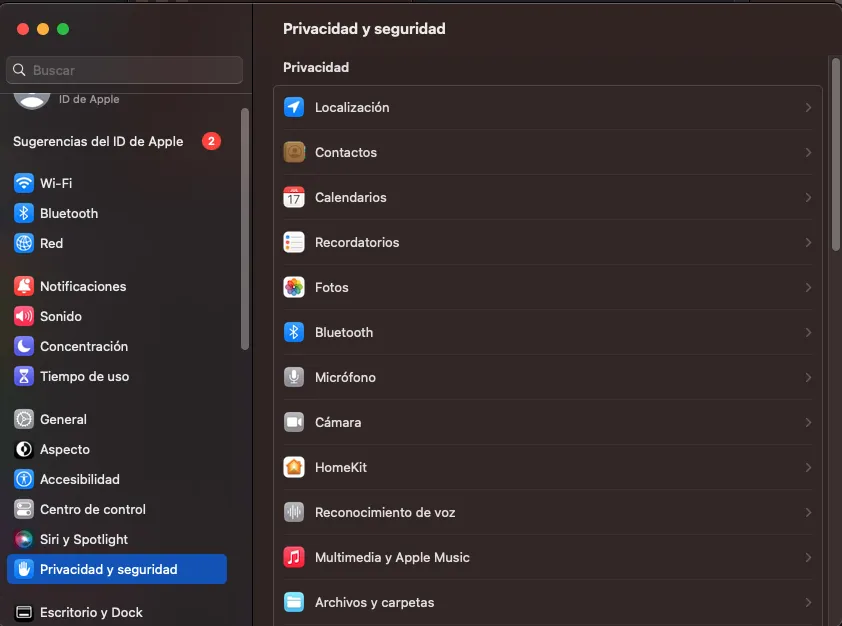
-
In the list on the right, turn on the switch for Safari.
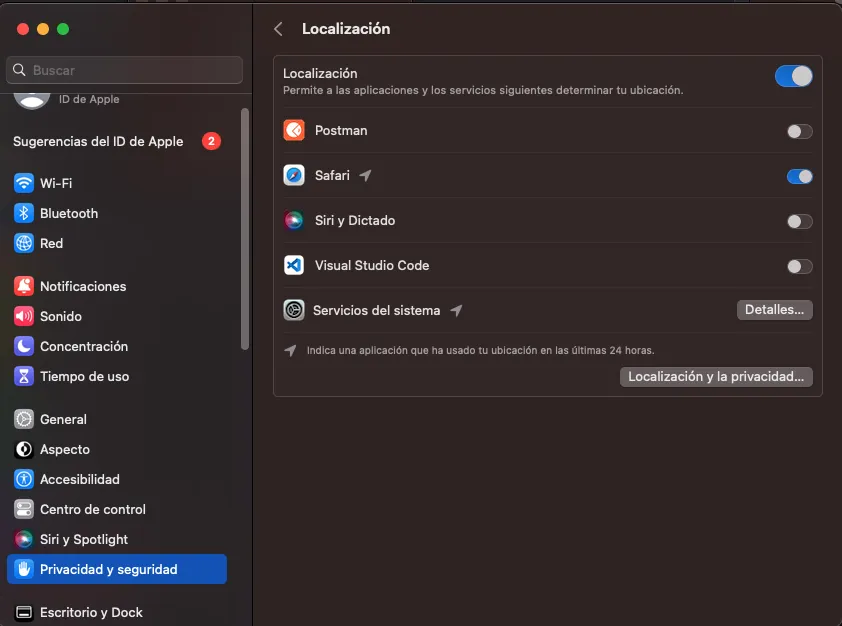
Changelog
Section titled “Changelog”0.1.4 (2024-02-19)
Section titled “0.1.4 (2024-02-19)”Added
- New method to determine whether the browser is running in incognito mode.
0.1.3 (2023-12-18)
Section titled “0.1.3 (2023-12-18)”Added
- Cookies to better identify the device.
Changed
- Improved browser detection (Opera and Brave).
0.1.2 (2023-10-26)
Section titled “0.1.2 (2023-10-26)”Changed
- Improved error handling.
- Improved detection of Windows versions.
0.1.1 (2023-07-21)
Section titled “0.1.1 (2023-07-21)”Changed
- Obfuscated SDK.
0.1.0 (2023-02-22)
Section titled “0.1.0 (2023-02-22)”Added
- First version of the Web SDK.
Was this page helpful?
Thank you. We will use it to improve the documentation. If you want to tell us what is missing or unclear, write to support@ironchip.com.