

Metrics dashboard
This guide covers the fraud monitoring dashboard (Grafana): how to sign in, set time ranges, sort and filter the lists, look up transactions and users, review historical totals, and download data.
General panel
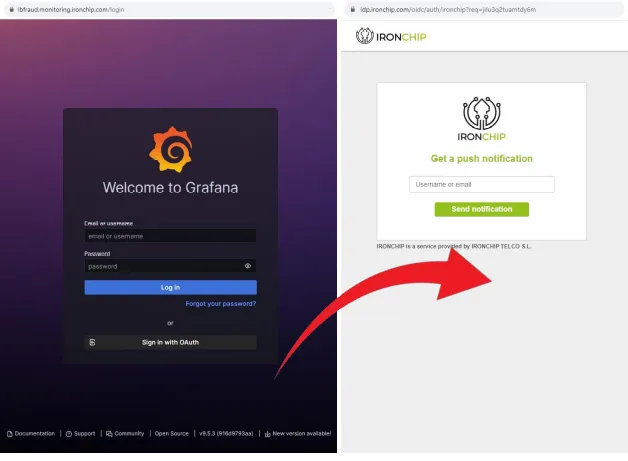
Section titled “General panel”Sign in to the monitoring platform at https://lbfraud.monitoring.ironchip.com/login with Sign in with OAuth, or with a username and password enabled by Ironchip.
After you sign in, the general panel lists all transactions related to the login operations that users perform on the customer’s platform. The dashboard treats each login as an event called a transaction. The list has these columns:
time: date and time.transaction: transaction.risk: risk alert.user: user.device: device.city: city of operation.region: region of operation.location_type: location type.extra_data: provision-validation.user_sz: safe zone.
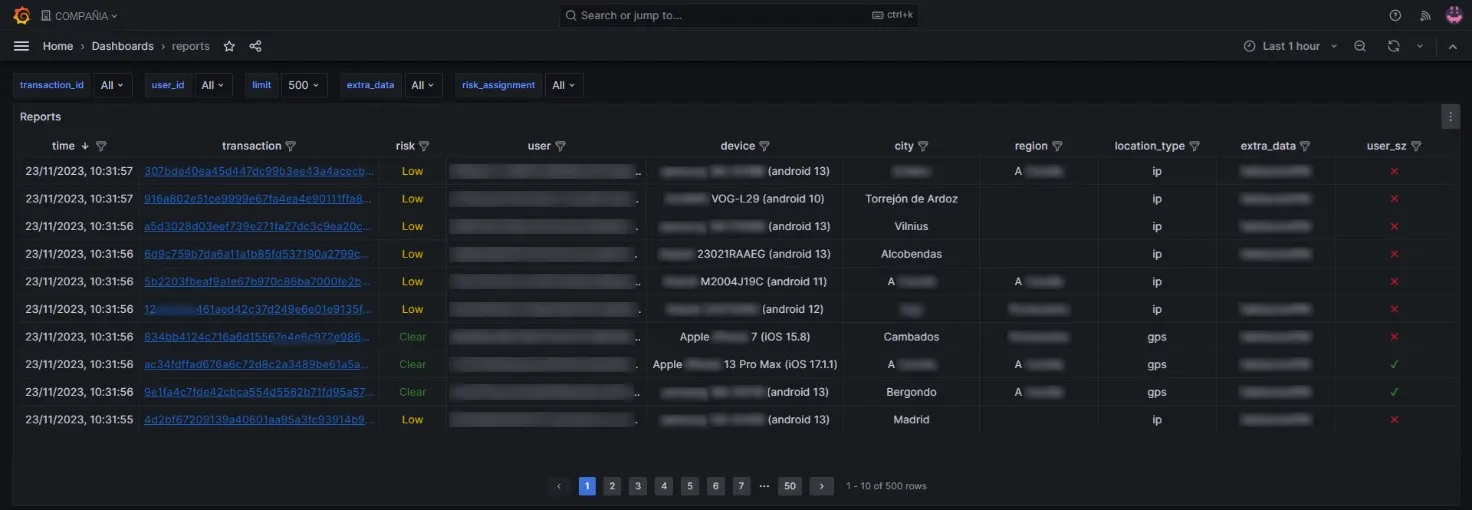
Row pagination is at the bottom of the list. By default it shows a maximum of 500 rows, based on the processed data.
Scroll down to see charts with the number of transactions by device (device) and by user (user).

Below the charts is a map showing the location of each listed transaction.
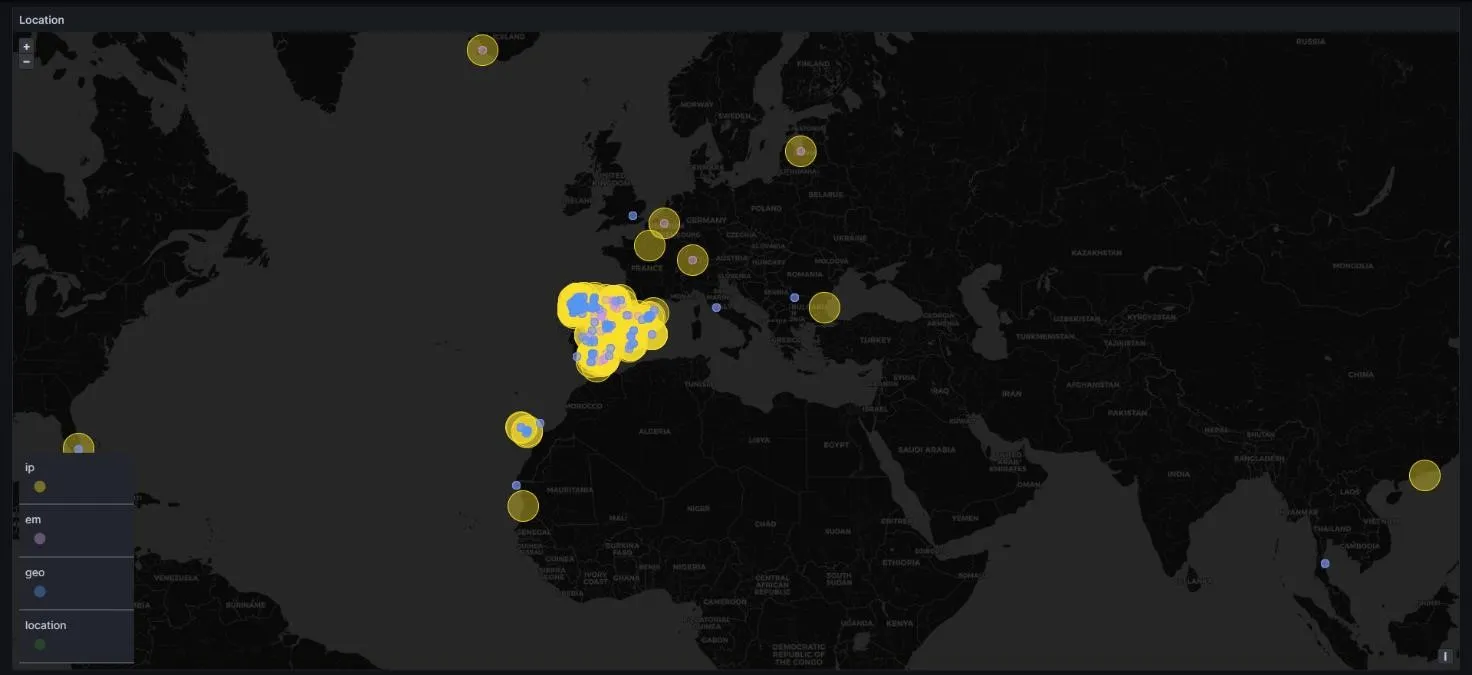
The number of identification parameters for each location depends on the information the devices provide. The dashboard uses IP data, GEO data, and electromagnetic waves (em) such as GPS, Wi-Fi, or WCDMA, according to the permissions users enable on each device.
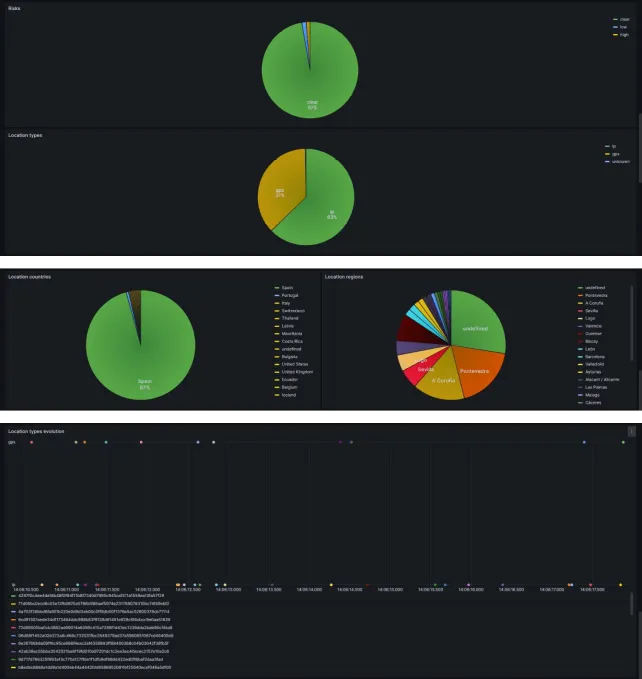
At the end of the panel, statistical charts help you analyze the data:
- Risk alerts (
risks). - Location types (
location types). - Locations by country (
location countries). - Locations by region (
location regions). - Evolution of location types over time (
location types evolution).
Set the time range
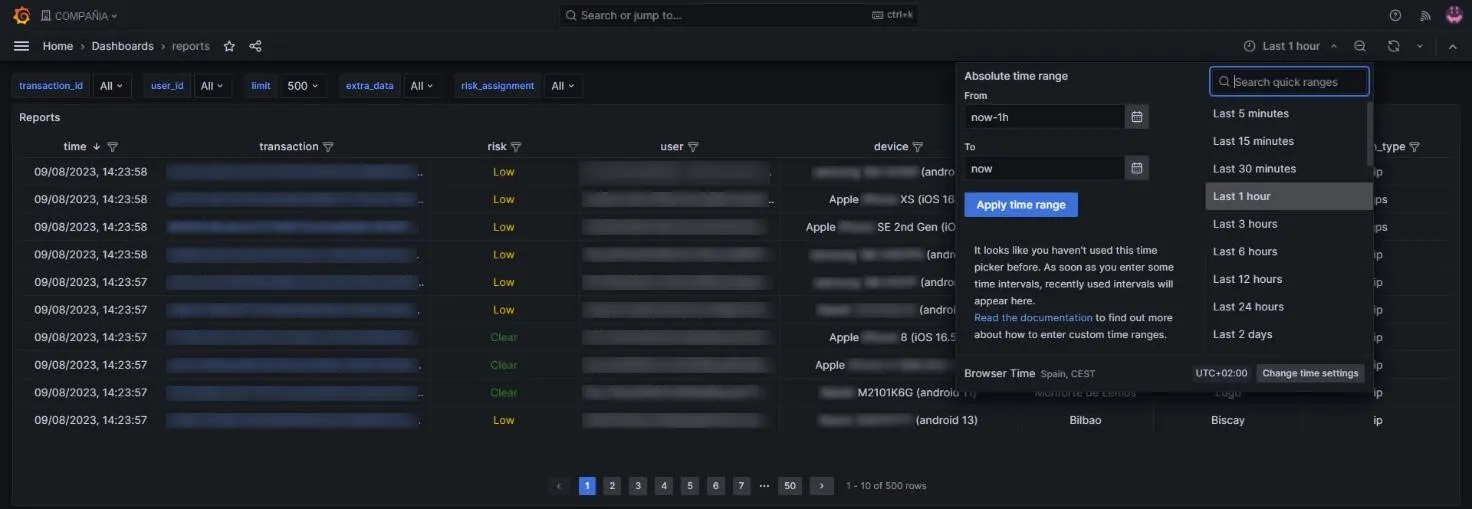
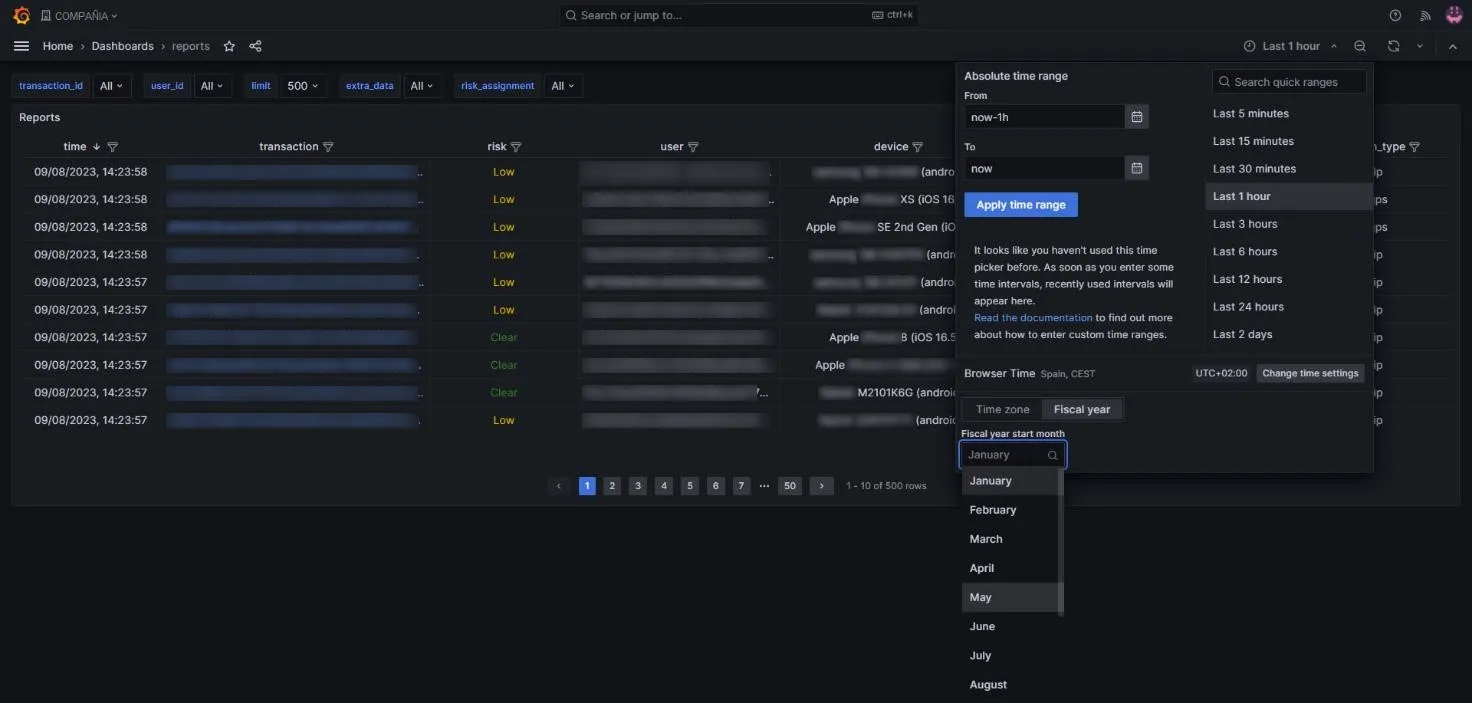
Section titled “Set the time range”The list shows the transactions in the selected time period. To change it, click the clock icon at the top right of the general panel. The field shows Last 1 hour by default.

-
Click the Search quick ranges field to pick a predefined range. Ranges go from the last 5 minutes (Last 5 minutes) up to 5 years (Last 5 years), and include options such as Previous month, This week, and This fiscal quarter.
-
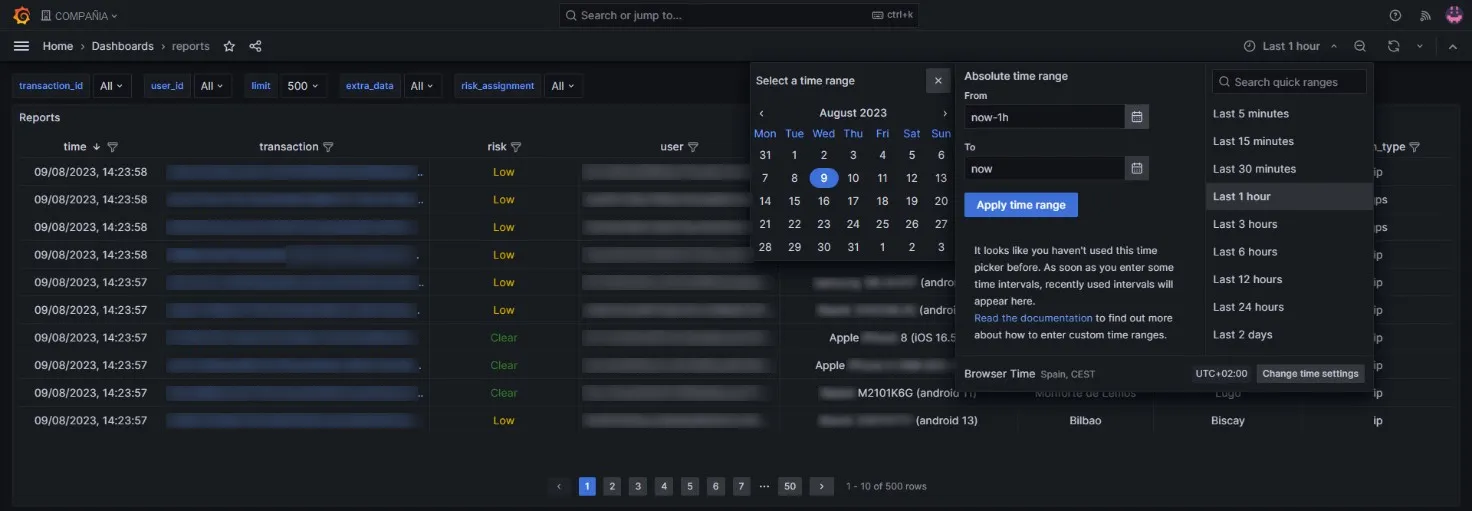
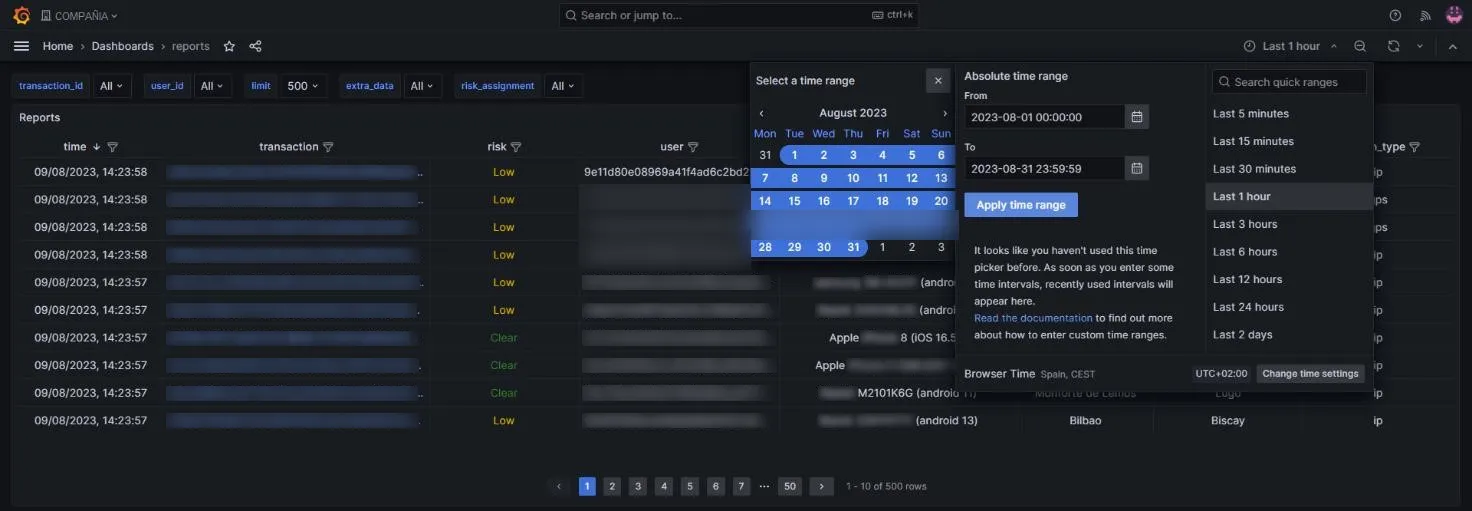
For a specific period, use Absolute time range: click the start date and then the end date.
The start date begins at 00:00:00 by default and the end date ends at 23:59:59, so the whole interval between the two dates is covered.
-
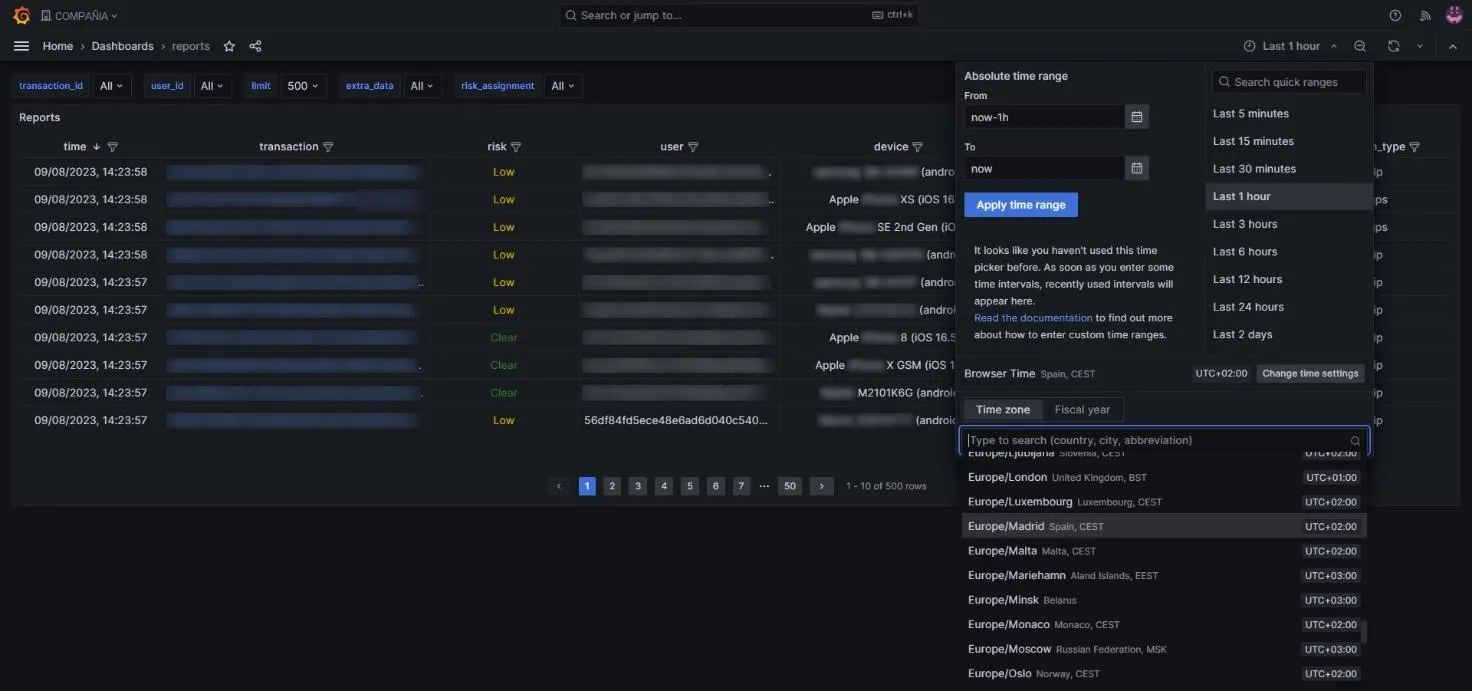
At the bottom left, click Change time settings to adjust two options:
-
Time zone: the local time zone of the country or region you want to use as a reference.
-
Fiscal year: the month the fiscal year starts, which sets when fiscal periods (years or quarters) begin.
-
Refresh the data
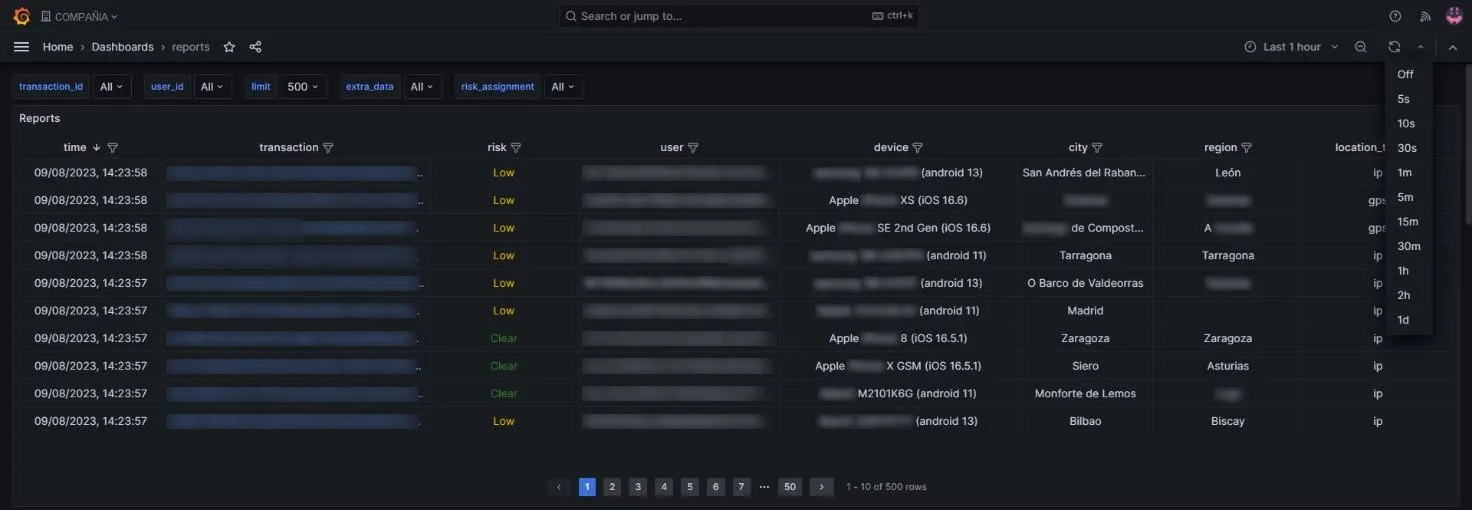
Section titled “Refresh the data”These settings apply each time you click the refresh button at the top right of the general panel.

Expand the button to refresh the lists automatically at the interval you choose, from a minimum of 5 seconds (5s) up to 1 day (1d).
Sort and filter
Section titled “Sort and filter”To sort the list, click a column header. For example, you can sort the time column in descending order (most recent transaction first) or ascending order (oldest first).
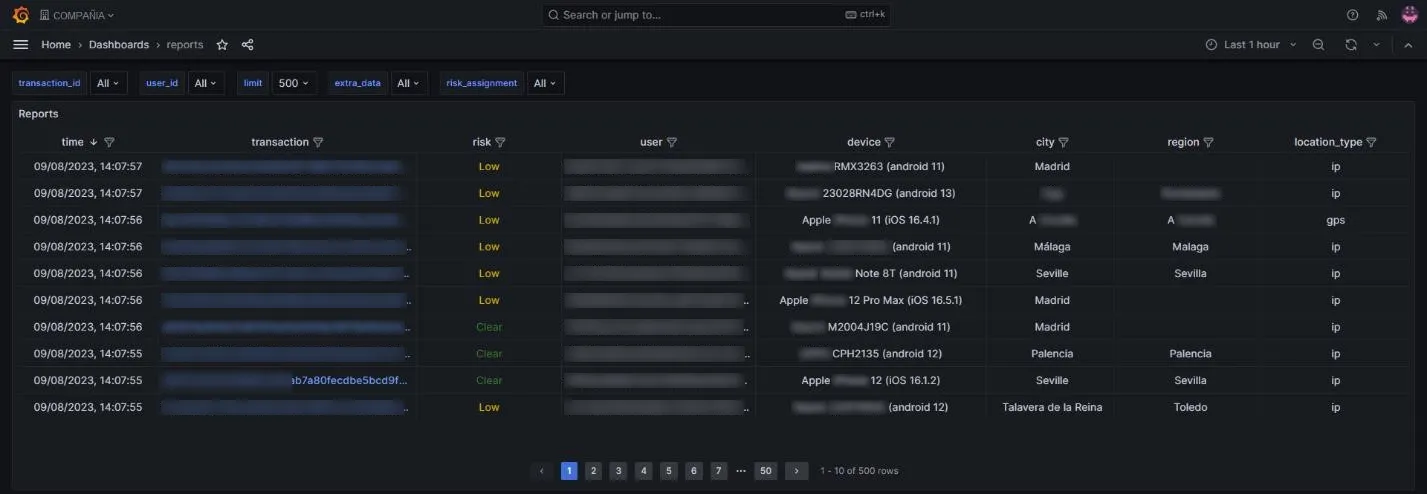
You can sort by the header of any other column in the same way.
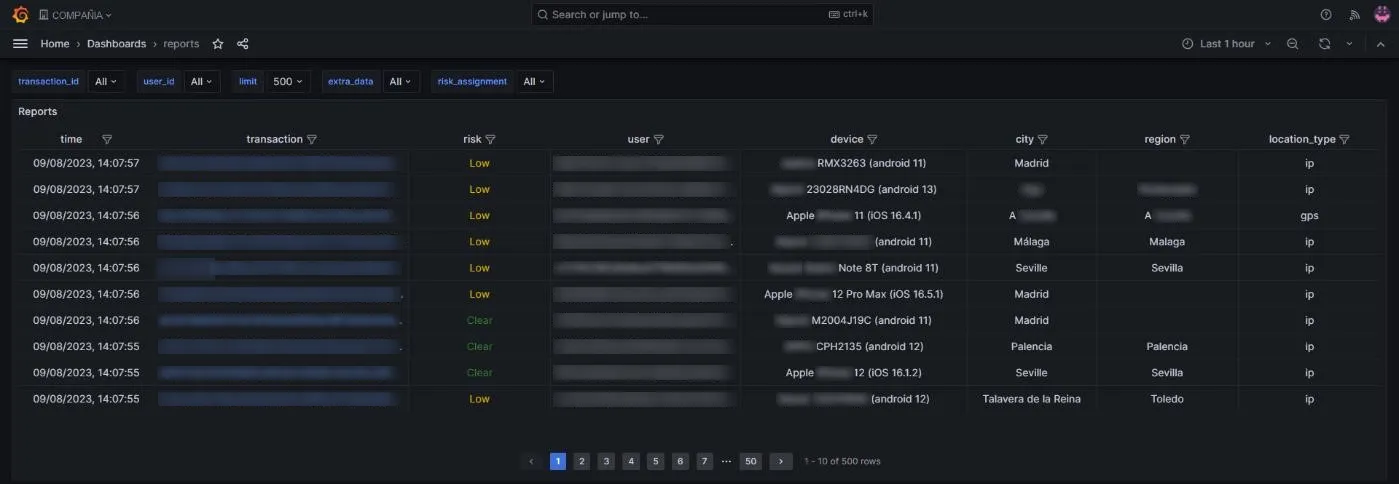
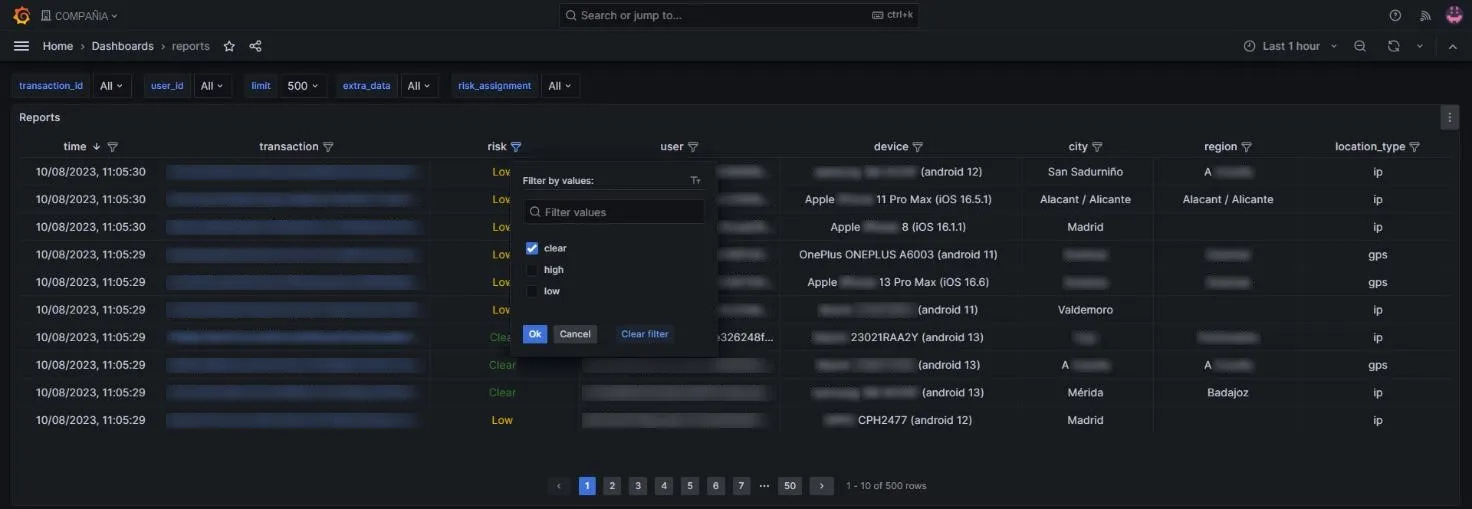
To filter a column, click the filter button to the right of the header name.

The filter window lets you enter a search term (Filter values) or select several values from the available data.
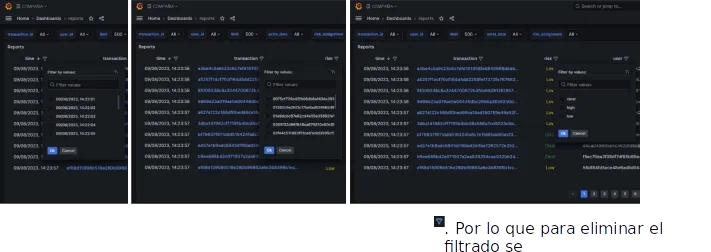
An active filter is shown with the filter icon highlighted in blue. To remove it, clear the selected checkboxes and click Ok, or click Clear filter.
Look up transactions and users
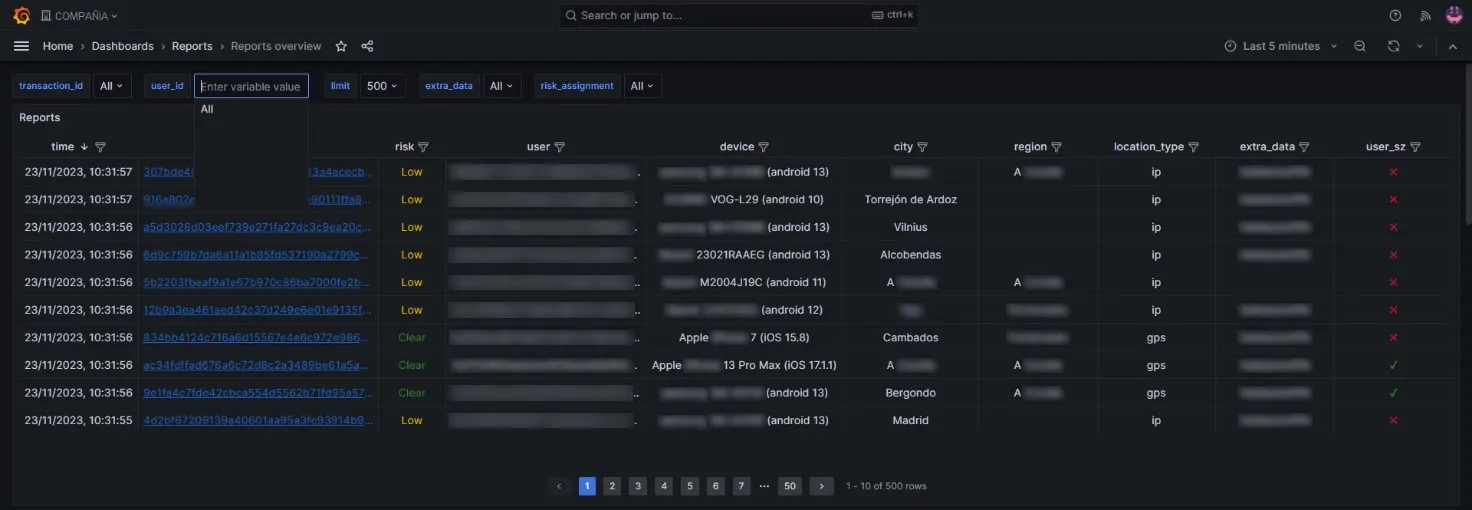
Section titled “Look up transactions and users”The general panel can show the list for a specific transaction or user. At the top left, enter the transaction ID or the user ID you want to look up.
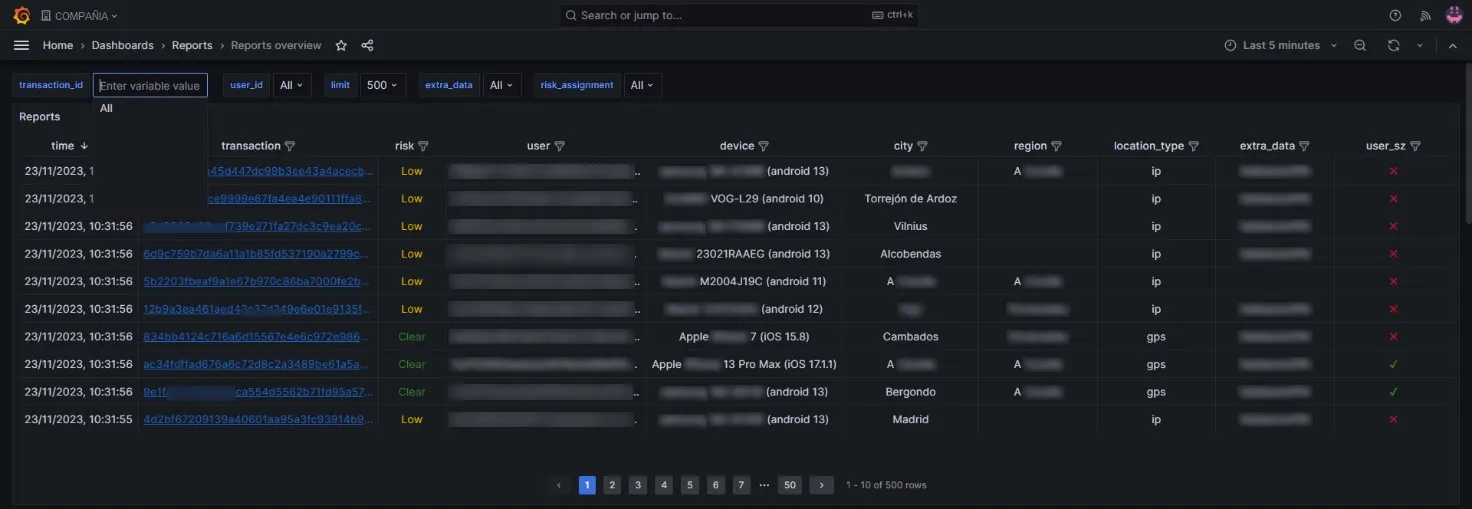
If you look up a transaction, the list shows its ID in the transaction column along with its related items.
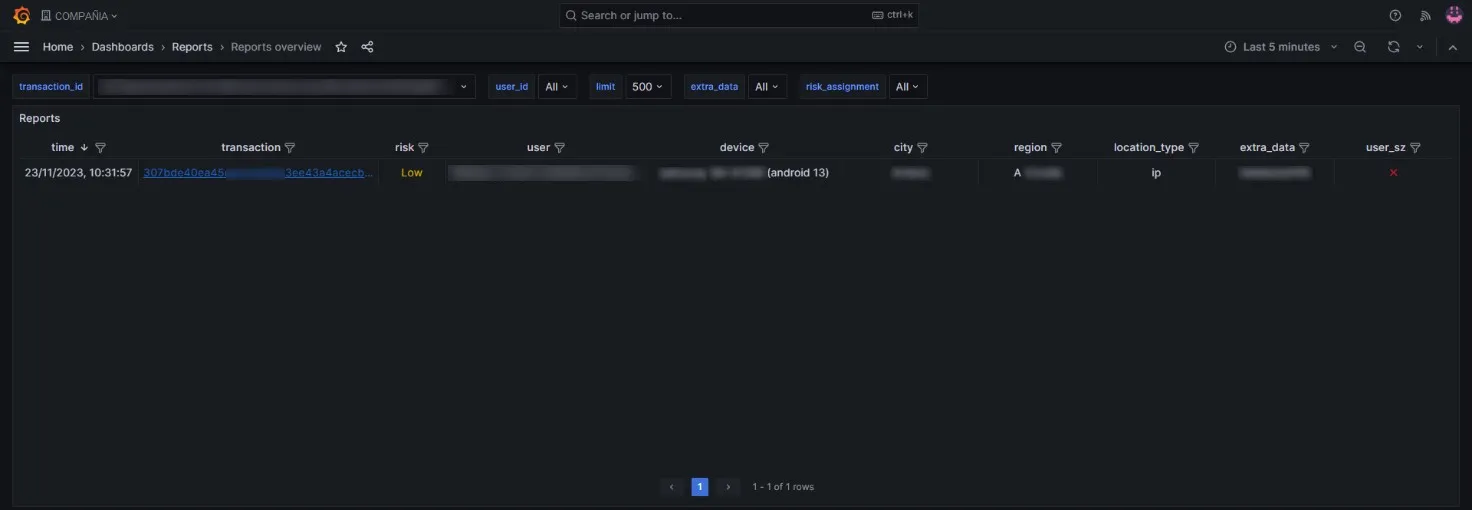
A user can have several transactions within a period of time, but a transaction is generated at a single point in time.
If you look up a user ID, the list shows that ID in the user column along with its related items.
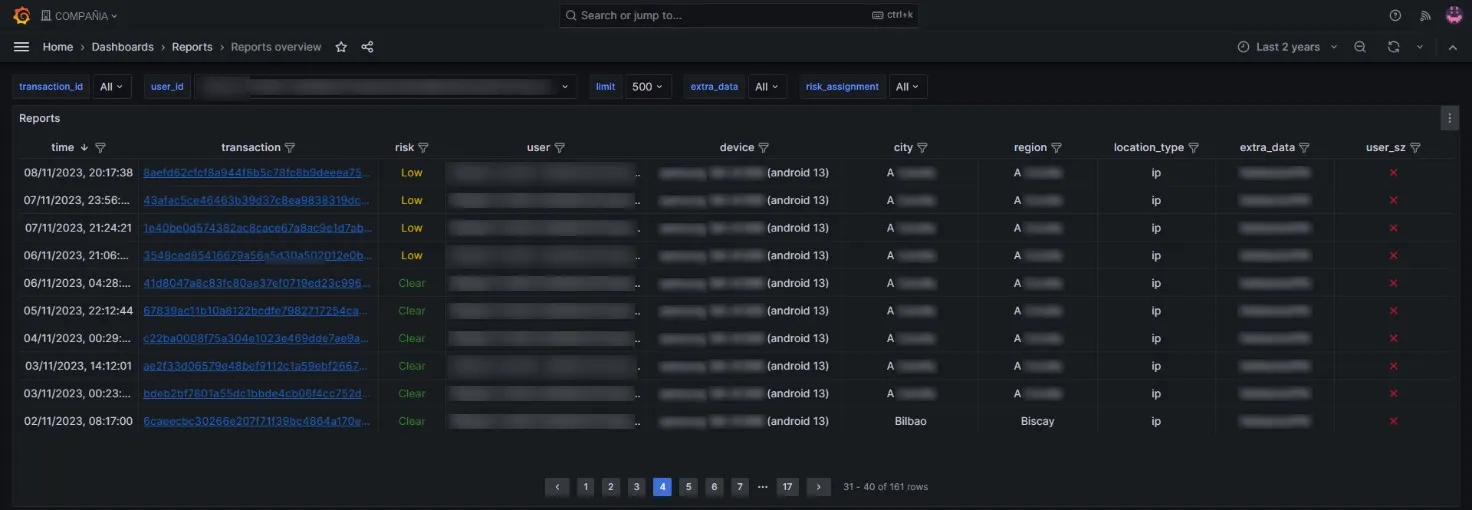
As you scroll down, the information below relates specifically to that transaction ID or user ID.
Copy an ID
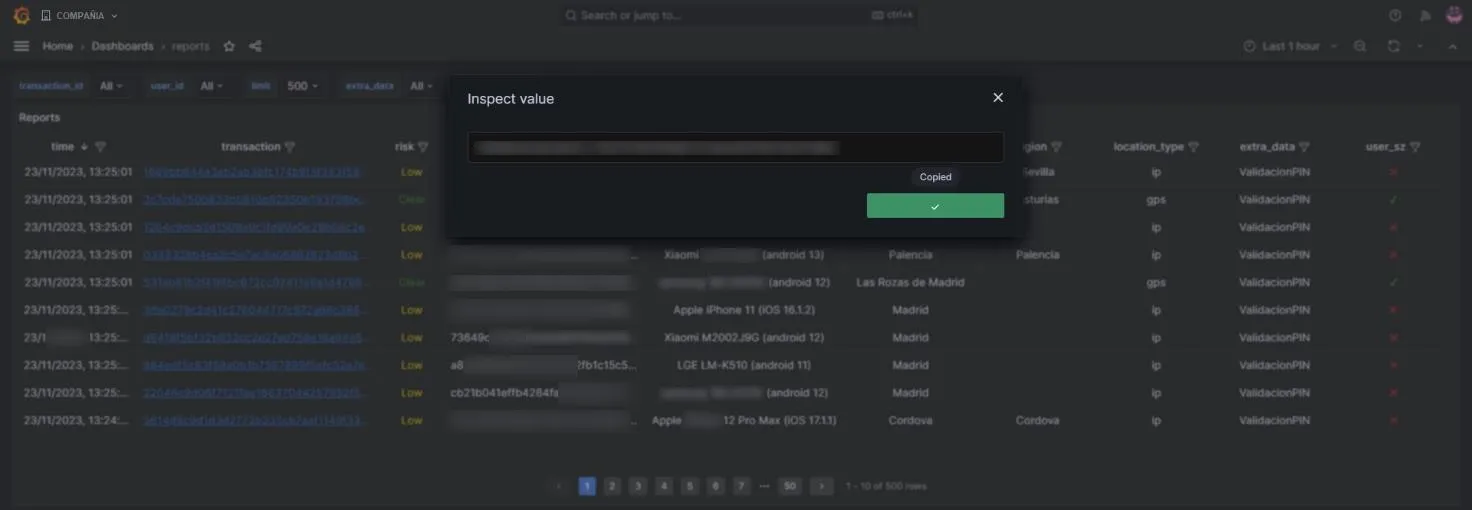
Section titled “Copy an ID”To copy an ID, hover over any item in the list. An eye icon appears. Click it to open the Inspect value window, and then click Copy to Clipboard.

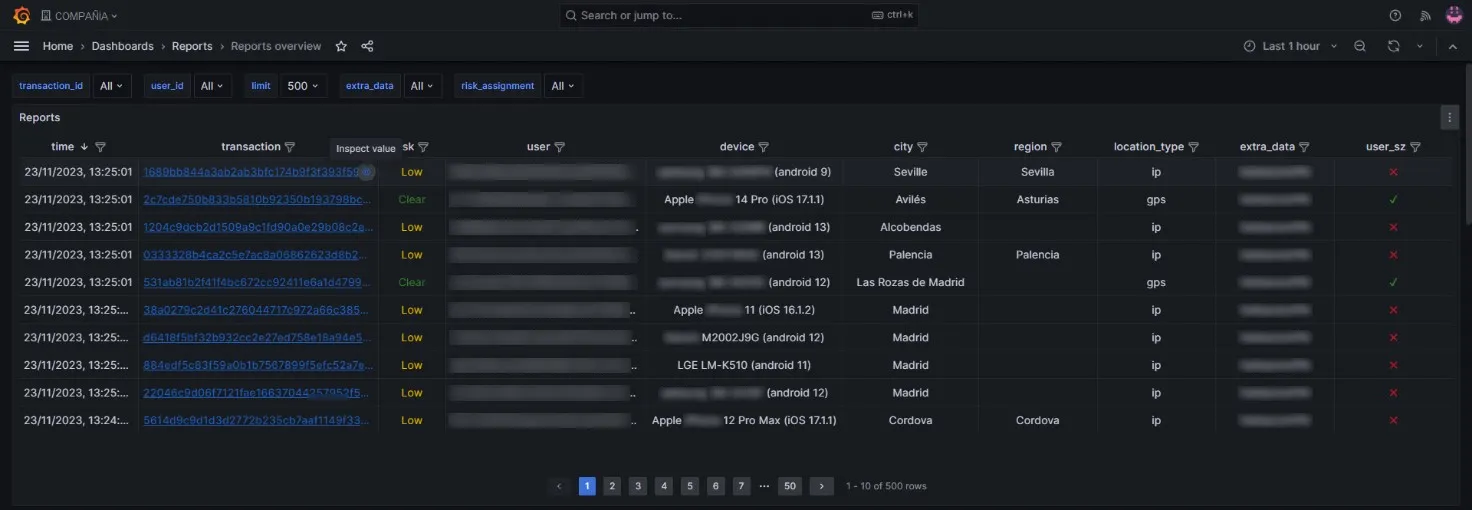
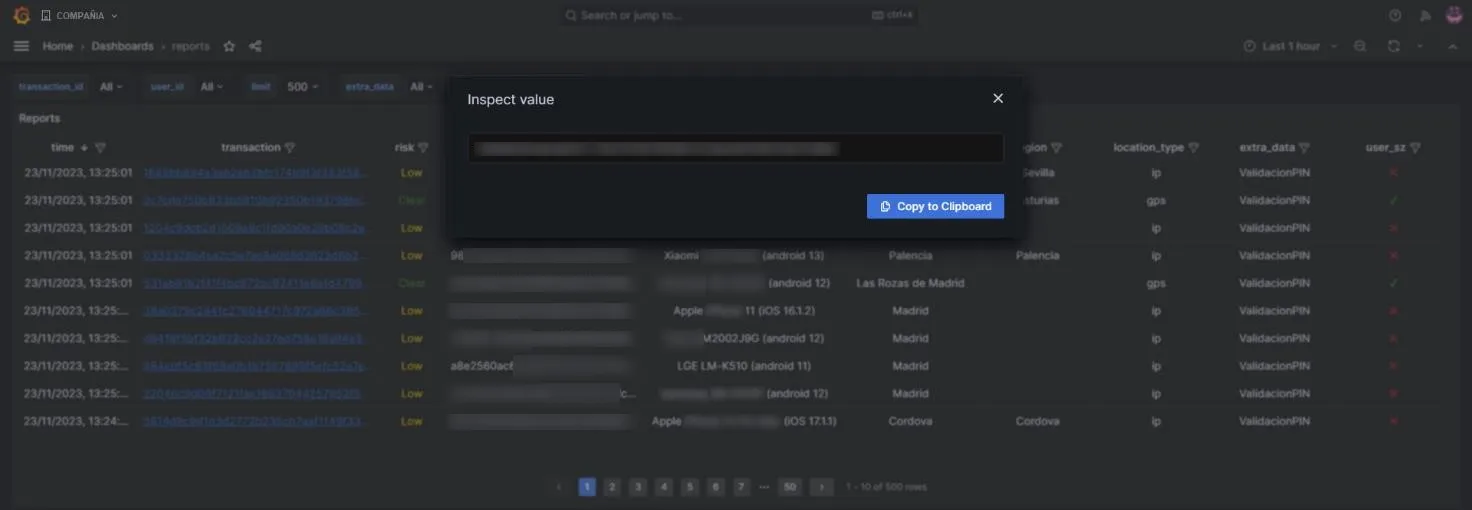
Transaction limit
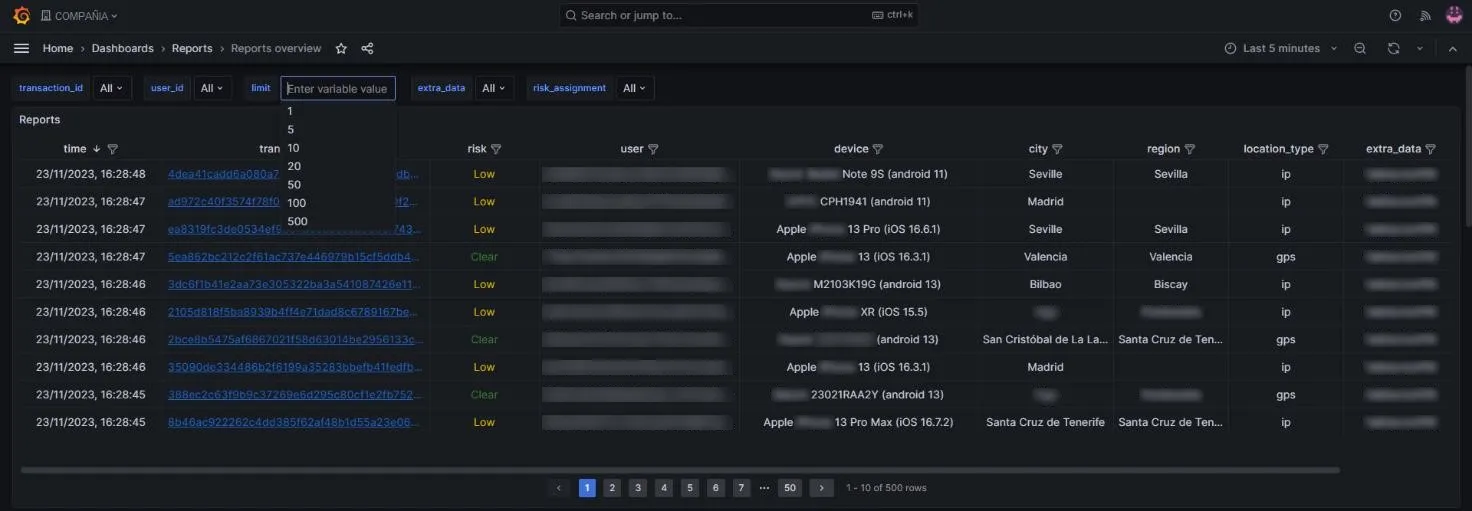
Section titled “Transaction limit”The third field in the top bar is limit, which sets how many transactions are listed. It accepts values from 1 to 500 and defaults to 500, so the panel lists at most 500 transactions.
Combine the time period (see Set the time range) with the number of transactions to display to get all the transactions of a user.
View transaction details
Section titled “View transaction details”Click a transaction to open a view with its attributes.

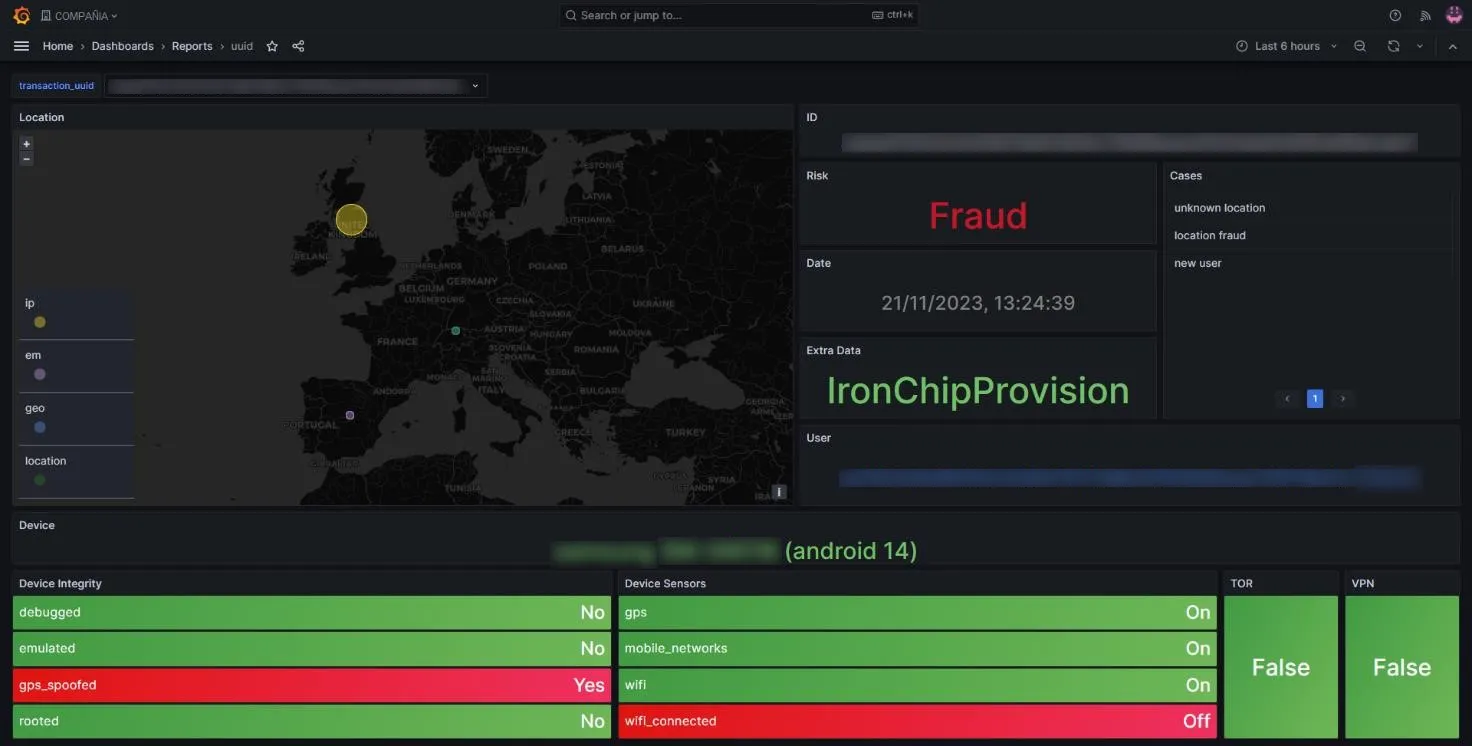
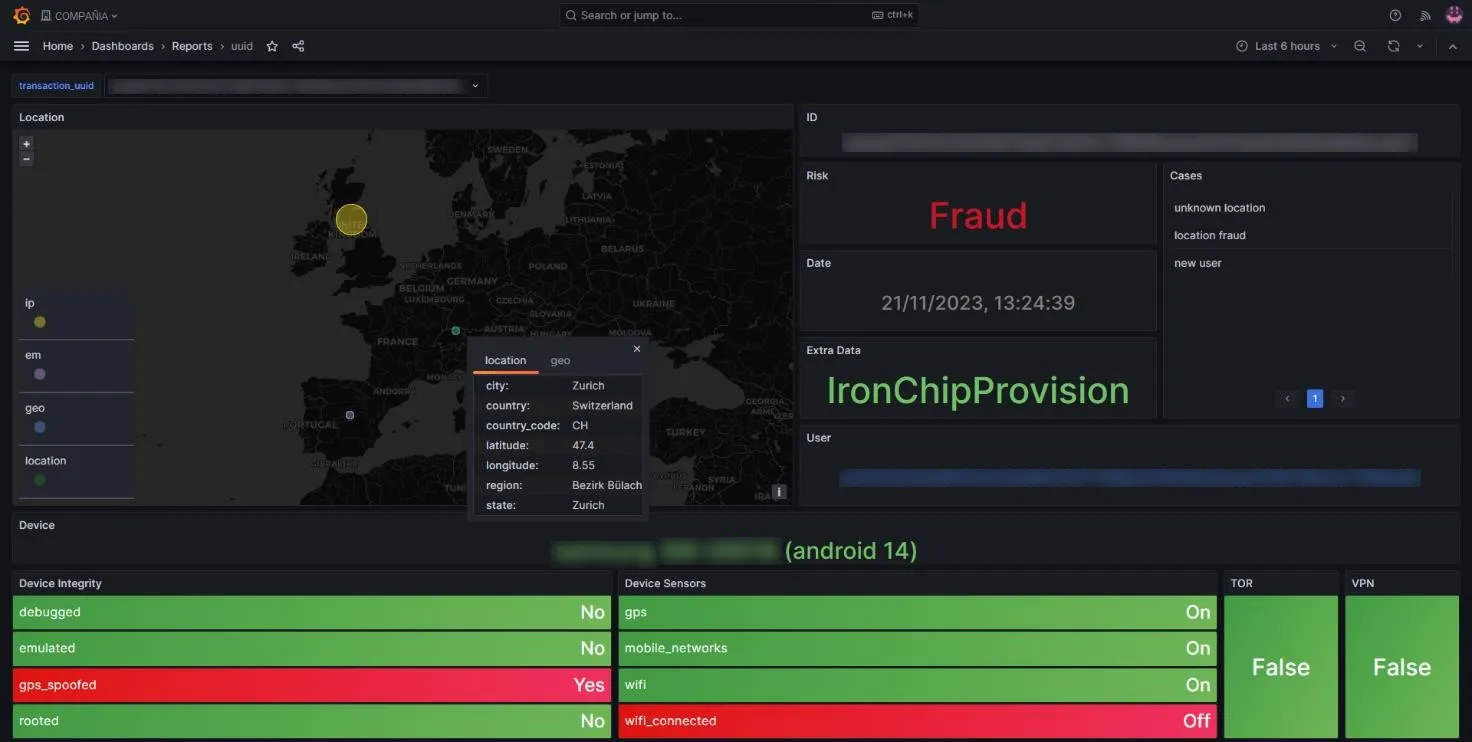
On the right you see the transaction ID, the fraud alert (Risk), the date (date), the cases associated with the fraud alert (Cases), provision-validation (extra_data), and the user ID. At the bottom you see the device information (Device), the status of its characteristics or integrity (Device Integrity), and the status of its connection sensors (Device Sensors).
The map is interactive: click any of the location circles to see the data for that location.
Historical consolidated panel
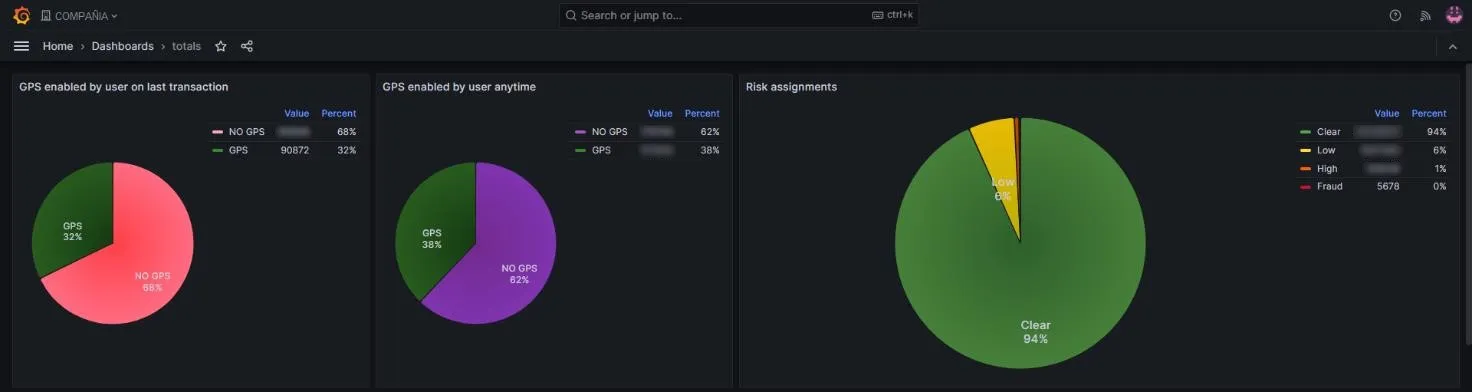
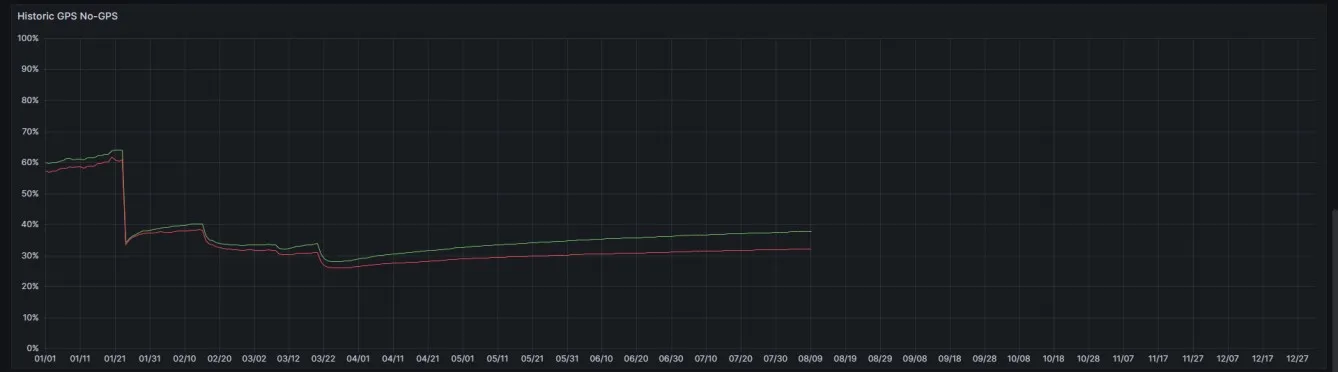
Section titled “Historical consolidated panel”This panel shows statistics for all transactions, from the first one ever generated up to the day of the query. It includes everything from the number of fraud alerts by risk level to the regions with the most interactions.
-
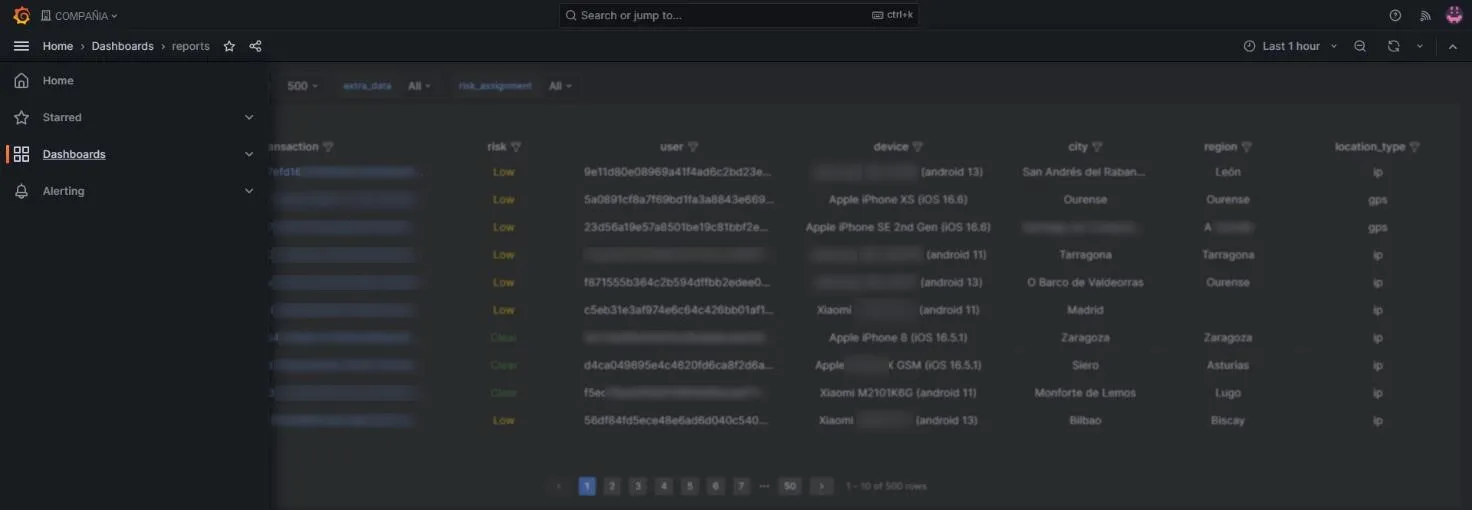
Click the menu button at the top left.

-
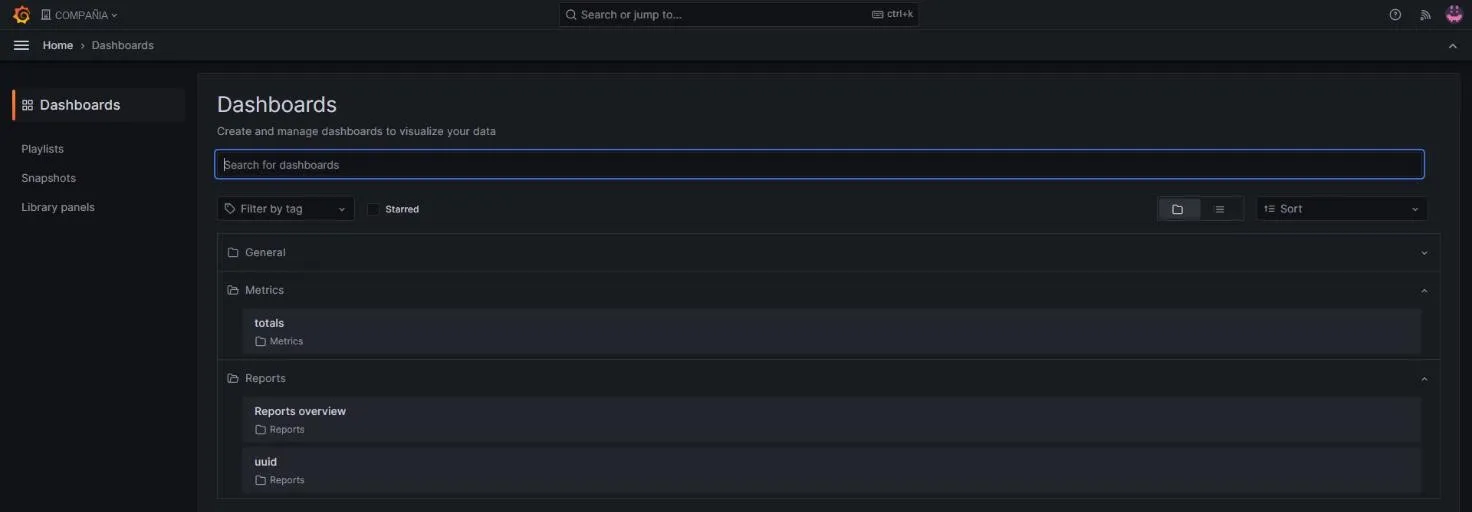
Go to the Dashboards section.
-
Expand the Metrics folder and click the totals dashboard.
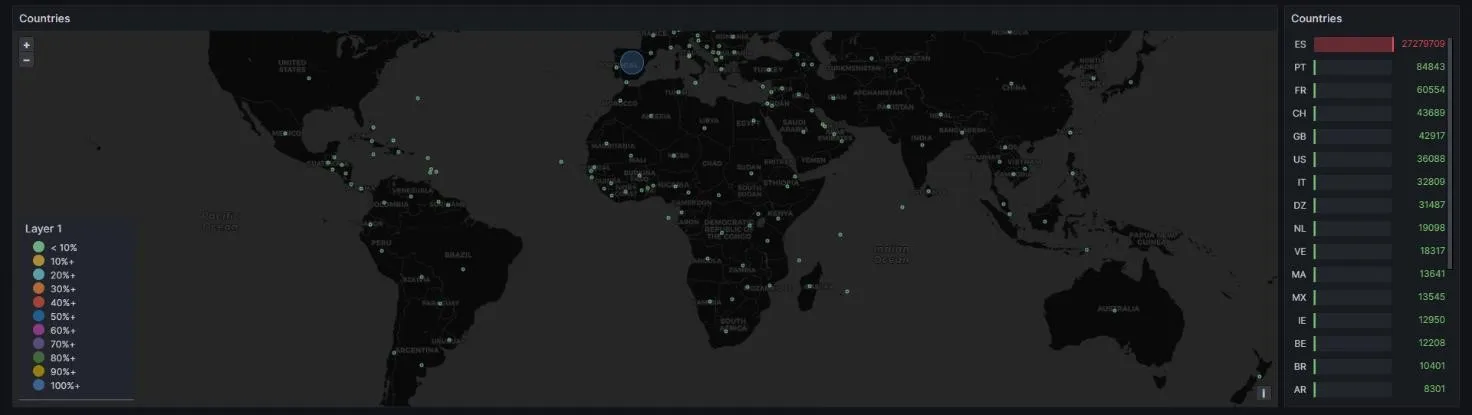
Each section of the panel shows charts of the processed data: pie charts for percentage shares, line charts for historical trends, and scatter plots for geographic locations.


Download data
Section titled “Download data”You can generate a data report from each module of the dashboard, in both the general panel and the historical consolidated panel.
-
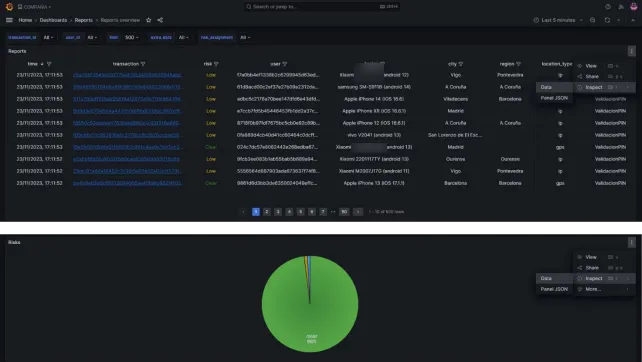
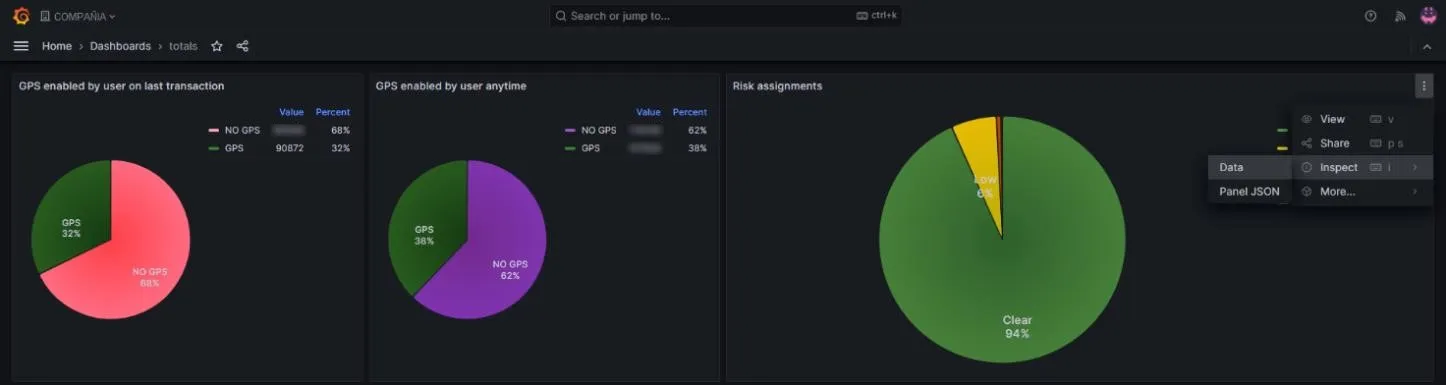
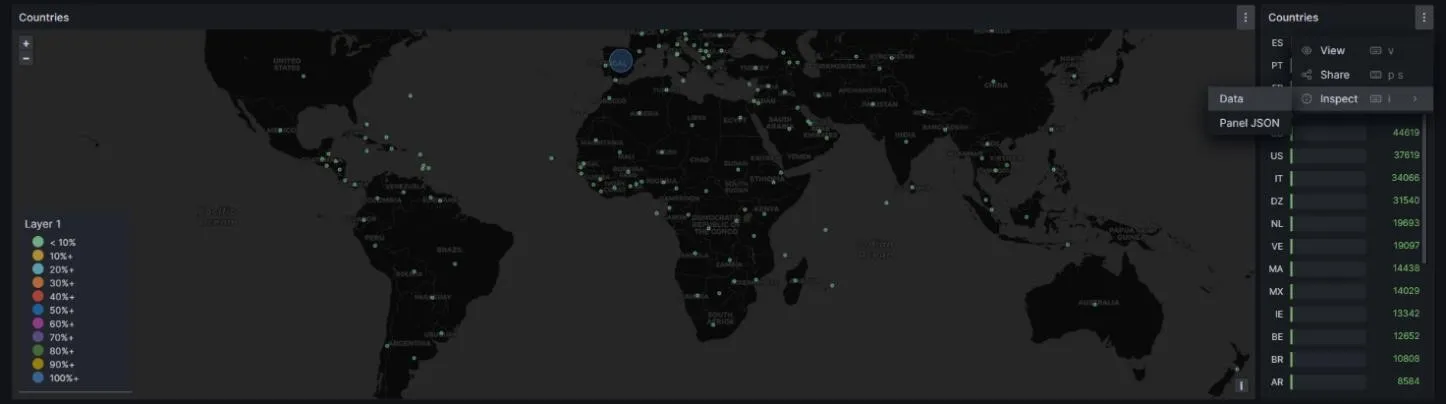
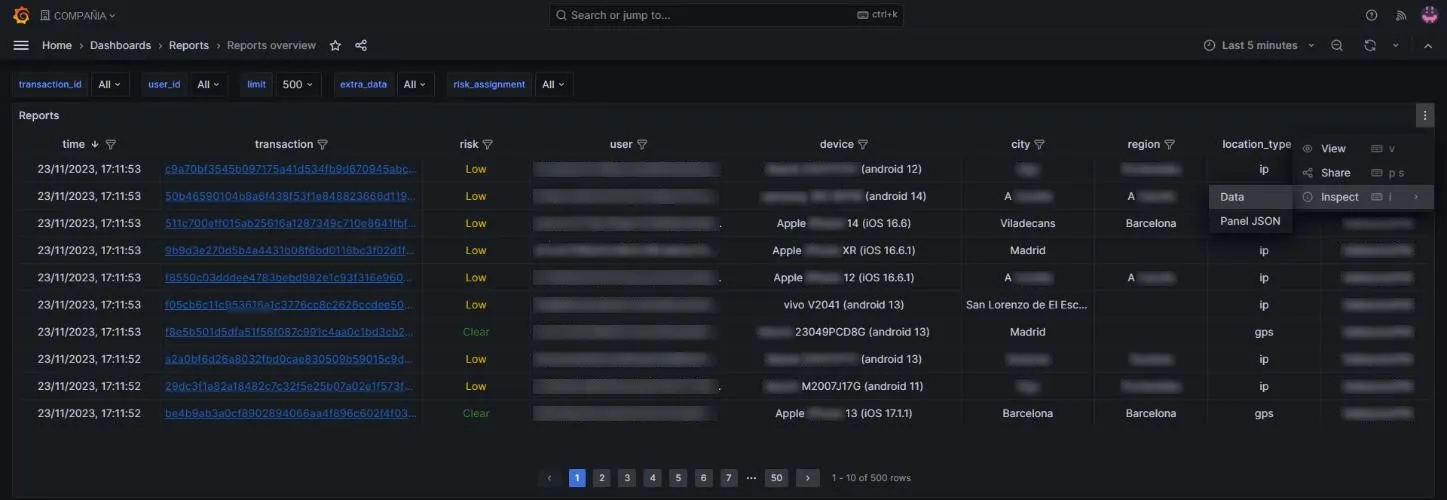
Hover over the module and click the three-dot button at its top right.

-
In the menu, click Data in the Inspect section. These are examples with some modules:
-
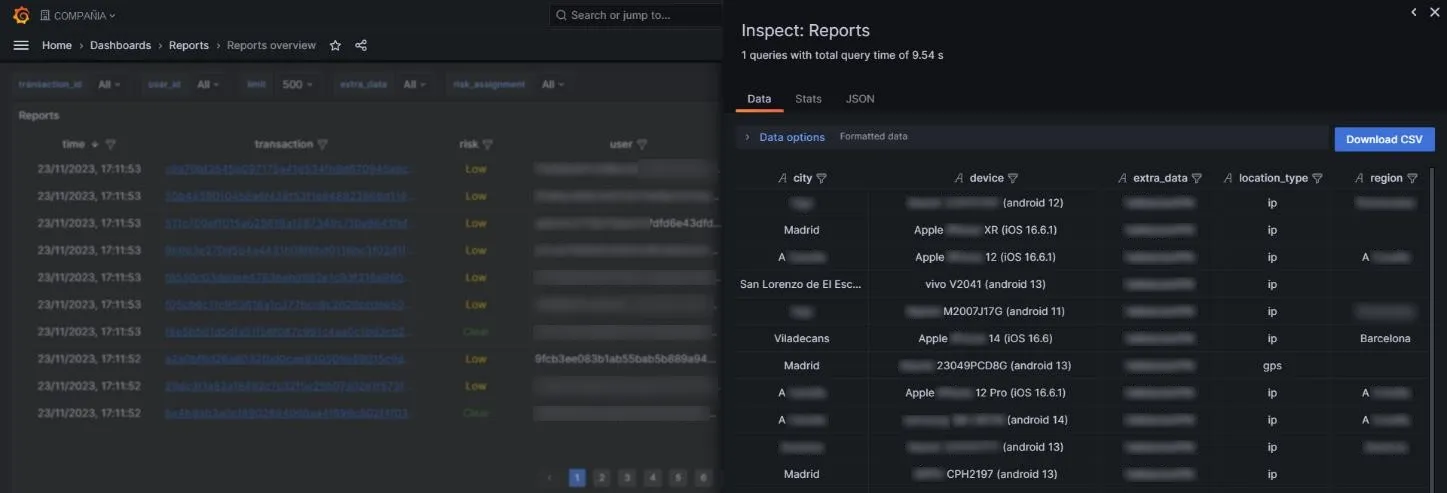
A window opens with the Data subsection.
-
Click Download CSV at the top right to download the information as a
.csvfile.
Was this page helpful?
Thank you. We will use it to improve the documentation. If you want to tell us what is missing or unclear, write to support@ironchip.com.