![01_1-ironchip_logo_articulación horizontal_ppal.png]](https://7745202.fs1.hubspotusercontent-na1.net/hubfs/7745202/01_1-ironchip_logo_articulacio%CC%81n%20horizontal_ppal.png)
Pulse Secure Configuration
Create Authentication Server
-
Log in as an administrator to Pulse Secure.
-
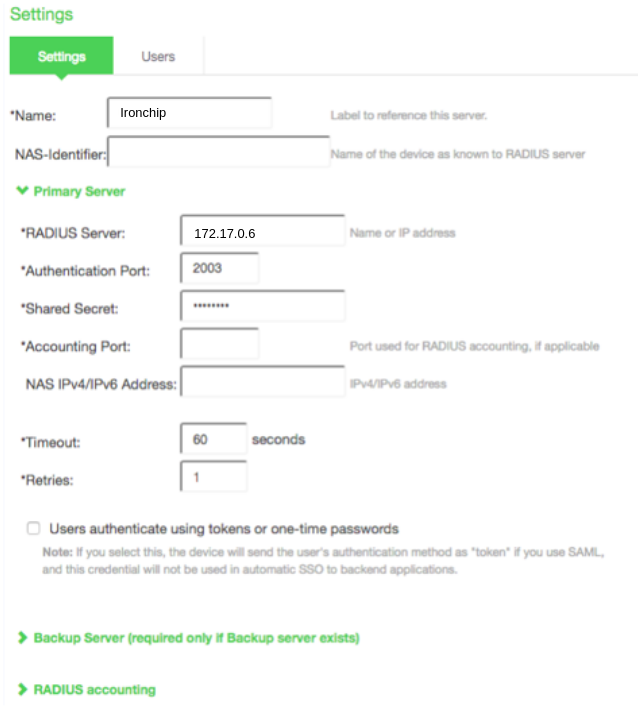
In the Authentication tab > Authentication Servers > New. Create a new server to perform authentication and enter the values, as in the following image.
-
The backup server can be created if if required and ignore RADIUS accounting section.
-
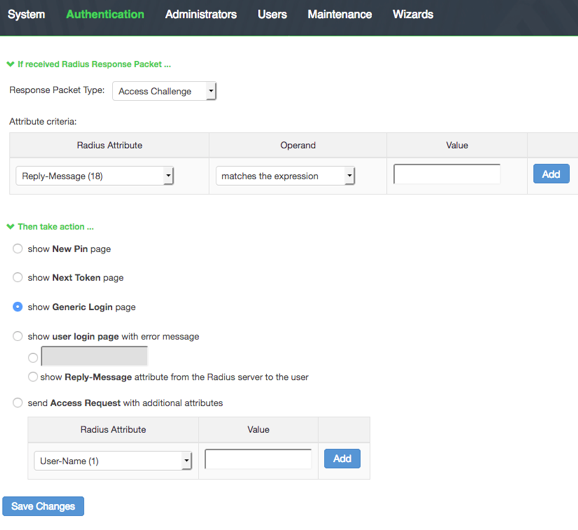
A new RADIUS rule will now be created in the Custom RADIUS Rules section by clicking on New RADIUS Rule. A new window will appear, in which you have to enter the following data as in the following image.
-
Save Changes and ignore any warnings that appear.
-
Save Changes again for the authentication server.


Create User Realm
-
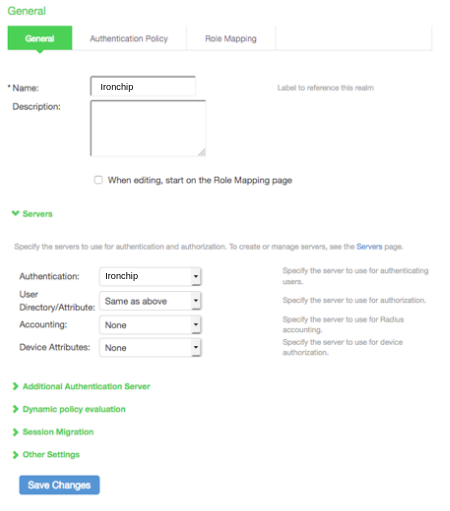
In the Users tab > User Realms > New. Define a new authentication realm and enter the values, as in the following image.
-
Save Changes.

Optionally, the Role Mapping can be configured. The following screen appears:

Using this configure role assignments based on user attributes. In addition, you can rely on the advanced RADIUS configuration for dynamic roles for roles.
Sign-in Policies
-
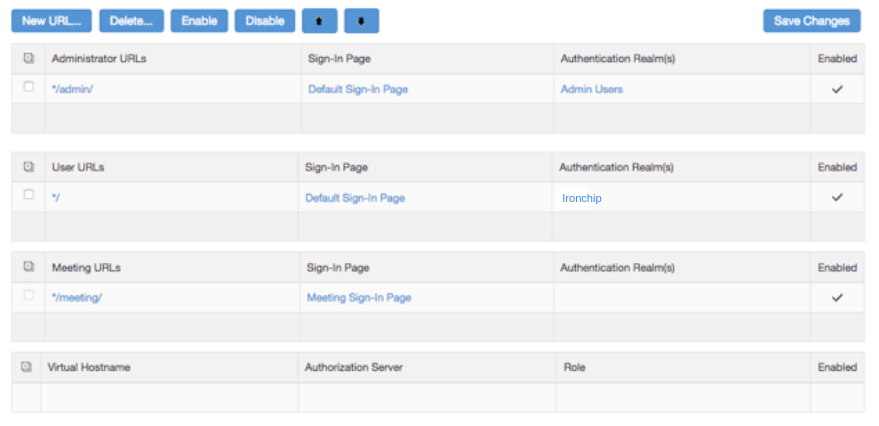
In the Authentication tab > Signing In > Sign-in Policies.
-
Identify the Policy and click on the URL to confirm/edit your selected domains.
-
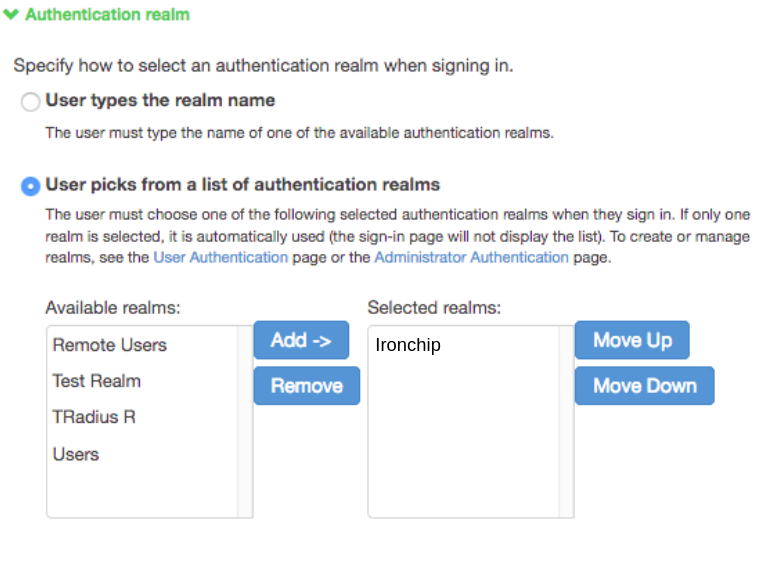
Open policy detail page’s Authentication realm section .